
Introduction
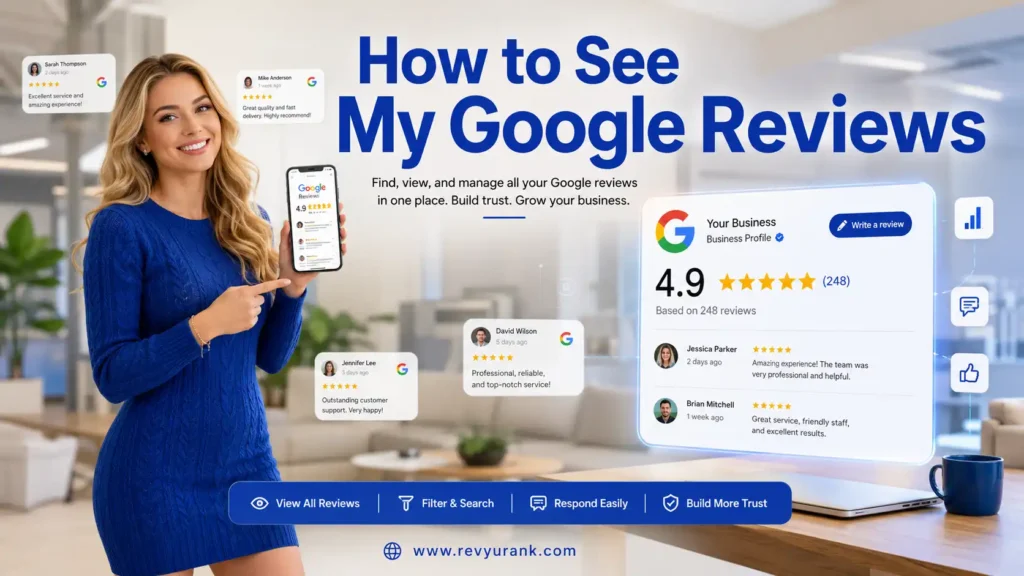
If you have ever asked, “How do I see my Google reviews fast?” you are not alone. Whether you want to check feedback on your business or find online reviews you posted yourself, the process is simple once you know where to look. Google Maps is usually the easiest starting point, and there are a few other paths on desktop and mobile too. Businesses that actively monitor and manage customer feedback often use RevyuRank to keep track of their online reputation and review performance. This guide walks you through the practical options so you can access reviews without wasting time.
Understanding Google Reviews and Their Importance
Google reviews are a public record of customer experiences. For a business owner, they show what people think, highlight strengths, and point to any area of improvement. They also sit on your Google Business Profile, where future customers often look first.
That visibility gives reviews real weight. They act as social proof, help shape trust, and can influence local search results. For both individuals and businesses, business reviews matter because they affect choices, reputation, and how easily people find you online. The next sections break that down further.

What Are Google Reviews and Who Can Write Them?
Google reviews are comments and star ratings that appear on a business profile inside Google Maps and Google Search. They let people share their experience with a service provider, store, app, or new restaurant. These reviews often become one of the first things others notice when they compare businesses today.
To write them, users need a Google account. That could be the same login they use for Gmail, Maps, or other Google tools. Once signed in, users can leave feedback, rate a business, and sometimes add details from their own user perspective.
Because reviews are tied to a Google account, they can usually be found again later. That matters if you want to revisit old reviews, make updates, or check how your feedback appears on Google Maps.
Why Keeping Track of Your Own Google Reviews Matters
Keeping an eye on your online reviews helps you understand what customers are saying right now. Positive comments can show what is working, while negative feedback can reveal a clear area of improvement. That kind of customer feedback is useful for any business trying to improve service.
There is also a reputation angle. Google reviews matter because many people check reviews before they buy, book, or visit. If you know what appears on your profile, you can respond better and stay aware of how your brand is being seen.
For small businesses, reviews also connect to local SEO. A strong review presence can support visibility in local search results, while staying aware of trends helps you make necessary changes before lower engagement or poor customer service comments affect trust.
How to See Your Google Reviews on Desktop
On a desktop, the fastest route is usually Google Maps. Sign in to your Google account, search your business name, and open the listing. From there, the reviews are typically gathered in one visible area, so you do not have to search each one individually.
You can also use your Google Business Profile dashboard if you manage a business. Both methods make it easier to view Google reviews, track customer feedback, and move through your full list of every review. Here is how each path works.
Accessing Your Reviews Through Google Maps
If you want a direct shortcut on desktop, start with Google Maps. This is the quick way many people use to pull up business reviews without opening extra tools. Search your listing, then move straight to the Reviews tab.
Follow these simple steps:
- Open Google Maps in your desktop browser.
- Type your business name into the search bar.
- Select your listing from the search results.
- Click the Reviews tab and scroll through the left-side panel.
That gives you a readable list of Google reviews in one place. If your goal is to see all feedback on your location, this method works well. It also helps answer the common question about where to find a list of Google Maps reviews on desktop.
Viewing Posted Reviews in Your Google Account Profile
You can also reach review-related areas through your Google account profile. After signing in, click your profile picture and move into the account tools connected to Maps or your business management area. This can help if you prefer starting from your login rather than from a listing search.
For business owners, the more complete path is the Google Business Profile manager. Open your browser, sign in, launch Google Business Manager from the apps menu, and click Reviews from the left ribbon. There you can sort by relevancy, recency, and rating.
So, can you access all your reviews from your Google account profile? In practice, yes, if that profile leads you into the right connected area. It is a useful way to reach Google Maps reviews and manage feedback from one signed-in session.
How to Find Your Google Reviews on Mobile Devices
Yes, you can access your previous Google reviews from your phone. A mobile device gives you two practical choices: use the Google Maps app or open a browser and sign into Google. Both options are built around the same listing and review view.
If you also publish Android apps, Google Play is another place to check product-specific feedback. The steps stay simple on mobile, and search results usually lead you where you need to go quickly. Let’s look at the app method first, then the browser route.

Locating Google Reviews Using the Google Maps App
For most people, the Google Maps app is the easiest option on mobile. It works on Android and iPhone, and the flow is close to desktop. If you are checking reviews for a location, the app gets you there fast while you are on the go.
Use these steps:
- Open the Google Maps app on your phone.
- Enter your business name in the search field at the top.
- Open your location and scroll down the page.
- Tap the Reviews tab to see your Google reviews.
This answers the common question, “How do I find my reviews on the Google Maps app?” If your business also offers Android apps, remember that app feedback may appear separately in the Google Play Store. Maps covers location reviews, while Google Play reviews focus on apps and products.
Checking Your Google Reviews via Mobile Web Browser
If you do not want to use the app, a mobile browser works too. Open your browser, sign into your Google account, and run a Google search for your business name. Once your listing appears, you can move to the review area much like you would on a desktop.
This is handy when you need quick access without switching apps. In many cases, your search results will show the listing panel right away, making the path to Google reviews short and clear. That helps if you are checking feedback while traveling or between tasks.
So, can you see your reviews through a mobile web browser? Yes. As long as you are signed in and can reach your listing, the browser gives you another reliable way to view customer comments and ratings from your phone.
Managing Your Google Reviews
Once you can find your reviews, the next step is managing them well. That may mean updating something you wrote, checking whether feedback is visible, or reviewing comments left on your business through Google Business Profile manager.
There is one important limit to remember. You can edit review content that you posted yourself, but as a business you cannot directly remove customer feedback from your listing. You can, though, flag fake reviews or inappropriate content. The sections below explain the practical parts.
Editing or Deleting Reviews You’ve Written
Yes, you can edit or delete reviews you have written. If you posted feedback for another business, you can return to that review later and make necessary changes. This is useful if your experience changed or you want to correct details in the text.
To manage your own posted review:
- Go to Google Maps and open the contributions panel or your review area.
- Find the review you wrote and open its three-dot menu.
- Choose to edit review text or delete the entry.
If the issue is not your own review but something left on your business, the short answer is different. A business owner cannot remove customer reviews directly. In cases involving fake reviews, inappropriate content, or policy violations, you can flag the review for Google to review.
Ensuring Your Reviews Are Publicly Visible
If you want to know whether your Google reviews are visible to others, start by locating the review from the same listing where it was posted. If it appears under the business review area when you are signed in, that is a good first sign that the post went through.
Still, some online reviews may not appear as expected. The compiled guidance notes that reviews can fail to show for reasons such as off-topic content, conflicts of interest, or other policy-related issues. That means visibility is not only about privacy settings but also about whether Google accepts the content.
A practical check is to view the listing again and confirm the review is publicly visible in the reviews area. If it is missing, review the content for possible issues and remember that Google may limit posts that break its rules.
Advanced Tips for Organizing and Sharing Your Google Reviews
If you want more than a basic list, there are ways to organize Google reviews and ratings more clearly. Google Business Profile dashboard lets business owners sort by rating, relevancy, and recency, while a review aggregator can pull feedback into one place.
That can help if you want to scan trends, compare review quantity across locations, or share strong comments on social media or your website. It also answers a common question: yes, there are practical ways to see ratings and feedback together instead of checking each review one by one.
Filtering and Viewing All Your Ratings and Feedback
To organize your ratings and feedback, start with the tools already built into Google. In the Google Business Profile dashboard, you can filter Google reviews by relevancy, recency, and rating. That makes it easier to spot patterns instead of reading everything in random order.
If you manage more than one location, a review aggregator can go further. The compiled information highlights platforms that connect multiple Google locations and show an “All Reviews” view. That helps when review quantity grows and you need a cleaner overview.
| Tool | What you can do |
|---|---|
| Google Maps | View reviews on a single listing through the reviews tab |
| Google Business Profile dashboard | Sort feedback by relevancy, recency, and ratings |
| Review aggregator | Pull reviews from multiple locations into one organized view |
| Google Play | Filter app reviews by sentiment, time, or device model |
Exporting or Printing Your Google Reviews
If you need a saved copy of your Google reviews, the compiled information does not describe a built-in Google feature specifically for exporting reviews or printing reviews in bulk. What it does show is that third-party tools may help you manage and display reviews in more flexible ways.
A review aggregator can be useful when you want a fuller overview from different sources or locations. These tools are presented as a way to pull business reviews from across the internet, manage them, and display them elsewhere.
Here is the practical takeaway:
- Google gives you strong options for viewing, sorting, and filtering reviews inside its own platforms.
- For broader exporting reviews workflows or shareable records, outside management platforms may offer more flexibility than the standard Google view.
Conclusion
In conclusion, understanding how to see and manage your Google Reviews is essential for maintaining your online presence. By regularly checking your reviews, whether on desktop or mobile, you gain valuable insights into customer feedback that can enhance your business strategy. This not only allows you to engage with your audience but also helps build trust and credibility. Additionally, employing advanced tips for organizing and sharing your reviews can further amplify your reputation. Don’t underestimate the impact of these reviews—start monitoring them today! If you’re interested in optimizing your approach, get a free consultation to learn more about managing your online reputation effectively.
Frequently Asked Questions
How can I check if all my Google reviews are visible?
Sign into your Google account, open Google Maps, and go to the listing where the review should appear. Check the reviews area to confirm it is publicly visible. If one of your online reviews is missing, it may have been limited because of policy-related issues rather than a simple display problem.
Is it possible to view and manage all my reviews from one dashboard?
Yes, if you are a business owner, the Google Business Profile dashboard is the main place to view and manage Google reviews tied to your account. If you want a broader view across locations or platforms, a review aggregator can organize online reviews in one combined workspace.
Can I see my Google reviews on both iPhone and Android devices?
Yes. On either type of mobile device, you can open the Google Maps app, search your business, and tap the reviews area to view Google reviews. If you also manage Android apps, remember that app-specific feedback may appear separately in Google Play rather than in Maps.