
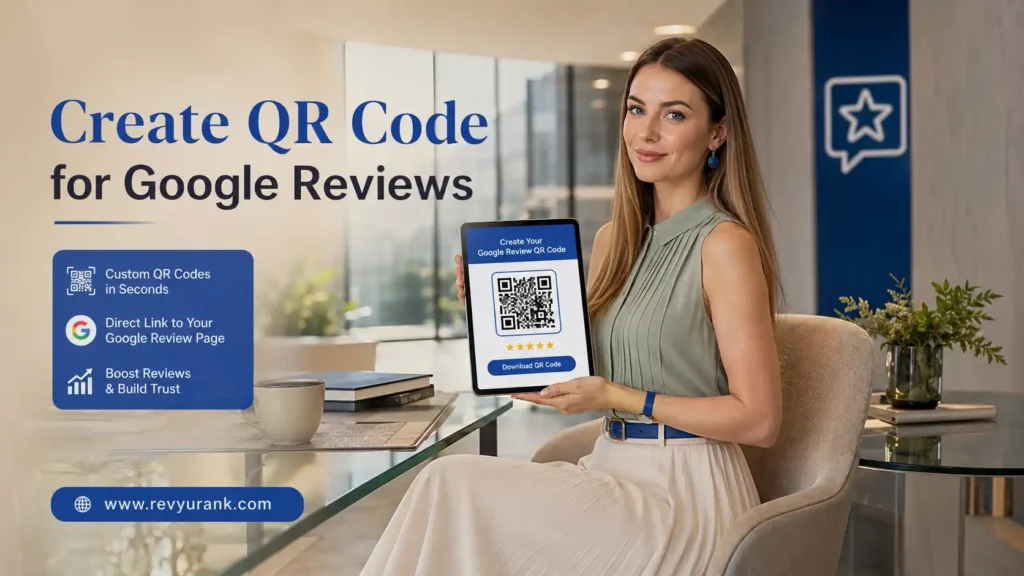
A Google Review QR Code is a scannable code that takes customers directly to your Google review form, making it easier to leave feedback without searching for your business. To create one, first copy your Google Business Profile review link from Google Search, Google Maps, or Business Profile Manager, then paste the link into a reliable QR code generator and create the code.
For the best results, customize the QR code with your business branding while maintaining strong contrast for easy scanning. Always test the code on a smartphone before printing or publishing it. You can place your Google Review QR Code on receipts, business cards, menus, flyers, product packaging, checkout counters, email signatures, and follow-up messages.
A QR code does not guarantee that customers will leave reviews, but it removes unnecessary steps from the review process. Asking customers for genuine feedback at an appropriate time can make the process more convenient and help businesses collect authentic customer reviews more efficiently.
Understanding Google Review QR Codes
A google review qr code connects your customers to a google review link with a quick scan. Instead of asking people to search for your business, open your profile, and find the review section, you give them a direct path.
That small change can make a big difference. It saves time, reduces drop-off, and helps more customers reach the review form while their experience is still fresh. Before you create one, it helps to understand how it works and why businesses use it.
What is a Google Review QR Code and How Does It Work?
A google review qr code is a qr code linked to your review link for your google business account. When someone scans it with their phone, they are sent to your review page so they can leave feedback right away. There is no need to type a long URL or search for your business name first.
The setup is simple. First, get your google review link from your Google Business Profile or by using methods like Google Search, Google Maps, or a Place ID. Then paste that link into a qr code generator. The tool creates a scannable image that points directly to your review form.
So, how do you create a QR code that links directly to your Google Reviews page? You copy your review link, generate the code, save it, and test it before sharing. Once that is done, your customers get easy access in one quick scan.
Why Use a QR Code for Google Reviews in Your Business?
Many customers are willing to leave a google review, but they lose interest if the steps feel slow or confusing. A google review qr code removes that problem by sending people straight to the right page. That makes your business profile easier to interact with.
There is also a reputation benefit. More customer feedback can strengthen your online reputation, help potential customers trust your business, and support better visibility in local search results. Reviews are not just nice to have. They shape how people judge your business before they contact you.
Why use a QR code for Google Reviews in your business? Because it turns a scattered review process into a simple action. You can place the code where customers already interact with you, making review collection feel natural instead of forced.
Benefits of Using QR Codes for Google Reviews
A qr code makes leaving a google review faster for customers and easier for your team to manage. Instead of relying on people to remember your business name or search for the right listing later, you give them a direct route to the review form.
That convenience can lead to more online reviews and better customer reviews over time. It also helps you capture feedback while the experience is still top of mind. The next two sections break down the biggest day-to-day advantages.
Making It Easy for Customers to Leave Reviews
Ease matters. If happy customers need to search, click around, and guess which page is yours, many will stop before they finish. A direct review link inside a qr code shortens that path and makes customer feedback much easier to collect.
Yes, you can use a QR code generator to make it easier for customers to leave Google Reviews. You paste in the review link, create the code, and place it where people can scan it at the right moment. That could be after a meal, at checkout, or when a service is complete.
A simple setup helps because:
- Customers reach the google review form without typing anything.
- Happy customers can respond while their experience is still fresh.
- Your review process feels quick, clear, and convenient.
Increasing the Number and Quality of Google Reviews
When you remove extra steps, more people are likely to follow through. That can increase the number of reviews your business receives, especially from customers who had a good experience but would not search for your page later.
Timing also improves the quality of feedback. A customer who scans right after a purchase, visit, or service call is more likely to leave specific comments. That often leads to clearer positive reviews that feel genuine and useful to future buyers.
What are the benefits of using a QR code to collect Google Reviews? You simplify access, improve response rates, and support your online reputation. Over time, those added reviews can build stronger trust and help your business stand out in local search.
What You Need to Get Started
Getting started does not take much. You need your google review link, access to your business profile, and a qr code generator that can turn the link into a scannable image. Once you have those basics, the setup is quick.
You may also want to think about whether you need a static or dynamic option before you print anything. That choice affects whether you can edit the destination later. First, though, you need to find the correct review page link.
Finding Your Google Reviews Link
You have a few easy ways to get your google review link. The fastest method is often through Google Search. Sign in to the Google account connected to your google business profile, search your business name, open the correct listing, and click “Ask for reviews.” Then copy the direct link from the pop-up.
You can also use Google Business Profile Manager. After signing in, look for the “Get more reviews” box and select “Share review form.” That gives you another direct link you can copy and use right away.
If you want a manual option, use a Place ID method. Search for your location in Google’s Place ID tool, copy the unique place id, and add it to the review URL format. That answers the common question: how do I get the Google Reviews link to embed in a QR code? You pull the exact review page link first, then generate the code.
Choosing a QR Code Generator Tool
Once you have your review link, the next step is choosing a qr code generator. Some tools let you create a free qr code quickly, while others give you more control, such as tracking, editing, and design features. The right fit depends on how simple or flexible you want your setup to be.
A basic tool is enough if you only need a one-tim
e code. If you want scan data or the ability to change the destination later, a dynamic qr code option is more useful. That matters if your review link changes or you want to track offline campaign performance.
Once you have your review link, the next step is choosing a qr code generator. Some tools let you create a free qr code quickly, while others give you more control, such as tracking, editing, and design features. The right fit depends on how simple or flexible you want your setup to be.
A basic tool is enough if you only need a one-tim
e code. If you want scan data or the ability to change the destination later, a dynamic qr code option is more useful. That matters if your review link changes or you want to track offline campaign performance.
| Option | What it offers |
| Free static generator | Fast setup, no cost, but the code is uneditable after creation |
| Dynamic qr code tool | Editable destination, scan tracking, and no reprint if the link changes |
| Branded google review qr code generator | Extra customization options like logo, frame, colors, and shape styling |
Step-by-Step Guide to Creating a Google Review QR Code
Now let’s turn the process into clear action. Creating a google review qr code is mostly about getting the right link, choosing a solid qr code generator, and testing the finished result before you share it with customers.
If you have wondered what steps to follow to generate a Google Review QR code for your business, the next five sections cover each part in order. That makes the review process easier to plan and easier to get right the first time.
Step 1: Locate Your Google Reviews Page Link
Start with the google review page itself. You need the exact destination before you make the qr code. One simple route is Google Search. Sign in to the correct account, search for your business, choose the right business location if you manage more than one, and click the review-sharing option.
Google Maps is another useful method. Open Google Maps, search for your business location, find the information panel, and use the share feature to copy the page link. This works well if you already manage your listing through maps.
You can also use a place id finder for a manual direct review link. Search your business, copy the unique identifier, and add it to the Google review URL format. This is the first step in generating a Google Review QR code for your business, and accuracy matters because the code will only be as good as the link behind it.

Step 2: Select a Reliable QR Code Generator
After you copy the review link, choose a qr code generator that matches your needs. If you only want a quick code for a flyer or receipt, a free qr code tool can work fine. If you want to edit the link later or review scan activity, choose a platform with dynamic features.
Reliability is important here. A poor tool can create a weak or confusing code, while a better one gives you cleaner output and more control over qr code design. If the link comes from your google business account, make sure the generator accepts standard URLs and lets you test before downloading.
Are there free tools for creating a QR code for Google Reviews? Yes. Based on the compiled information, free static tools are available, while paid or sign-up tools usually unlock editing, tracking, and stronger branding options.
Step 3: Paste Your Google Reviews Link and Generate the QR Code
Here comes the easiest part. Open your qr code generator and paste your review link into the URL field. Once the link is added, the tool will usually create the code automatically. In most cases, the process takes only a few seconds.
Make sure the link points to your google review page and not just a general business account view. The goal is direct action. You want customers to land on the review form with as little effort as possible. That is what improves response rates.
If you are asking, how do I create a QR code that links directly to my Google Reviews page, this is the key step. Use the exact review link you copied from your profile, generate the code, and prepare it for testing before you share it anywhere.

Step 4: Customize Your QR Code Design (Colors, Logo, Shape)
A plain code can work, but a branded one often stands out more. Many tools offer customization options that let you match the qr code design to your business. That can improve trust and make the code feel like part of your marketing, not an afterthought.
Yes, you can customize the design of your Google Review QR code. Some platforms let you add a business logo, use brand colors, apply a frame with a call to action, or adjust pixels and edges. These features are useful when the code appears on printed materials or digital assets.
Useful design upgrades include:
- Adding your business logo in the center for brand recognition.
- Using brand colors that still keep strong scan contrast.
- Applying a frame or call to action so people know why they should scan.

Step 5: Download and Test Your Google Review QR Code
Before you print or publish anything, download the finished file and save image versions that suit your intended use. You may need one format for a poster and another for digital sharing. What matters most is clarity and scan quality.
Next, test qr code performance on a phone. Scan it yourself and make sure it opens the right business page. If it sends users to the wrong listing, a broken page, or a general profile view, fix the link before you go further. Static codes cannot always be changed later.
How do you ensure customers leave reviews through your qr code? Start by making sure it works perfectly. A smooth scan experience, a correct destination, and easy mobile access give you the best chance of turning interest into online reviews.
Sharing and Using Your Google Review QR Code
Once your google review qr code is ready, placement becomes the next decision. The best spots are where customers already interact with your business, such as checkout counters, tables, receipts, product packaging, and follow-up messages.
You can also use it across both print and digital channels. That includes business cards, posters, email signatures, and social media posts. The next sections show practical ways to put the code in front of customers without making the request feel awkward.
Printing QR Code Cards, Flyers, and Posters
Printed materials still work well because they meet customers in the real world. After creating your qr code from the link in Business Profile Manager using the share review form option, you can place it on small cards, flyers, posters, or counter displays.
Is there a simple way to print Google Review QR code cards for my business? Yes. Generate the code, download a high-quality file, test it, and add it to your print layout. This works especially well for restaurants, wellness businesses, hotels, and other local businesses that see in-person traffic.
Good print uses include:
- Business cards handed out after service or checkout.
- Flyers or posters near exits, reception desks, or registers.
- Table displays, menus, or packaging inserts that prompt quick review requests.

Adding QR Codes to Receipts, Menus, and Email Signatures
Small touchpoints can bring strong results. A qr code on receipts or menus reaches customers right after an interaction, which is often the best time to ask for feedback. People do not need to remember your business later because the path is already in front of them.
Digital placement matters too. Add the code or your google review link to email signatures, follow-up emails, and social media posts. That creates more than one way for customers to respond, whether they first met your business offline or online.
If you want to ensure customers leave reviews through your qr code, focus on convenience and timing. Put the code where it feels natural, make scanning easy, and keep the destination direct. The fewer steps people face, the more likely they are to act.
Frequently Asked Questions (FAQ)
Understanding the process of obtaining a QR code for Google reviews is essential for businesses aiming to enhance their online reputation. A common query is whether the QR code can be customized to match brand colors. The answer is yes! Most QR code generators offer simple customization options to ensure your code aligns with your business identity. Another frequently asked question involves how to share this QR code effectively. Utilizing marketing materials such as business cards and social media posts can help maximize visibility and encourage happy customers to provide feedback.
Q: Will the Google Review QR code work on all smartphones?
A: In most cases, yes. A google review qr code is designed for easy access on smartphones that can scan a qr code and open a web link. As a business owner, you should still test it on different devices to confirm a smooth customer experience.
Q: Are there free tools to create a Google Review QR code?
A: Yes. A qr code generator can create a free qr code from your google review page link. Free tools are useful for simple setups, while paid options usually add editing, branding, and tracking features that can help if you are actively collecting online reviews.
Q: Can I update or change my Google Review QR code later?
A: You can if you created a dynamic qr code. With that type of qr code generator, you can change the destination later without reprinting the code. That is helpful if your google review page link changes or your business account setup is updated.
Q: How do I ensure customers leave reviews through my QR code?
A: Keep the review process short and place the code where customer feedback makes sense, such as receipts, menus, or follow-up emails. Test the review link first so it opens the right business page. Clear access improves the chance of getting positive reviews naturally.
Conclusion
In conclusion, creating a QR code for Google Reviews is not only a straightforward process but also an effective strategy to enhance customer engagement. By simplifying the review process, you encourage more customers to share their experiences, which can significantly boost your business’s online reputation. Remember to customize and test your QR code before sharing it widely to ensure a seamless experience for your customers. If you’re eager to elevate your business with positive feedback, don’t hesitate to reach out for help. Start leveraging the power of QR codes today to make it easier for your customers to leave valuable reviews!