
You can edit Google reviews only from the Google account that posted them. Open Google Maps, find your review, choose the three-dot menu, select Edit review, change the text or rating, and save it. A business owner can’t rewrite a customer’s review.
What you see can vary depending on whether you use the Maps app or website, whether the review is missing, or whether you want to change only the star rating. Your Google account, the review’s current status, and Google’s policies determine the result.
Who can edit Google reviews

A customer who posted a review can change its words, star rating, photos, or videos. They’ll need access to the same Google account used to publish it. If the review was posted from another account, signing into a different account won’t show the edit option.
A business owner has a different task. You can reply to a customer’s review or report it, but you can’t open the customer’s text and rewrite it. If the review breaks Google’s rules, report it instead of asking for changes inside the review.
Someone who deleted a review must usually write a new one. Google’s editing tools don’t restore text that has already been removed. Before deleting anything, copy any wording or photos you may want to keep.
This page serves people who already have a published Google review and want to correct it. It assumes you can sign in to the right Google account and can identify the business listing. If the review belongs to another person, use the report or reply options instead.
What changes the edit option
The Google account matters most. Open Google Maps while signed into the account that posted the review, then check your contributions or profile area. If the review isn’t listed there, you’re probably using the wrong account, or the review has already been removed.
The device changes the labels and layout. The Google Maps app normally puts review controls behind a three-dot menu, while the desktop site may show the same control beside the review. If you don’t see Edit review, check the menu beside your own review rather than the business’s general menu.
The review’s content also affects what you should change. You can revise the written comment, star rating, and attached media, but the available controls can differ between app versions and browsers. Update the app or reload the official Maps website if a control is missing.
The biggest mistake is looking for an edit button on someone else’s review. That costs time and can lead a business owner to report a review that only needs a polite reply. If you posted it, edit it; if somebody else posted it, reply or report it.
Edit a Google review step by step
Use these steps for a review you posted yourself. The labels can move slightly between Android, iPhone, and desktop, but the review must appear under your own Google account before you continue.
- Sign in to the right Google account. Use the account that posted the review. Your own review should appear under your profile or contributions.
- Open Google Maps. Use the current mobile app or visit Google Maps in a desktop browser. Wait until the map and account profile load.
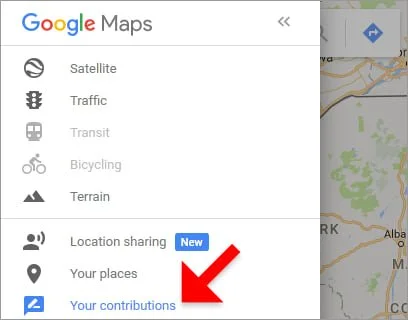
- Open your contributions. Tap or click your profile picture, then choose Your contributions or the review area. A list of your ratings and reviews should appear.
- Select the review. Open the business listing or review entry you want to change. Confirm that your name and review text are shown.
- Open the review menu. Choose the three-dot menu beside your review, not the menu for the whole business listing. The correct menu includes an edit or delete option.
- Choose Edit review. Change the written text, star rating, or available photos and videos. The edit screen should show your existing review before you save.
- Save the change. Tap or click Post, Save, or the matching confirmation button. The updated wording or rating should appear on the listing.
For a business owner, the safe limit is the customer’s review. Don’t try to access another person’s account or alter their post; contact Google support or use the report tool when a policy issue needs review.
The key judgment call is whether the change is factual and clear. Correct the detail that changed, but don’t add private customer information, threats, or claims you can’t support.
Review edits by situation
The fastest route depends on where the review appears and what you want to change. Use the case that matches your screen, not a different account’s menu.
| Your situation | What to do | What it takes | What to watch for |
|---|---|---|---|
| Review is visible | Open three-dot menu | A few minutes | Choose your review |
| Rating needs changing | Edit star selection | Short update | Save the new rating |
| Text needs correcting | Rewrite the comment | Careful reread | Keep facts accurate |
| Photo needs removal | Edit attached media | One media change | Check remaining photos |
| Review is missing | Check account history | Account check | Try the posting account |
| You own the business | Reply or report | Separate action | You can’t rewrite it |
| Review was deleted | Write a new review | New post required | Old text won’t return |
Details that protect the result

Check before saving
Read the edited text once for names, dates, and private details. A review can identify a worker or customer, so remove information that doesn’t belong in a public post. Check the stars separately; changing the text doesn’t always mean you intended to change the rating.
Look at the business name before saving. Similar businesses can appear in search, especially in different locations. If the listing is wrong, leave the edit screen and confirm the address, phone number, or other identifying details.
Leave some things alone
Don’t add personal contact details, payment information, passwords, or private messages. Don’t use the edit function to threaten a business or demand a result. Google can review content under its user policies, and an edit isn’t a guarantee that every change will remain visible.
The trade-off is simple: a shorter, accurate review is usually easier to understand, but removing too much detail may make it less useful. Keep the facts that explain your rating and remove claims you can’t verify.
Google review problems and fixes
The screen usually tells you whether the problem is access, account choice, or the review itself. Start with the least risky check before trying a different device or reporting anything.
| What you notice | What it usually means | What to do first | How to stop it happening again |
|---|---|---|---|
| Edit option is missing | Wrong account or menu | Check profile account | Use one posting account |
| Review doesn’t appear | Different account used | Check contributions | Record account used |
| Changes won’t save | App or connection issue | Reload Maps | Keep app updated |
| Business listing looks wrong | Similar place selected | Verify the address | Check location before posting |
| Photo won’t disappear | Media control differs | Reopen edit menu | Use current Maps version |
| Review is removed | Policy or listing issue | Check account notices | Follow Google policies |
| Owner wants changes | Customer owns review | Reply or report | Don’t request account access |
Google rules for review edits
Google lets the person who posted a review edit or delete it through their own account. A business owner can respond to the review, but ownership of the listing doesn’t give access to rewrite a customer’s post. Google’s help page explains the current controls for editing Maps reviews.
Google’s content rules also apply after an edit. Reviews shouldn’t contain harassment, personal information, fake experiences, or content unrelated to the place. If a review violates a rule, report it through the available reporting option rather than trying to change it yourself.
The exact menu can vary by country, device, account, and app version. Check Google Maps Help when your screen differs, and stop if the issue involves account recovery, impersonation, or another person’s private account. Google support is the right place for those cases.
The real cost of editing
A normal edit usually costs only the time needed to find the review, rewrite it, and check the result. The effort rises when you have several accounts, several locations, or photos that need separate review. Count the affected reviews before you start so you don’t edit the wrong listing.
The larger cost is a public mistake. An incorrect business, rating, date, or private detail can mislead readers and damage someone’s reputation. Read the full review after editing, and compare the visible listing name with the place you actually visited.
There’s no reliable single price for help with a Google review. If someone offers paid account access or asks for your password, don’t provide it. Compare any service against Google’s own help pages and use the account controls yourself when they’re available.
Keep the updated review accurate
Check the review after saving, while you’re still signed into the same account. The visible text, stars, and media should match what you intended. If the old version still appears, reload Maps and check the review from your contributions.
Update the review again when a material fact changes, such as a resolved service problem or a new business location. Don’t promise a fixed posting schedule; the useful interval depends on whether the experience or facts have changed.
If the review disappears, don’t immediately post repeated copies. Check the account used, look for Google notices, and review the content rules. Repeated attempts can make it harder to identify the original account or problem.
When editing Google reviews is wrong

Editing isn’t the right choice when you’re a business owner trying to change a customer’s words. A business can’t rewrite a customer’s review. Reply publicly with a factual response, correcting specific errors without disclosing order details, or report the review if it breaks a Google policy. If it’s negative but policy-compliant, address the complaint rather than trying to remove it.
It’s also wrong when the review concerns fraud, threats, or an account you can’t access. Stop using ordinary edit steps. Save messages, dates, and transaction records, then contact Google through its account or Maps support options. Don’t create a replacement review or use another person’s account to work around the access problem.
Finally, don’t edit a review to publish private information or pressure someone. Remove sensitive details, keep the public comment factual, and avoid names, phone numbers, addresses, and order information. Seek qualified legal advice if the issue involves threats, defamation, or a formal dispute.
Frequently asked questions
Can I edit a Google review from my phone?
Yes, you can edit your own review from the Google Maps app. Sign in to the account that posted it, open your contributions, select the review, and use its three-dot menu. If the review is missing, check the account before reinstalling the app or posting again.
Why can’t I edit my Google review?
The usual reason is that you’re signed into a different Google account. It can also be missing because the review was deleted, removed, or attached to a different listing. Check your contributions and confirm the business address before contacting Google support.
How long does it take to edit a Google review?
The edit itself usually takes a few minutes when the review is visible in your account. The change may not appear immediately on every screen. Reload Maps, check the listing again, and avoid posting a duplicate while the update is processing.
Is it safe to edit a Google review?
Yes, editing your own review through Google Maps is the safe method. Don’t share your password, use another person’s account, or give a third party account access. Remove private information from the text before saving the public version.
What happens if I delete my Google review?
The review is removed from your public review history, and you may not be able to recover its text. If you still want to share the experience, you’ll need to create a new review from the correct account. Save any wording or media first if you may need it.
Does editing a Google review change the date?
Edit the content you need, then check the live listing; contact Google if the displayed history creates a serious problem.
Can a business edit my Google review?
No, a business can’t rewrite a customer’s review. The business can reply or report the review, while the customer controls edits through the posting account. If a business asks for your password or account access, refuse and use Google’s own tools.
Edit Google reviews safely
Open Google Maps with the Google account that posted the review. Open your profile’s reviews and select the review—not the listing’s Suggest an edit option. Confirm the business name and address before choosing Edit review.
Check the text and rating for personal information or unsupported claims. Change only inaccurate or outdated details; don’t accept payment for revising it.
Save, then reopen the listing to confirm the revised text and rating are visible. If Edit review is missing, check the account and listing before posting a duplicate.
If someone else posted it, access looks suspicious, or the review changed without your permission, stop and use Google’s official support process. Never share a password or verification code.