The fastest way to add a manager is to open your Google Business Profile, choose Business Profile settings, select People and access, and invite the person with the Manager role. How to add a manager to your Google Business Profile depends mainly on whether you’re a primary owner, whether the person accepts the invite, and whether the profile has restrictions.
Use the correct Google account, enter the person’s email carefully, and check the role before sending. The invited person must accept the email invitation, and Google may limit some actions for new users or recently changed profiles.
Add a Manager to Your Google Business Profile
Open Business Profile settings, select People and access, choose Add, enter the person’s email, and select Manager. If you’re already signed in to the Google account that owns the profile, start by searching your business name on Google. Open the Business Profile controls, then select Business Profile settings and People and access.
Choose Add, enter the person’s Google Account email address, and select Manager. Check the address before you send the invitation. The person won’t manage the profile until they accept the invitation from Google.
After acceptance, the manager can help with daily profile work, such as editing business information, responding to reviews, adding photos, and publishing updates. The manager doesn’t become an owner and can’t add or remove users or remove the profile.
This walkthrough assumes you’re using Google Search on a desktop or mobile browser and that you have owner access. If you see Site managers instead of People and access, Google may be showing a different profile type or interface. Use the access option shown for your account rather than guessing.
What Controls Manager Access
Your current role matters most. A primary owner has the broadest control, while an owner can manage users and profile settings. A manager can work on the listing but can’t change user access, remove the profile, or transfer primary ownership. Check your role under People and access before trying to invite someone.
The email address matters next. Send the invitation to the Google Account the person will actually use for business tasks. If they accept with another account, they may not see the profile. Ask them to confirm the address before you send the invitation.
Google’s current interface also changes the path. Search for the business on Google, open the profile controls, and look for Business Profile settings. If you manage several locations, open the correct location first. The most common error is sending access to the wrong profile, which can give someone permission to the wrong business.
The profile’s status can also affect access. A suspended, unverified, or restricted profile may not behave like a normal active profile. Resolve the profile issue first, or contact Google Business Profile support if the access controls are missing.
Finally, the invitation must be accepted. If the person can’t find it, have them check spam and search their inbox for Google Business Profile. If the invite expired or was declined, remove the pending invite and send a new one.
Steps to Add a Manager
-
Sign in to the owner account. Use the Google Account that owns or manages the correct Business Profile. If the business has several locations, confirm the name and address before continuing.
-
Open the profile controls. Search Google for your business name or business profile. Select the profile controls that appear beside the listing.
-
Open Business Profile settings. Choose Business Profile settings from the available management options. The wording can look different on mobile, but the settings area should still contain user access controls.
-
Select People and access. Open People and access to view current owners, managers, and pending invitations. If this option is missing, your account may not have enough permission.
-
Choose Add. Select the button for adding a person. Don’t edit an existing user unless you want to change that person’s current role.
-
Enter the correct email. Type the Google Account email used by the new manager. Compare every character with the address they gave you before continuing.
-
Select Manager. Choose Manager, not Owner, unless the person needs ownership rights and you understand the extra control that gives them.
-
Send the invitation. Select Invite or Send. The invitation should then appear as pending in the access list.
-
Ask the person to accept. They should open the Google invitation while signed in to the invited account. The manager role becomes useful only after acceptance.
-
Check the access list. Return to People and access and confirm that the person appears as a manager. If the invitation remains pending, ask them to check spam or resend it.
The key judgment is the role. If the person only needs to edit the listing, answer reviews, or upload photos, choose Manager; if they must control users or ownership, choose Owner and review that decision carefully. Stop if Google asks for ownership verification you can’t complete, and use Google Business Profile support rather than trying to bypass it.
How Long Each Case Takes
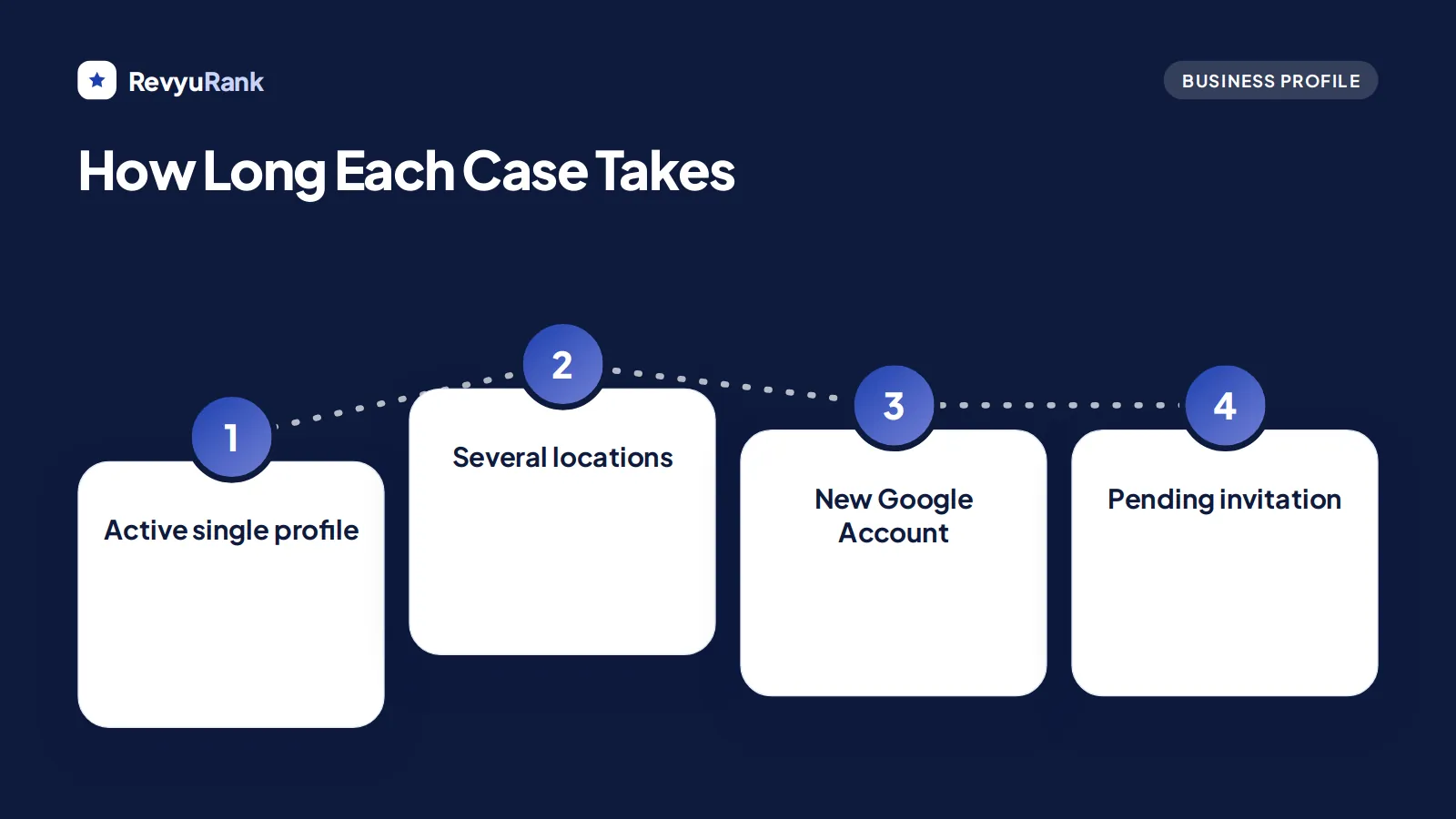
The action is usually short, but acceptance and account problems change the total time.
| Situation | What to do | What it takes | What to watch for |
|---|---|---|---|
| Active single profile | Send manager invite | Few minutes | Correct email |
| Several locations | Open correct location | Extra checking | Wrong business |
| New Google Account | Invite that account | Acceptance needed | Different sign-in |
| Pending invitation | Resend the invite | Inbox check | Spam folder |
| Missing access option | Check current role | Permission review | Not an owner |
| Suspended profile | Fix profile issue | Support may help | Access restrictions |
Details That Prevent Access Problems
Prepare the account first
Confirm the invited email before opening the access screen. The person should know which Google Account they’ll use, especially if they have separate work and personal accounts.
Keep the manager role narrow. A manager can handle routine profile work without receiving the same control as an owner. That’s safer for a temporary worker, marketing agency, or staff member who doesn’t need ownership access.
Google’s help page explains the available Business Profile access roles, including the difference between owners and managers. Use those role descriptions before giving someone broader access than their work requires.
Check the result, not just the invite
A sent invitation isn’t proof that access works. Ask the person to accept it, sign in to the invited account, and confirm that the profile appears in their Google Business Profile manager.
Check the access list again after acceptance. If the person appears as an owner when you intended a manager, correct the role immediately. If they don’t appear at all, compare the invited email with the account they used to accept.
Leave ownership changes alone unless they’re necessary. Transferring control can affect who manages the profile, so it deserves a separate check rather than a quick role change.
Who you can invite
- Each person needs their own Google Account. This way nobody has to share a password.
- You can’t add a Google Group as a manager or owner. Invite each person by their own email address.
- Only owners can remove other owners and managers. A removed user gets an email.
Common Manager Access Problems
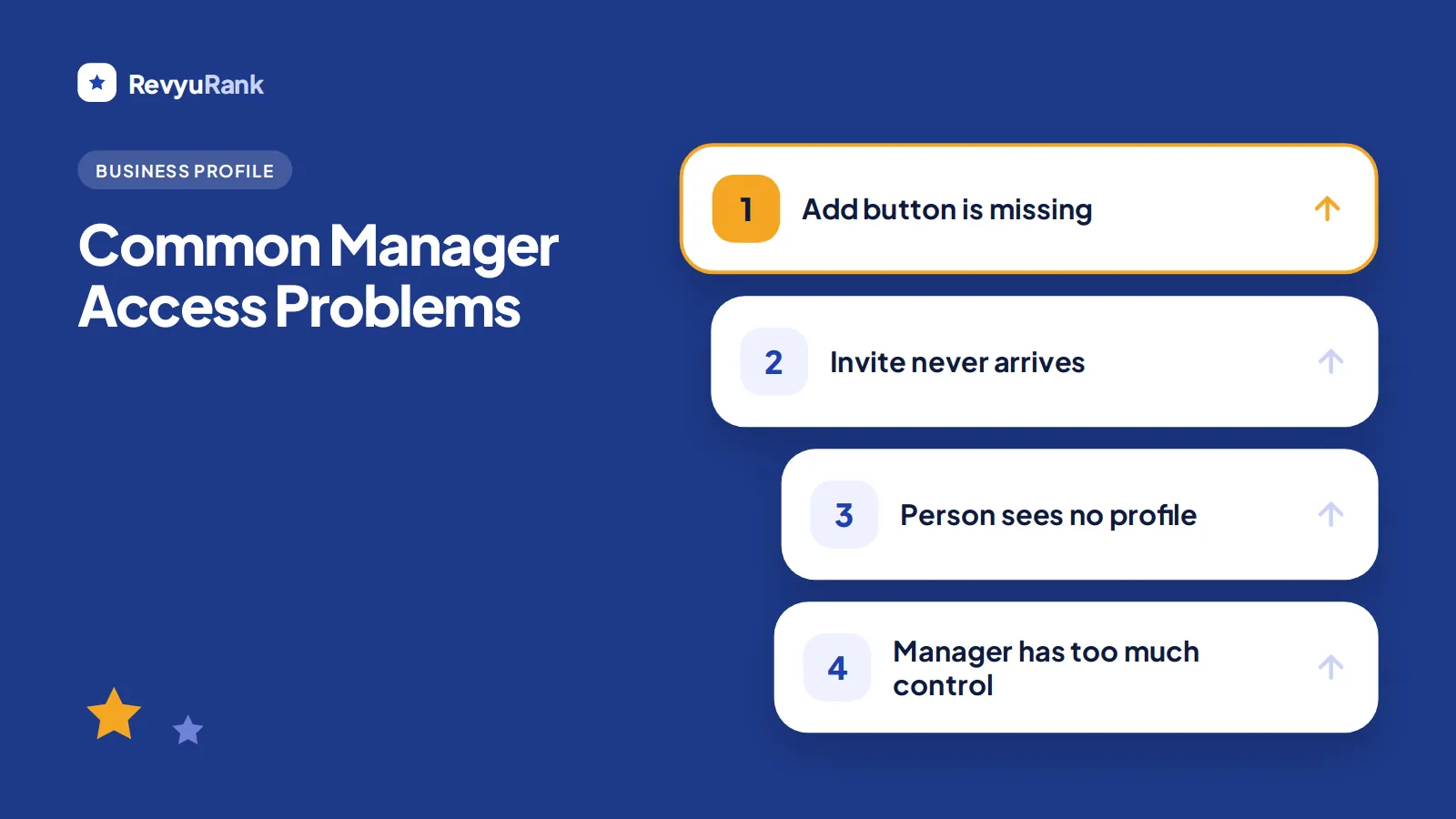
The table below matches what you see with a safe first check.
| What you notice | What it usually means | What to do first | How to stop it happening again |
|---|---|---|---|
| Add button is missing | Account lacks permission | Check your current role | Keep an owner account |
| Invite never arrives | Wrong email or spam | Confirm address and spam | Copy address carefully |
| Person sees no profile | Wrong Google Account | Accept with invited account | Use one work account |
| Manager has too much control | Owner role was chosen | Change role to Manager | Review before sending |
| Wrong location appears | Multiple profiles exist | Open the correct location | Check address first |
| Invitation stays pending | Invite wasn’t accepted | Resend after checking inbox | Ask for acceptance |
| Profile access is blocked | Profile has restrictions | Review status and support | Keep profile compliant |
Google Profile Access Rules
Google sets the available access controls, so the options can differ by account, profile status, and interface. Google’s published guidance is the place to confirm the current owner and manager permissions before you invite someone.
Check the profile name and location shown at the top of the management screen. Then check your role under People and access, the invited email address, and whether the person accepted the invitation. If the profile is suspended or verification is incomplete, review the status shown in Google Business Profile and follow Google’s support instructions.
Don’t give ownership access just to let someone answer reviews or edit business hours. If the work needs account recovery, ownership transfer, or access to several locations, confirm the arrangement with the business owner first. Stop and contact Google Business Profile support if the profile is locked, suspended, or missing from the account.
Time and Effort Involved
Adding a manager normally takes only the time needed to open the correct profile, enter an email address, choose a role, and send the invitation. The extra work comes from checking the correct location and confirming that the person uses the invited Google Account.
Acceptance can take longer if the email goes to spam or the person has several Google Accounts. A profile with missing access controls, a suspension, or a verification problem may require support instead of another invitation.
The trade-off is simple: a manager gives someone useful daily access without giving them full ownership control, but you’ll still need to review access when their work ends. Remove former staff or agencies from People and access rather than leaving old accounts connected.
After the Manager Accepts
Ask the new manager to open the profile and confirm that the business name, address, and profile controls are visible. They should start with the task they were invited to complete, such as answering reviews or updating hours.
Keep a record of who has access and why. Review the access list when staff, contractors, or agencies stop working on the profile. Remove a former user from People and access instead of changing the listing from scratch.
If the manager can’t see the profile after accepting, compare the email address in the invitation with the account currently signed in. If those addresses differ, sign out and accept the invite with the invited account. If access still fails, use Google Business Profile support.
When Adding a Manager Isn’t Right
Adding a manager isn’t right if the person only needs to suggest changes but shouldn’t publish them. In that case, ask them to send the changes to an owner or use a separate internal approval process. Keep the proposed edits in your normal review system until an owner has checked the business name, address, phone number, and other public details.
It’s also the wrong choice when someone needs control of ownership, account recovery, or user access. Discuss an owner role with the primary owner instead, and don’t transfer control just to solve a small editing task. Use the narrowest role that covers the person’s actual work.
You shouldn’t keep using this process when Google shows a suspension, verification block, or missing profile. Resolve the profile issue through Google’s support process first. Adding another user won’t replace verification or restore a suspended profile.
If the account has legal or ownership consequences, stop and involve the business owner or an authorized representative. Confirm who is allowed to act for the business before changing access, especially when a former employee, agency, or third party is involved.
Prefer a done-for-you option? Read about Google Business Profile Optimization Service.
If you would rather have this handled for you, our Google Review Generation service covers it end to end.
Frequently asked questions
How long does a Google Business Profile manager invite take?
Sending the invite takes a few minutes when you have owner access and the correct email. The total time depends on when the person accepts it. Spam filtering, a different Google Account, or a restricted profile can delay access.
What happens if the manager invite is sent to the wrong email?
The intended person won’t receive access through that invitation. Cancel or remove the pending invitation, then send a new one to the Google Account they’ll use to manage the profile.
Does it matter which Google Account accepts the invite?
Yes. The person must accept with the Google Account connected to the invited email address. If they accept while signed in to another account, the profile may not appear in their Business Profile manager.
Can I remove a manager later?
Yes. An owner can open Business Profile settings, choose People and access, select the manager, and remove that user. Check the list afterward to confirm the account no longer has access.
Add a Manager to Your Google Business Profile First
Open the correct Google Business Profile while signed in to an owner account. In Business Profile settings, open People and access, select Add, enter the person’s exact Google Account email, select Manager, and select Invite. Never give the person the owner login or password.
Have the person accept using that same Google Account, not another address. Then reopen the users list and confirm the account appears with Manager beside it. If the invitation remains pending, access isn’t active; cancel an incorrect invitation and send a new one.
If the profile is locked, suspended, or still missing, stop changing roles and contact Google Business Profile support. Adding a manager can’t resolve a profile-level access problem.

Robert Miller works as a Reputation Management Consultant. He has been helping U.S. businesses for over ten years. His work involves helping people protect and enhance their online image.Robert has worked with a wide range of companies. He has helped new businesses, local places that give a service, and big companies. He helps turn customer reviews into something that helps people trust their company and drives business growth.