When your Google Business Profile is suspended, remove the policy problem, correct the profile, and submit an appeal through the Google Business Profile appeals tool. Don’t create a new profile or repeatedly appeal without fixing the cause. Google business profile suspended causes and how to reinstate it depend on the suspension type, your evidence, and whether the business follows Google’s eligibility rules. You’ll find the main causes, repair steps, key limits, and situations where reinstatement may fail.
What a profile suspension means
A Google Business Profile suspension means Google has limited or removed the profile because it may not follow its guidelines, may show unreliable information, or may not represent an eligible business. The profile can disappear from Search and Maps, or you may lose the ability to manage it.
A suspension doesn’t always mean the business is permanently banned. A soft suspension usually removes management access while the listing may still appear. A hard suspension removes the listing from public view. The message in your Business Profile account can help show which type you have.
Google Business Profile is designed for businesses that meet customers in person during stated business hours. This includes storefronts and service-area businesses. Online-only businesses, lead-generation companies, rented mailing addresses, and some temporary operations may not qualify.
The main misconception is that a suspension is caused only by a bad review or a competitor report. Google can suspend a profile because of its business name, address, category, website, ownership details, photos, or account activity. A profile can also be restricted when Google can’t confirm that the business is real and eligible.
Google’s Business Profile guidelines are the controlling source for eligibility and profile content. Read the Google Business Profile guidelines before changing the listing, because removing one visible problem may not correct the underlying issue.
How to reinstate a suspended profile
To reinstate a suspended profile, fix the cause, gather evidence, and submit one clear appeal. Use this order. It reduces extra changes and gives you a clearer record of what you fixed.
-
Read the suspension message. Sign in to the Google account that manages the profile. Record whether Google mentions quality, eligibility, suspicious activity, verification, or a specific guideline.
-
Check the business name. Use the real-world name shown on your storefront, website, invoices, and official documents. Remove marketing phrases, phone numbers, locations, slogans, and extra keywords added to the name field.
-
Check the address and service area. Use a real location where the business is eligible to meet customers. If customers don’t visit the address, hide it and use a service area instead. Don’t use a virtual office, mailbox, coworking address, or a private home address as a public storefront unless the business truly operates there under Google’s rules.
-
Review the category and services. Choose the most accurate primary category. Remove duplicate profiles, unrelated categories, invented services, and service areas that the business doesn’t actually cover.
-
Check ownership and account access. Remove unknown managers, secure the Google account, and confirm that the business owner or authorized representative controls the profile. Don’t create a replacement listing while the first one is under review.
-
Prepare evidence. Use documents that connect the business name and address, such as registration records, licenses, utility bills, storefront photos, branded vehicles, or invoices. Only submit genuine documents, and hide unnecessary private details where Google allows it.
-
Submit one clear reinstatement request. Explain what was wrong, what you corrected, and why the business now follows the guidelines. Upload the strongest evidence instead of sending several unrelated files.
-
Wait for the review before changing more. If Google asks for extra information, answer that request directly. If the appeal is denied, read the reason and use the available additional review option only after correcting the remaining issue.
If you're not sure your address counts as an eligible location, we can check it with you or set up the service-area option for you.
The key judgment is consistency. Your business name, address, website, documents, signage, and customer-facing information should describe the same real business. If you can’t prove the business operates as claimed, a new profile or repeated appeal won’t solve the problem. An agency, lawyer, or local licensing office can help with records, but Google alone decides profile reinstatement.
Profile suspended or account restricted?
Check which one you have before you appeal. Google says an account restriction suspends the Business Profiles you manage, and you can’t create or claim other profiles while it lasts. In that case, appeal the account first on your My accounts page. Once the restriction is lifted, appeal any profile that is still suspended.
For a profile suspension, open the Google Business Profile appeals tool and sign in to the Google account linked to the profile. Select the profile, then the decision you want to appeal. Add optional evidence and submit. The tool shows details of the decision, such as the policy involved and whether it can be appealed. Google says it will email you the decision.
Suspension details to check
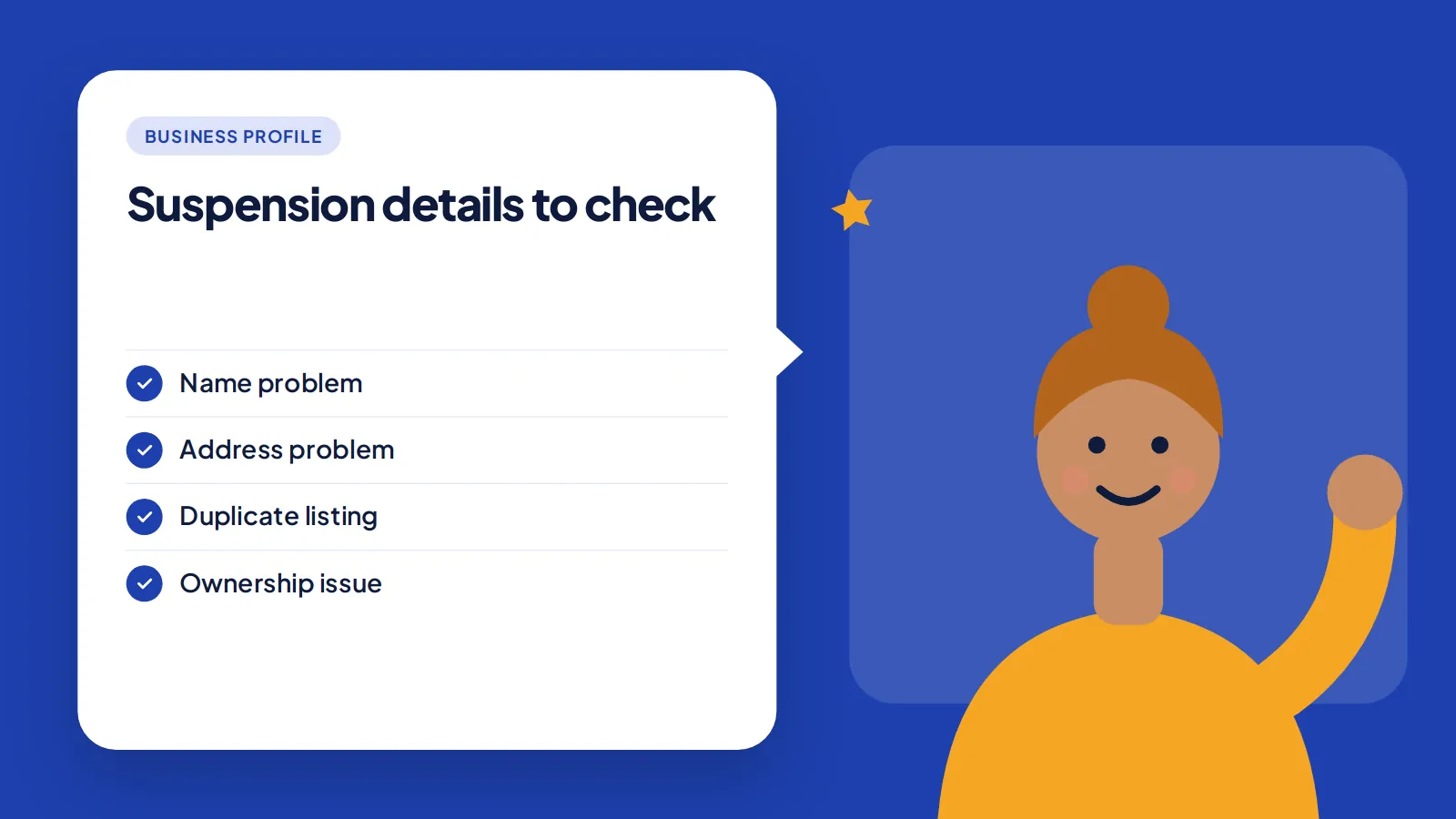
Before you appeal, collect the exact suspension message, your business records, and proof of your name and location. These are the main facts to collect before you submit an appeal. The exact message in your account matters more than a general checklist.
| Situation | What to use or do | Figure that matters | What to watch for |
|---|---|---|---|
| Name problem | Match the real-world business name | Exact legal or public-facing name | No extra keywords or slogans |
| Address problem | Show a genuine eligible location | Full address or service area | No mailbox or virtual office |
| Duplicate listing | Keep the established profile | One profile for one business | Don’t create a replacement |
| Ownership issue | Remove unknown users and secure access | Current owners and managers | Check every account with access |
| Evidence request | Gather business records and photos | Documents covering name and location | Don’t upload altered documents |
| Category problem | Select the closest accurate category | One primary category | Avoid categories used only for keywords |
| Review denial | Read the reason and correct it | One complete appeal record | Don’t send repeated unchanged appeals |
Google may ask for different evidence based on the suspension reason. A storefront business may need exterior signage and location proof. A service-area business may need documents showing that the business operates under the stated name.
Details that improve reinstatement
Start with a clean record of the profile. Save the suspension email, screenshot the dashboard message, and list every recent change, manager, address, category, and linked website. This can reveal a recent name edit, ownership change, duplicate listing, or address update that needs attention.
Check the profile from the business’s real-world side. The sign, website footer, invoices, registration records, and customer contact details should use a consistent name. If the business uses a brand name that differs from its legal name, keep supporting documents that connect both names.
Fix the profile before appealing, but don’t make random edits while the review is pending. Change only information you can support. A keyword-filled name, an inflated service area, or a second profile can make the account look less trustworthy.
The evidence should answer three simple questions: Does the business exist, is it eligible, and does the applicant have authority to manage it? Photos should be current and clear. Documents should be readable and unaltered. Don’t submit private customer data, full bank details, or unrelated paperwork.
A common costly mistake is changing the address to a friend’s office or a virtual mailbox just to pass verification. That can create a second policy problem, delay review, and make the business harder to verify. If the location isn’t eligible, hide the address or use the proper service-area setup instead.
Common suspension problems and fixes
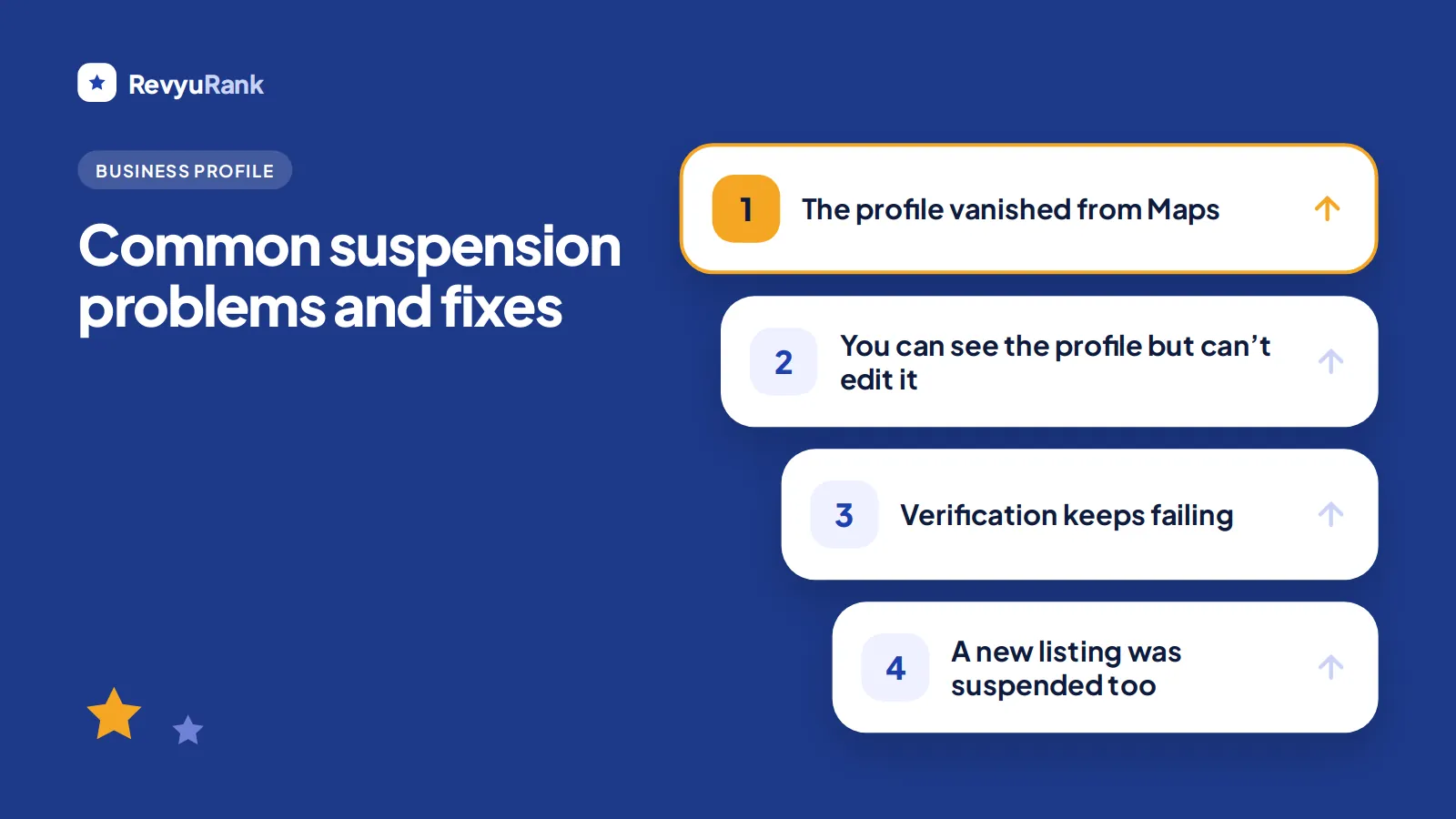
The message you see doesn’t always name every issue. Start with the safest correction and avoid deleting the profile unless Google specifically tells you to do so.
| What you notice | What it usually means | What to do first |
|---|---|---|
| The profile vanished from Maps | Google applied a hard suspension or removed the listing | Read the email and dashboard notice |
| You can see the profile but can’t edit it | The account or profile has a soft suspension | Check managers and account security |
| Verification keeps failing | Google can’t confirm the business or location | Match documents, signage, and profile data |
| A new listing was suspended too | Google detected a duplicate or linked issue | Stop creating profiles and review the original |
| The name contains services or locations | The name field may be keyword-stuffed | Replace it with the real-world name |
| A competitor was blamed | The profile still failed an automated or manual check | Correct the profile; don’t focus the appeal on the competitor |
When you see suspicious managers, change the Google account password and review two-step verification before submitting an appeal.
Checks before you appeal
Google’s profile rules, not local marketing advice, decide whether the listing is eligible. Before you appeal, confirm the business serves customers in person, uses an eligible address or service-area setup, and has only one profile for that location.
Check the exact business name on the storefront, website, invoices, registration records, and customer communications. Ask the owner who controls the profile, which Google accounts have access, and whether an outside agency made recent edits.
Confirm that the primary category describes the main business. Review the service area, opening hours, phone number, website, photos, and appointment links for information the business can actually support.
If the business needs a professional license, ask the relevant state or local licensing office whether the license is active and whether the public business name matches the license. Google Support handles profile reinstatement; it doesn’t replace a licensing authority.
Don’t upload documents you can’t legally share or alter paperwork to make it match. If the profile involves a disputed address, ownership dispute, or regulated service, get help from the business owner, licensing office, or a qualified lawyer before making a claim.
Keeping the profile stable
After reinstatement, keep the profile aligned with the business’s real operations. Record the approved name, address format, categories, service area, and managers so future edits don’t drift from the verified details.
If the business serves customers at their locations, keep the service area consistent with where it actually operates; don’t add cities simply to appear in more searches. If it serves customers at a staffed location, keep the address and signage consistent with that location.
Give access only to people who need it. Remove former employees and unknown users, and secure every Google account connected to the profile. Keep business records current in case Google requests proof again. Turn on two-step verification for accounts with profile access, and review the user list after staffing changes.
Make changes one at a time when possible. Save a copy of the old information before editing the name, address, ownership, or primary category. If a change causes a new suspension, that record can help you explain what happened. Avoid changing several major fields together, because you may not be able to identify which edit triggered the problem.
There’s no universal reinstatement lifespan or guaranteed review time. The part that varies most is the evidence Google can verify for your business, so keep your real-world documents, signage photos, and ownership information ready. Check the profile dashboard and Google’s support messages for the next action.
When this method isn’t enough
A standard appeal isn’t the right first move if the business is online-only or doesn’t meet customers in person. Review eligibility and use another marketing channel, such as the business website, instead of trying to force an ineligible listing into Google Maps.
If the business moved, merged, or changed ownership, don’t treat the issue as a simple name edit. Confirm the correct profile and ownership path with Google Business Profile Support before creating or claiming anything new.
If the dispute involves a fake address, forged documents, stolen ownership, or a regulated license, stop editing the profile. The owner should collect genuine records and ask the licensing office, Google Support, or a qualified lawyer what can be submitted.
This approach also isn’t for someone who wants a quick replacement listing. Creating duplicates can spread the problem across several profiles. If the business has a real, eligible location, repair the original profile and appeal with accurate evidence.
Our team handles exactly this through Google Business Profile Optimization Service.
Want an expert to set this up with you? Take a look at Google Review Generation.
Frequently asked questions
Can Google permanently suspend a business profile?
Yes, Google can leave a profile suspended when the business is ineligible, the information can’t be verified, or repeated violations continue. A permanent result isn’t fixed by creating another listing. First check whether the business meets in-person eligibility rules, then correct the original profile and submit genuine evidence through the official appeal process.
Why was my Google Business Profile suspended without warning?
Google may suspend a profile after an automated check, a manual review, an ownership change, or an update that conflicts with its guidelines. The suspension message may show only the main issue, not every problem. Review the name, address, category, managers, duplicates, website, and recent edits before appealing.
How long does Google take to reinstate a profile?
Google doesn’t provide one guaranteed review time for every suspension. The timing depends on the appeal type, the evidence requested, and whether the case needs another review. Submit one complete request, monitor the account for messages, and answer any follow-up request. Repeated unchanged appeals generally won’t add useful information.
Is it safe to create a new profile after suspension?
No, not while the original suspension is unresolved. A new listing can be treated as a duplicate or an attempt to avoid enforcement. Keep the original profile, correct the business information, and follow the reinstatement process. Create a separate profile only when Google’s rules clearly support a separate eligible business or location.
What happens if my appeal is denied?
A denied appeal means Google didn’t accept the explanation or evidence at that stage. Read the denial carefully, correct any remaining name, address, eligibility, or ownership issue, and use an additional review option if Google provides one. Don’t submit altered documents, change facts to fit the form, or open replacement listings.
Can a suspended profile still get customer reviews?
Sometimes, but it depends on the suspension and whether the profile remains visible. A soft suspension may leave a listing visible while limiting management access. A hard suspension can remove the listing and its public functions. Don’t ask customers to review a replacement profile while the original case is being reviewed.
What to do next
Keep your business details accurate as your location, hours, services, or ownership change. Review Google’s guidelines from time to time, and save documents that show your business is legitimate. If a future issue appears, you’ll be in a stronger position to respond quickly and keep customers informed through other channels.

Robert Miller works as a Reputation Management Consultant. He has been helping U.S. businesses for over ten years. His work involves helping people protect and enhance their online image.Robert has worked with a wide range of companies. He has helped new businesses, local places that give a service, and big companies. He helps turn customer reviews into something that helps people trust their company and drives business growth.