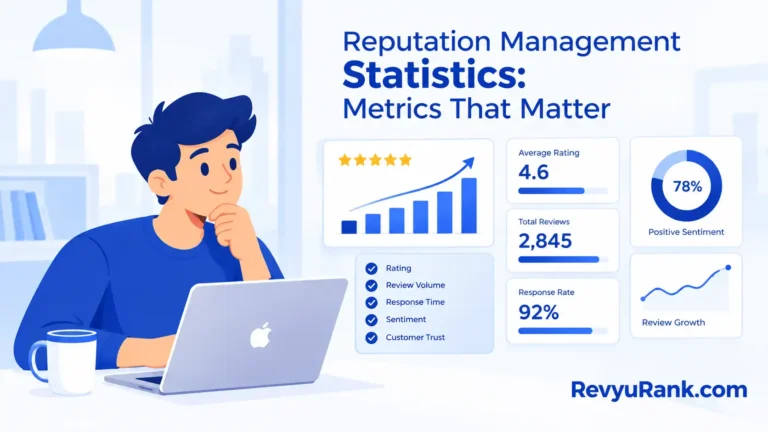

Want to make your website more trustworthy and bring in more customers? Adding Google Reviews right onto your Elementor site is a smart move. Imagine visitors seeing real feedback from happy customers as soon as they land on your page. It builds trust instantly and nudges them to take action.
In this guide, I’ll walk you through easy steps to show your Google Reviews without fuss. Ready to make your site more reliable and inviting? Let’s get started!
Why Google Reviews Matter

Google reviews are like word-of-mouth, but online. They show real opinions from real people. This helps visitors decide if your business is trustworthy and worth a shot.
- Builds trust: People believe reviews more than ads.
- Boosts local SEO: More reviews help your site show up in local searches and on Google Maps.
- Keeps visitors engaged: Real stories keep visitors on your page longer.
- Gives you feedback: You learn what customers like or want improved.
Getting Your Google Reviews Ready
Before adding reviews to your site, it helps to organize them. Pick your best, clearest, and most positive reviews. Think of it like picking the best photos for an album — you want only the highlights.
- Open your Google My Business account and find your reviews.
- Copy the reviews you want to share, including the reviewer’s name and star rating.
- Group reviews by topics if possible — like customer service, product quality, etc.
- Use short snippets if reviews are too long to keep things easy to read.
Install Elementor on Your Website
If you haven’t already, install Elementor. It’s a page builder that helps you design your site without touching code. Drag, drop, and customize your pages easily.
How to install:
- Log into WordPress dashboard.
- Go to Plugins > Add New.
- Search for “Elementor”.
- Click “Install Now” and then “Activate”.
Once activated, you can start creating or editing pages with Elementor’s simple tools.
Pick the Right Google Reviews Widget
Not all widgets are the same. Some are simple, others packed with features. Here’s what to look for:
- Compatibility: Make sure it works well with Elementor and supports the latest version.
- Customization: Can you change colors, fonts, and layout? This helps keep your site’s look consistent.
- Number of reviews: Decide if you want to show a few or many. Too many can clutter the page.
- Loading speed: Choose a widget that loads fast. Slow widgets can frustrate visitors and hurt SEO.
- Support & updates: Pick one from developers who maintain it regularly.
Connect Google Reviews to Elementor
This part is easier than it sounds. You just need a Google Places API key and a plugin that links your Google My Business reviews to your site.
Steps:
- Go to Google Cloud Platform and create a new project.
- Enable the Google Places API.
- Generate your API key and keep it handy.
- Install a Google Reviews plugin in WordPress.
- Paste your API key in the plugin settings to connect.
- Open Elementor, find your Reviews widget, and drag it to your page.
- Customize colors, layout, and how many reviews to show.
- Save and preview your page. Your reviews should now appear live.
Make Your Reviews Look Great

Customizing your reviews helps them blend smoothly with your website’s style. Here’s what you can tweak:
- Layout: Choose between grid, list, or carousel views.
- Colors & fonts: Match your brand colors and pick easy-to-read fonts.
- Filters: Show only 4-star and 5-star reviews, or hide older ones.
- Icons & stars: Use star ratings that fit your site’s style.
Optimize for Mobile and Speed
Most people browse on their phones. If your reviews load slowly or look messy, they’ll leave fast.
Here’s how to keep things smooth:
- Use lightweight plugins built for speed.
- Enable lazy loading so reviews load only when visitors scroll down.
- Compress images like stars or profile pictures to reduce load time.
- Make sure your review section adapts to all screen sizes.
- Limit external requests to Google servers to speed up your page.
Troubleshooting Common Issues
Sometimes reviews don’t show up or look off. Here’s what you can check quickly:
- API Key: Is it correct and has the right permissions?
- Place ID: Double-check your Google Place ID matches your business.
- Clear cache: Clear Elementor and browser cache to see recent changes.
- Plugin conflicts: Disable other plugins one at a time to find conflicts.
- Public reviews: Make sure your Google reviews are public and not filtered.
FAQs
How do I add Google reviews to my Elementor website?
Use a Google Reviews plugin or widget that connects your Google My Business account.
Can I add reviews without coding?
Yes. Elementor supports many plugins that let you add reviews with a few clicks.
Which plugin works best?
Popular options include “Google Reviews Widget” and “WP Business Reviews”. Choose what fits your needs.
Will reviews update automatically?
Most plugins sync reviews in real-time, so no manual updates needed.
Can I customize how reviews look?
Yes. You can adjust colors, fonts, layout, and more to match your site.
Is it free to show Google reviews?
Many plugins have free versions with basic features. Paid versions offer more options.
How do reviews help my site?
They build trust and help your site rank better in local Google searches.
Can I filter which reviews appear?
Some plugins let you show only high-rated or recent reviews.
Wrapping Up
Adding Google Reviews to your Elementor website is a simple way to boost trust and attract more visitors. Real feedback from real customers speaks louder than ads. Take your time, follow the steps, and keep your reviews fresh. Over time, you’ll notice visitors feeling more confident about choosing your business.
Sometimes small changes make a big difference.

Robert Miller works as a Reputation Management Consultant. He has been helping U.S. businesses for over ten years. His work involves helping people protect and enhance their online image.Robert has worked with a wide range of companies. He has helped new businesses, local places that give a service, and big companies. He helps turn customer reviews into something that helps people trust their company and drives business growth.