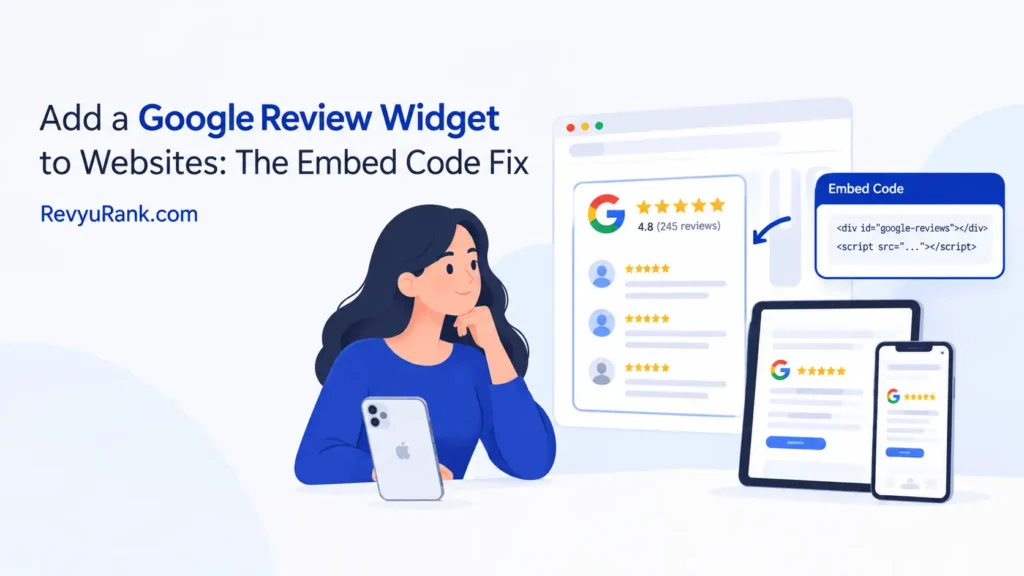
You can add a google review widget to websites by copying an embed code from a third-party tool and pasting it into your site’s HTML or page builder. Setup takes about 10 to 15 minutes, and most tools offer a free plan that shows your five newest reviews. This method works best for local businesses that already have at least ten public ratings on their Google Business Profile. If you don’t have any reviews yet, the widget will just show space.
Tools needed for a review widget

You’ll need a few things ready before you start building anything. Having them open in separate tabs saves you from switching back and forth mid-step.
- Admin access to your website. You must be able to edit pages or paste custom HTML. A basic editor login isn’t enough if it blocks scripts.
- A verified Google Business Profile. Your business needs to be live and publicly visible on Google Maps. You can check this by searching your exact business name on Google Search.
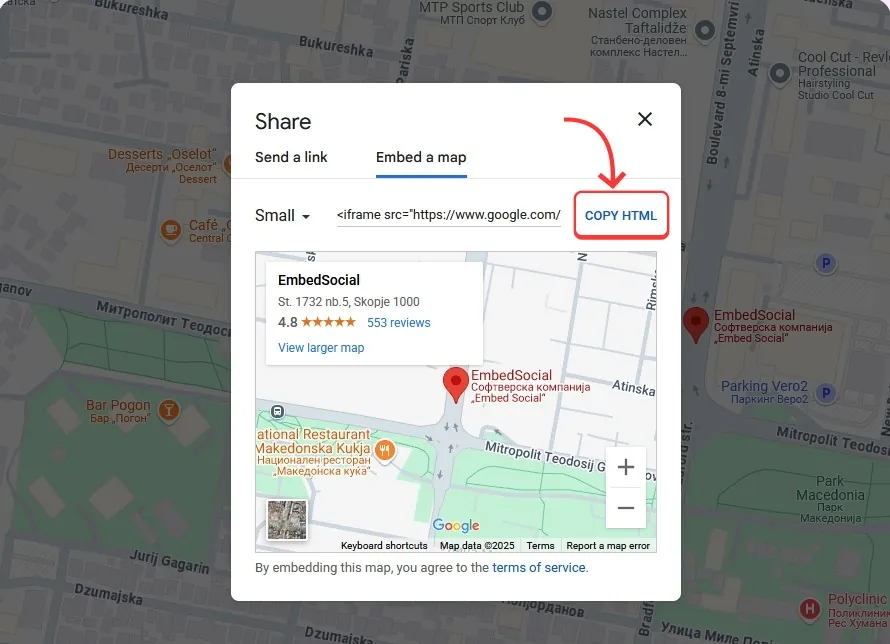
- A third-party widget service account. Google doesn’t hand out embed codes directly. You’ll need an account with a platform like Elfsight, Trustindex, or EmbedSocial to generate the code.
- Your Place ID. This is a unique string of letters and numbers that tells the widget exactly which business to pull reviews from.
- Basic knowledge of where your site accepts code. WordPress uses the Custom HTML block, while Shopify uses theme files or app integrations.
If you’re using WordPress, you can swap raw HTML for a dedicated plugin; if you’re on Wix, use the built-in ‘Embed HTML’ element to paste your code. Don’t try to build this from scratch using the raw API unless you’re a developer, as that requires managing server keys safely.
Steps to add a Google review widget to websites
Follow these steps in order. Skipping ahead usually means you’ll end up with a broken layout or the wrong business showing up.
- Find your Google Place ID. Go to the official Place ID finder tool provided by Google, type in your business name, and copy the long string it gives you. This assumes you’re searching for a single location; if you run multiple branches, you’ll need a separate ID for each one.
- Create an account on a widget platform. Sign up for a service like Elfsight or Trustindex. The free tiers typically limit you to a set number of monthly views, so check their pricing page if your site gets heavy traffic.
- Connect your Place ID to the platform. Paste the ID you copied in step one into the setup field. The tool will automatically fetch your current rating and your latest written reviews.
- Pick a layout. Choose between a slider, a grid, or a badge. If your homepage has wide empty sections, do a slider; if you’re putting it in a narrow sidebar, do a badge.
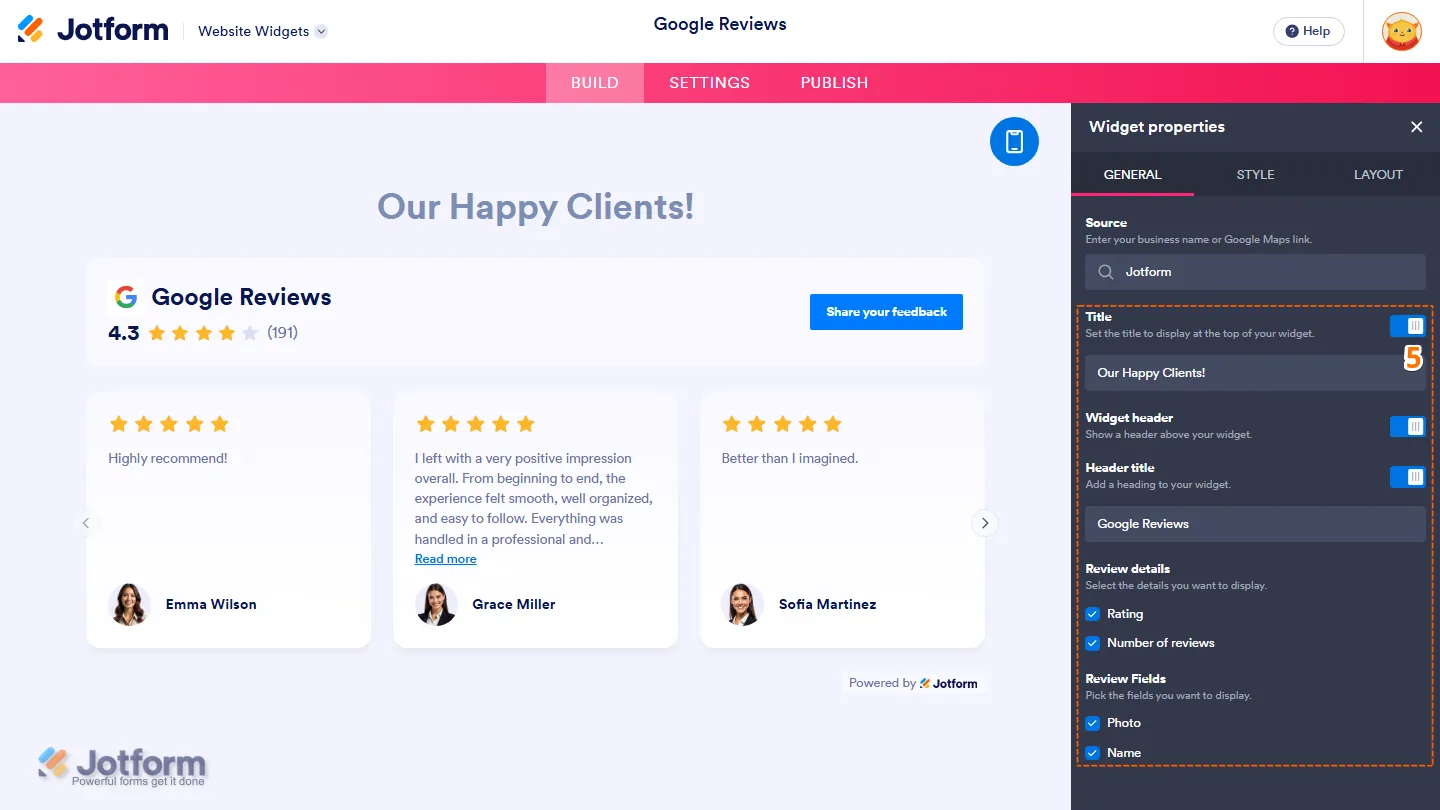
- Customize the design. Match the background color and font size to your website’s existing style. Keep the text readable by ensuring there’s high contrast between the words and the background box.
- Generate the embed code. Click the save or publish button inside the tool. It will give you a short piece of JavaScript wrapped in a
<script>tag. Copy this entire block. - Paste the code into your website. Open your site’s editor. For WordPress, add a “Custom HTML” block to your page and paste the code inside. For Shopify, go to Online Store > Themes > Edit Code and place it in the appropriate template file.
- Check the live page. Open your website in an incognito browser window to make sure the reviews load correctly without breaking the rest of your layout.
Tip: Don’t put the script inside the <head> section of your site unless the tool specifically asks you to. Placing it in the body where you want the widget to appear prevents invisible loading delays.
Careful: If you change your website’s theme later, the custom HTML block might get deleted. Always keep a backup copy of your embed code in a text file.
Publishing reviews on your site still falls under consumer protection laws, meaning you shouldn’t use tools that only display five-star feedback while hiding the rest. The Federal Trade Commission (FTC) enforces rules against deceptive endorsements, so ensure your chosen widget displays your overall rating honestly.
How settings change the result
The effort and cost shift depending on how much traffic you get and what platform hosts your site.
| Situation | Cost / Effort | What changes | Watch for |
|---|---|---|---|
| Small site, free plan | Free, 10 mins | Shows basic badge or small list | Widget disappears if you hit the view limit |
| High traffic site | Paid plan, 10 mins | Removes view limits, adds support | Monthly billing cycles |
| WordPress user | Free/paid, 15 mins | Can use plugins instead of raw HTML | Plugin conflicts with older themes |
| Shopify store | App fee, 15 mins | Uses native apps instead of HTML | Apps slowing down checkout speed |
| Multiple locations | Paid plan, 30 mins | Needs separate widgets per branch | Wrong location showing on the wrong page |
It’s always safer to start with a free plan and a simple badge than to buy a premium layout that clashes with your site’s mobile design.
Checking your embedded reviews
A good widget loads fast, matches your site’s colors, and shows your actual current star rating without looking like an ad. A poor one looks like a floating box dropped onto the page, uses clashing fonts, or fails to load entirely on phones.
The biggest quality problem here is slow page loading. This happens because the widget pulls data from an outside server every time someone visits your page.
To prevent this, pick a tool that caches the reviews locally rather than fetching them live on every visit. Also, set the widget to lazy-load so it only appears when the visitor scrolls down to it.
Caching introduces a different risk. Your displayed score might lag behind reality by several days if the refresh interval is too long. Set the cache to update at least once every twelve hours.
This matters most for businesses receiving daily feedback. If you only get a few reviews each month, a weekly refresh is fine.
Finally, check your phone. If the text is too small to read on a six-inch screen, you need to increase the base font size in the tool’s settings before publishing. Don’t assume desktop sizing works everywhere.
Rules and upkeep after setup
You don’t need a special license to display public reviews, but you must follow advertising truth guidelines. The FTC states that endorsements must reflect honest opinions, so don’t use software designed to filter out negative feedback artificially.
After you paste the code, clear your website’s cache so visitors see the new element immediately. Save your embed code in a secure document. You’ll need it again if you switch themes or move to a new hosting provider.
Review widgets update automatically through the provider’s API, but you should still check them once a month. If your Google Business Profile gets suspended or renamed, the widget might break or show outdated information.
This setup lasts indefinitely as long as your subscription stays active and your profile remains verified. If you cancel a paid plan, the widget usually reverts to a free version or stops working completely.
For complex legal questions about displaying customer data across borders, consult a digital compliance attorney rather than relying on a blog post.
Other ways to display reviews
Using a dedicated WordPress plugin
Instead of pasting raw HTML, you install a plugin like WP Review Slider directly from your dashboard. This connects to your account via an API key. It takes slightly longer to configure, but it integrates better with your theme’s styling options and avoids manual code placement.
Manual screenshots
You take pictures of your best reviews and upload them as standard images. This costs nothing and loads instantly since there’s no external script. However, it doesn’t update automatically, and visitors can’t click through to verify them on Google, making it look less trustworthy.
Linking directly to your profile
You simply add a button saying “Read our reviews” that opens your map listing in a new tab. This requires zero maintenance and keeps users on the official platform. The trade-off is that people leave your website, which can lower your conversion rate if they don’t come back.
Frequently asked questions
Can I add a widget without coding?
Yes, you can do it without writing code if you use a drag-and-drop builder like Elementor or Wix. These platforms let you drop an HTML element onto the canvas and paste the script inside. You just need admin access to the page editor to save the changes.
Why aren’t my reviews showing up?
They usually fail to appear because your Place ID is wrong or your profile isn’t fully verified. Double-check the ID string in your widget settings against the official finder tool. If the ID is correct, your third-party tool might have hit its monthly view limit on the free tier.
How long does the setup take?
It takes about 10 to 15 minutes for a single location using a standard page builder. This assumes you already have your admin login details and know where your site accepts custom HTML. Adding multiple locations will add roughly five minutes per extra branch.
Is it safe to use third-party tools?
Yes, established platforms are generally safe because they use public read-only access to your profile. They don’t get permission to change your business details or reply to customers. Still, stick to well-known providers and avoid obscure scripts that ask for full account management rights.
What happens if I get a bad review?
A new low rating will appear in the widget if it’s set to show everything chronologically. Most tools let you set a minimum star threshold, like only showing four stars and above. But remember that hiding all negative feedback can violate consumer protection guidelines regarding honest endorsements.
How often do the reviews update?
They typically refresh every 24 hours, depending on the platform you choose. Some premium plans offer hourly syncing, while free tiers might only pull new data once a day. You don’t need to manually trigger the update unless you change your Place ID.
Do widgets slow down my website?
They can add a fraction of a second to your load time because they fetch external scripts. To minimize this impact, enable lazy loading in your widget settings. This ensures the reviews only download when a visitor actually scrolls down to that part of the page.
Conclusion
Getting this running takes less time than writing a single blog post, and the trust it builds works around the clock. Just keep an eye on your view limits, double-check your mobile layout, and let your real customers do the selling for you.

Robert Miller works as a Reputation Management Consultant. He has been helping U.S. businesses for over ten years. His work involves helping people protect and enhance their online image.Robert has worked with a wide range of companies. He has helped new businesses, local places that give a service, and big companies. He helps turn customer reviews into something that helps people trust their company and drives business growth.