
To add a photo to a Google review, tap the camera icon on the review screen, select an image from your phone or computer, and hit post. The whole thing takes about 30 seconds once you’ve written your text. If your picture won’t upload, check that it’s under 50 MB and saved as a JPEG or PNG.
What you need to add photos to a Google review
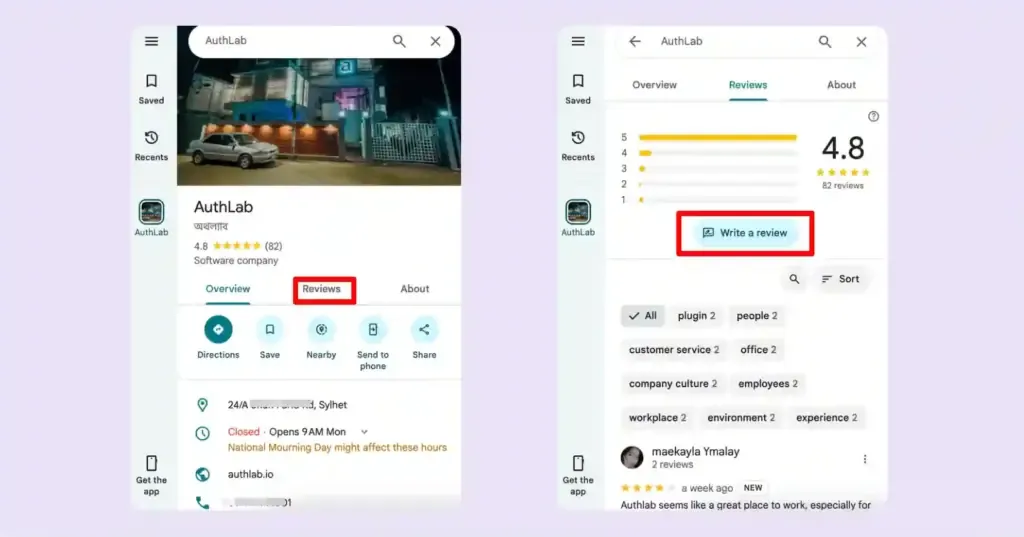
You don’t need much equipment to share a picture with your feedback. Everything listed below should be ready before you open the app or website.
- A Google account. You can’t leave any feedback without one. It’s free to create if you don’t have one yet.
- The Google Maps app or a web browser. The app works best on phones. A browser like Chrome or Safari is fine for computers.
- A smartphone, tablet, or computer. Any device that connects to the internet will work here.
- The photo itself. It must be a JPEG or PNG file. Keep it under 50 MB so the system accepts it.
- A stable internet connection. Wi-Fi is faster than mobile data for uploading images.
- Your written review text. You’ll type this in the same box where you attach the picture.
If you’re on a phone, use the camera roll instead of trying to take a new picture during the upload step. Taking a fresh photo while the review form is open sometimes crashes the app on older devices. You don’t need any special software or paid account for this. Check Google’s photo requirements if you aren’t sure whether your image format is accepted.
Steps to attach a photo to a Google review
Follow these steps in order. They work the same way whether you’re using a phone or sitting at a desk.
- Open the Google Maps app on your phone, or go to maps.google.com on your computer. Make sure you’re signed into your Google account first.
- Search for the business you visited. Type its name in the search bar and tap the correct result from the list.
- Scroll down to the reviews section. Tap the button that says “Write a review” near the top of that area.
- Pick your star rating. You have to select between one and five stars before the rest of the form opens up.
- Type what you want to say about your visit. Keep it clear so people reading it know exactly what happened.
- Tap the small camera icon below the text box. This opens your device’s photo gallery or file manager.
- Select the picture you want to share. You can pick up to five images at once if you have more to show.
- Wait for the thumbnail to appear inside your review draft. Don’t hit post until you see it there.
Tip: If you’re uploading from a computer, make sure the file isn’t hidden in a zipped folder. The browser only reads standard image files directly.
- Tap “Post” to publish everything together. Your text and the picture will go live at the same time.
Careful: Don’t close the app while the progress bar is moving. Closing it too early drops the image but might still post the blank text.
If the upload fails twice, switch from mobile data to Wi-Fi. Large files often time out on slower cellular connections. You don’t need a professional camera for this. Phone pictures are perfectly fine as long as they aren’t blurry. If you run a business and want to manage customer images professionally, that requires a verified Business Profile through Google, which is a separate process handled by their support team.
How uploads change by device
The basic steps stay the same everywhere, but the speed and layout shift depending on what you’re holding. Here is how the effort breaks down across different setups.
| Device | Typical time | What changes | Watch for this |
|---|---|---|---|
| Android phone | 15–30 seconds | Camera icon sits right under the text box | Background apps pausing the upload |
| iPhone | 15–30 seconds | Asks permission to access your photo library | Denying permission blocks the gallery |
| Desktop browser | 20–40 seconds | Opens a file explorer window instead of a gallery | Pop-up blockers hiding the window |
| Tablet | 15–30 seconds | Larger screen shows thumbnails side by side | Older tablets struggling with big files |
| Mobile browser | 30–60 seconds | Interface looks smaller, and buttons are harder to tap | Page refreshing before the upload finishes |
These times assume a strong Wi-Fi signal and a file under 10 MB. If you’re on a slow connection or uploading a huge picture, double those numbers. Start with one small image to test your connection. Adding more later is always easier than losing a long written review because a massive file timed out.
How to tell your photo posted correctly
A successful upload shows up immediately when you view your own profile. Go to your contributions tab in Maps and look at your latest review. The picture should sit clearly next to your text.
A failed upload leaves you with just words. Sometimes you’ll see a grey box with an exclamation mark where the image should be. That means the server rejected the file or the connection dropped.
Blurry or sideways pictures are the most common quality problem here. This happens because the app doesn’t always read the orientation data embedded by your phone’s camera. To prevent it, check the thumbnail carefully before you press post.
Make sure the lighting in the original shot is decent. Dark photos get ignored by other users, which defeats the purpose of sharing them. Crop out messy backgrounds if they distract from the actual subject.
If the image looks sharp and sits in the right spot on your profile, you did it right. There’s no confirmation email for this. You just have to look at your public contribution to verify it went through.
Rules to follow after posting
Google applies its own content policies to every uploaded image. Photos showing things unrelated to the business, or images with personal information visible, get removed.
Once your review is live, clear the draft from your mind. You don’t need to keep the app open. If you used a shared computer, log out of your account so nobody else posts under your name.
Save a copy of the picture on your own device just in case. Platforms sometimes compress or remove images during updates. Having the original lets you re-upload it quickly if it disappears.
Your review stays up indefinitely unless you delete it or the business owner flags it for violating policy. You can edit the text later, but changing the attached images usually means deleting the old ones and adding new ones through the same edit screen.
If you’re managing reviews for a company, removing fake or inappropriate photos requires access to the Business Profile tools. That job needs proper authorization from the platform, not a workaround.
Other ways to share pictures

Add photos without writing a review
You don’t have to write text to share an image. Open the business page in Maps, scroll to the photos section, and tap “Add photos.” This skips the review form entirely. It saves time if you just want to show what a place looks like. However, it won’t carry a star rating or any explanation.
Email the picture to yourself first
If your phone keeps crashing during uploads, send the photo to your own email address. Open that email on a desktop computer and upload it from there. This adds a few minutes to the process. It trades speed for stability, which helps when dealing with older phones that freeze on large files.
Use the Local Guides program
Joining the Local Guides program doesn’t change the upload steps, but it tracks your contributions. You earn points for every picture you share. It takes the same amount of time as a normal upload. The difference is you’ll see a progress bar toward higher levels on your profile.
Frequently Asked Questions
Can I add a photo to a Google review after posting?
Yes, you can edit an existing review to include a picture later. Open your review in Maps, tap the three dots, and select “Edit review.” From there, tap the camera icon to attach a new image. Save the changes when you’re done. The updated version replaces the old one instantly.
Why did my photo disappear from my review?
It was likely removed for breaking a policy or due to a technical glitch. Images containing faces of strangers, receipts with card numbers, or unrelated scenery get filtered out. Check your email for a notice from the platform. If there’s no notice, try uploading the file again.
How many photos can I put on one review?
You can attach up to 5 photos per review. This limit applies whether you use a phone or a computer. If you have more to share, you’ll need to post them separately through the business’s main photo gallery. Trying to force a sixth image will cause the upload button to stop responding.
Is it safe to upload pictures of food or rooms?
Yes, sharing pictures of meals, hotel rooms, or store layouts is completely safe. Just avoid capturing other customers’ faces or staff members without asking. Personal documents left on tables shouldn’t be visible either. Stick to showing the product or the space itself.
What happens if I upload the wrong picture?
Nothing permanent happens, and you can fix it right away. Edit your review, tap the small “X” on the incorrect thumbnail to remove it, and select the right file. Hit save to update the post. The wrong image disappears from public view as soon as the edit goes through.
How long does it take for a photo to show up publicly?
It usually appears within a few seconds to two minutes on a fast connection. This assumes you’re using standard Wi-Fi and a file under 10 MB. Occasionally, automated checks delay visibility for up to 24 hours. Refresh your profile page to see if it has gone live.
Do photos help my review get seen by more people?
Yes, reviews with images tend to get more views than text alone. People browsing Maps often click on listings that have recent pictures. It doesn’t guarantee your text gets read, but it draws attention to your entry. Clear, bright shots perform better than dark or blurry ones.
Conclusion
Getting a picture onto your review only takes a few taps once you know where the camera icon hides. Keep your files small, stick to standard formats, and always check your profile afterward to confirm it actually posted. The steps are identical whether you’re reviewing a restaurant or a hardware store, so you only need to learn them once.

Robert Miller works as a Reputation Management Consultant. He has been helping U.S. businesses for over ten years. His work involves helping people protect and enhance their online image.Robert has worked with a wide range of companies. He has helped new businesses, local places that give a service, and big companies. He helps turn customer reviews into something that helps people trust their company and drives business growth.