Google Maps shows every review you’ve written from your profile’s Your contributions area, as long as the review still exists and you’re signed in to the correct Google Account. The main routes are the Google Maps app, Google Maps on the web, Google Search, and your review list under your profile. They all connect to the same account history, but the buttons and layout can differ by device.
How to find every Google review you’ve written
These four routes help you find reviews you wrote on Google:
| Route | Best for | Recognizable example |
|---|---|---|
| Google Maps app | Finding reviews on a phone | Maps profile menu |
| Google Maps website | Reviewing a full list | Your contributions page |
| Google Search profile | Quick account check | Your Google profile |
| Google Maps review page | Editing or deleting reviews | Review card with three dots |
The first three routes are viewing options. The review page is where you manage an individual review after you find it.
Before searching, confirm that Google Maps or Google Search is signed in to the Google account you used when posting. A different account can make your review history appear empty.
Use the app or website to scan several reviews. Use Search for a quick check, then open the review page when you know which entry needs changing. If a review is missing everywhere, check other Google accounts you use. It may also have been removed.
Google Maps app
The Google Maps app is the quickest way to find reviews on an iPhone or Android phone. It suits anyone who usually writes reviews from a mobile device and wants to check the same account from that device.
Open Google Maps and make sure the profile picture shows the Google Account you used when writing the review. Then use these steps:
- Tap your profile picture or initial.
- Tap Your contributions.
- Choose View your profile or the reviews area shown on your screen.
- Open Reviews to see the places you’ve reviewed.
- Tap a review to read, edit, or delete it.
Your profile can also show photos, ratings, questions, and other contributions. Don’t confuse a star rating with a written review: a rating may appear even when you didn’t add text.
The app is good for checking a recent restaurant, store, hotel, or other place while you’re away from a computer. It also lets you open the place listing and compare your review with the current business details. Those details may have changed since you posted.
A common mistake is checking the app while signed in to a different Google Account. That can make your review list look empty, and it may lead you to post the same review again from the wrong account.
For example, if you reviewed a coffee shop from your personal Gmail account, switch the Maps profile to that account before opening Your contributions.
Google Maps website
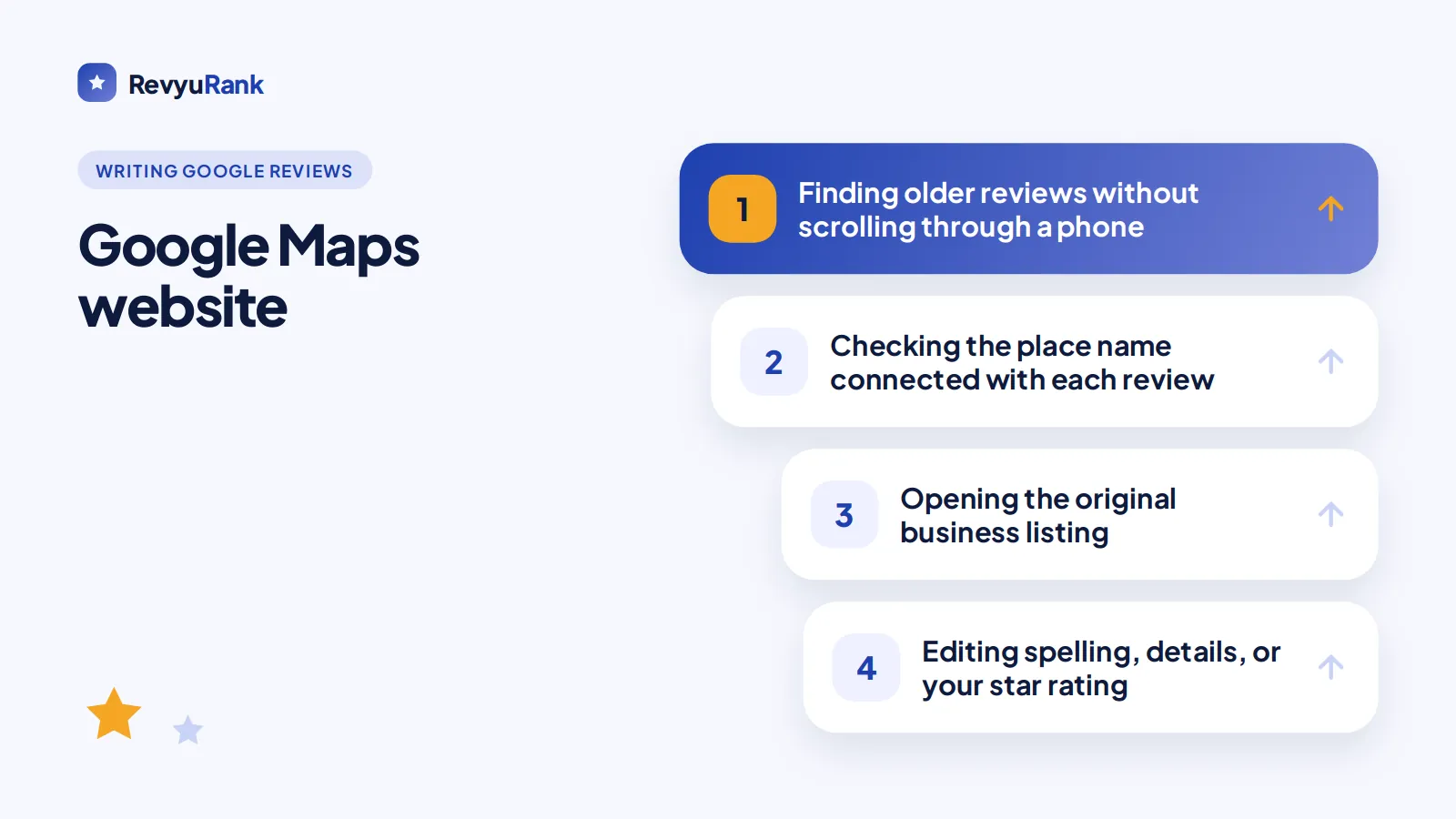
The Google Maps website gives you a wider view of your review history on a computer. It’s a better choice when you want to scan many reviews, copy part of your own wording, or edit a review with a full keyboard.
Go to Google Maps in your browser and sign in. Select the menu button, open Your contributions, and choose the reviews section. You can also open your profile from the account menu and select the list of places you’ve reviewed.
This route is useful for:
- Finding older reviews without scrolling through a phone.
- Checking the place name connected with each review.
- Opening the original business listing.
- Editing spelling, details, or your star rating.
- Removing a review you no longer want published.
The list may not look like a complete personal archive if a place listing was removed, merged, or changed. A review can also disappear after Google removes it for policy reasons, or after you delete it yourself.
Use the website when the app layout doesn’t match the instructions you remember. Google changes menu names and screen design, so look for Your contributions, Reviews, or your profile rather than expecting one exact button.
For example, a review written for a museum on a laptop should appear under the same Google Account in Maps on the web, even if the museum’s current listing has a different photo or category.
Google Search profile
Google Search can provide a fast way to reach your public Google profile and review activity. It suits people who are already searching for their own name, a reviewed business, or their Google Maps profile.
Sign in to the right account, search for a place you reviewed, and look for your profile or contribution information where Google displays it. You may also see a link to your Google Maps profile from your account controls. The exact result depends on the account, device, search query, and Google’s current design.
Search is useful for checking whether a specific review is still visible. It isn’t the best route for building a complete archive because search results can hide, reorder, or omit contributions.
Use Google Search when you remember the business name but don’t remember the review date. Search the business, open its Google listing, and check whether your account’s review appears among the customer reviews.
This route has a real limit: a review not appearing in Search doesn’t prove it was deleted. Google may simply not show every review in the result, or you may be looking at the wrong account or a different business listing.
For example, searching the exact name of a hotel may help you find the listing, but Your contributions in Google Maps is the stronger place to check your full review list.
Google Maps review page
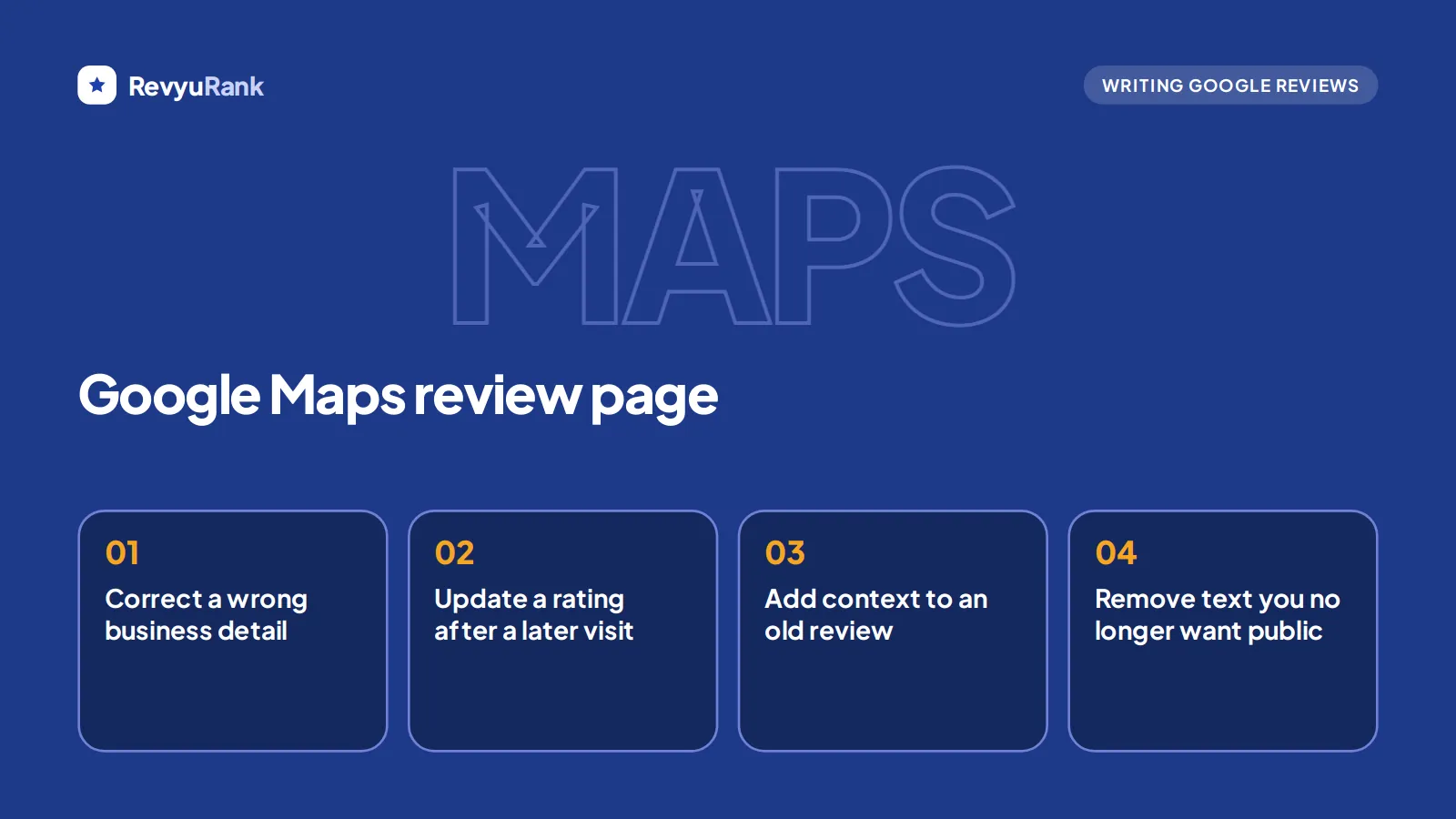
The individual review page is the place to manage one review after you’ve found it. It suits anyone who wants to correct a fact, change a rating, add detail, or remove a review rather than only read the list.
Open the review from your profile or from the business listing while signed in. Use the three-dot menu beside your review, then choose the available option, such as Edit review or Delete review.
It can help you:
- Correct a wrong business detail.
- Update a rating after a later visit.
- Add context to an old review.
- Remove text you no longer want public.
Editing is usually better than deleting when the main problem is a small error. Deleting and writing a new review can remove the original date and wording, so save a copy first if that record matters to you.
The page may show a review differently from your private view. Google can filter content, change the listing attached to a business, or hide a contribution after a policy decision. Google explains its review and content rules in its official Maps user-generated content policy.
For example, if your review says a store opens at 8 a.m. but the business now opens at 9 a.m., edit the review instead of creating a second review for the same visit.
Other Google review records
Some parts of your Google activity can help you identify a missing review, but they aren’t replacement lists for Your contributions. Use them when you remember a place, date, photo, or account detail but can’t find the review directly.
- Business listing history: Open the place in Google Maps and check whether your review is still shown. This works best for a review you wrote recently or one tied to a place you remember clearly.
- Google account switcher: Check every Google Account you use. A review written under a work or older personal account won’t appear in the account currently open in Maps.
- Email records: Search Gmail for the business name, Google Maps, or a review notification. This can reveal the account connected with the activity, but email isn’t a complete review archive.
- Saved photos: A photo attached to the review may help you remember the place. It doesn’t prove that the written review still exists.
The wrong approach is to treat every Google activity record as proof of a published review. A search, photo, rating, or email may show that you interacted with a place without showing the full review text.
Choose the right Google review method
Start with the device you used when you posted the review, then choose the route that matches your goal. If you want the broadest list, use Google Maps → Your contributions; if you want to check one business, open its listing; if you want to edit text, open the individual review page.
Your signed-in account is the first deciding factor. If you have one Google Account, use the Maps app or website and open Your contributions. If you have several, check each account before deciding that a review has disappeared.
Your goal is the next factor. If you’re looking for every review, use the Google Maps website because the larger screen makes the list easier to scan. If you’re checking one restaurant, hotel, or store, Google Search or the business listing may get you there faster.
The age of the review also matters. A recent review is easier to find by searching for the business name. An older review may require the full profile route, especially if the business changed its name, address, or listing.
If a review is missing, compare the account, business listing, and review status before posting again. These routes can be combined: use Your contributions to find the review, the business listing to check its public view, and the individual review page to edit it.
Reviews you wrote and reviews about your business
Reviews you wrote about other places live under Your contributions in Google Maps. Reviews that customers left for a business you manage are a different list, and they sit in your Business Profile.
To see them, sign in to the account that manages the profile and search for your business name. Then select Read reviews. If you want more reviews, the Get more reviews option sits under Read reviews. It lets you share a review request link or QR code.
Reviews must reflect a genuine experience. Do not pay for reviews or ask for only positive ones.
Our team handles exactly this through Google Review Generation.
Frequently asked questions
Can I see every review I’ve written on Google?
Usually, yes, through Google Maps → Your contributions → Reviews on the Google Account that posted them. The list can’t show a review that you deleted, a contribution Google removed, or content tied to a different account. A business listing may also have changed or disappeared. Check each Google Account you use before treating an empty list as proof that no reviews exist.
Why can’t I find my Google review?
The most common reasons are the wrong Google Account, a changed business listing, a deleted review, or removal under Google’s content rules. Open Maps, check the profile picture, and go to Your contributions. If the review is missing there, search the business listing separately. Don’t immediately post a replacement, because the original may still be attached to another account or listing.
How long does it take for a Google review to appear?
A normal review can appear after Google processes it, but there’s no single public time that applies to every review. Reviews may be delayed or hidden when Google checks them for policy issues. Check the place listing while signed in, then check Your contributions. If the review still doesn’t appear after checking the correct account and listing, use Google’s review support options rather than posting duplicates.
Is it safe to delete a Google review?
Deleting a Google review removes your published contribution, so save the wording first if you may need it later. Editing is safer when you only need to correct a date, rating, spelling error, or business detail. Open the review from your profile, use the three-dot menu, and choose the available edit or delete option. Don’t delete it if you need an exact record and haven’t copied it.
What happens if a business listing changes?
Your review may move to a revised listing, become harder to find, or stop appearing if Google removes or merges the old listing. Search for the current business name and address, then check Your contributions under the original account. A changed listing doesn’t always mean your review was deleted. Compare the business location and visit details before writing a new review.
Does it matter which Google Account I use?
Yes. Google ties reviews to the account that published them, so a review won’t appear in another account’s contribution list. Check personal, work, school, and older Gmail accounts if you use more than one. The profile picture or initial in Maps shows which account is active. Switch accounts and repeat the check before contacting support or posting again.
Can I find a Google review by date?
Google Maps doesn’t always provide a simple date search for your complete review list. You can open Your contributions and scan the reviews, or search Gmail for the business name and Google review notifications. The business listing can also help when you remember the place. If you need the exact wording, open the review itself rather than relying on an email preview.
Can other people see all my Google reviews?
People may be able to open your public Google Maps profile and see reviews that remain published. They won’t see reviews you deleted, reviews Google removed, or activity hidden by the platform. Check your profile while signed in, then use the public profile view if available. Your public name, profile image, ratings, photos, and review text can depend on your account settings and Google’s display choices.
What to do first with Google reviews
First, open Google Maps and check which Google Account is active. Select Your contributions, then open the reviews section. You should see the reviews still linked to that account, and opening an entry should show the review text. If you use more than one account, repeat the check while signed in to each one; a review won’t appear under an account that didn’t publish it.
If a review is missing, check your other accounts and confirm that you’re viewing the business’s current Google listing. Search by the business name and location rather than relying only on a link, because listings can change. If the correct account and listing still don’t show a review you know you published, stop searching and use Google’s support options for help.

Robert Miller works as a Reputation Management Consultant. He has been helping U.S. businesses for over ten years. His work involves helping people protect and enhance their online image.Robert has worked with a wide range of companies. He has helped new businesses, local places that give a service, and big companies. He helps turn customer reviews into something that helps people trust their company and drives business growth.