To leave a Google review, sign in to a Google Account, find the business on Google Maps or Search, select Write a review, pick a star rating, add your comments and post. A good Google review takes two minutes to write and can help hundreds of people choose where to eat, who to call for a repair, or which clinic to trust. This guide shows you exactly how to leave a Google review on a computer, iPhone, or Android phone, how to write one that’s genuinely useful, how to add photos, and what to do if your review doesn’t appear.
It also covers the rules every reviewer should know, because reviews that break Google’s policies are removed, sometimes along with others from the same account.
In short:
- Sign in to a Google Account (it doesn’t have to be Gmail), find the business on Google Maps or Search, and select Write a review.
- Pick a star rating, describe what you bought or experienced, and add photos if you have them.
- Reviews are public and show your Google profile name; you can edit or delete them any time.
- Only review places you’ve actually used, and never accept payment or rewards for a review.
Why Your Google Review Matters
Your review helps other people choose a local business and gives the business fair feedback. It can feel like one review won't make a difference, but reviews are one of the main ways people choose local businesses today. BrightLocal’s Local Consumer Review Survey 2026 found that 97% of consumers read reviews for local businesses, and most only trust reviews from the last few months. Your recent, honest review is exactly what the next customer is looking for.
Reviews matter to businesses too. For a small independent shop or a one-person trade, a handful of detailed reviews can be the difference between being chosen and being skipped. And when you point out a problem fairly, you give the business a chance to fix it for everyone who comes after you.
What You Need Before You Start
You only need two things: a Google Account and a real experience with the business.
A Google Account (not necessarily Gmail)
Google requires you to be signed in to post a review. Many people think that means they need a Gmail address, but a Google Account can be created with any existing email address. If that’s what’s stopping you, our guide on leaving a Google review without Gmail walks through the setup.
Your review will be public
Reviews show your Google profile name and picture, and anyone can see them. Google doesn’t offer a truly anonymous option, but you can control what name appears on your profile. Our guide on how to leave an anonymous Google review explains your privacy options and their limits.
How to Leave a Google Review on a Computer
According to Google’s help page on adding, editing, or deleting Google Maps reviews, the steps on a computer are:
- Open Google Maps in your browser and make sure you’re signed in.
- Search for the business and open its listing.
- Scroll to the reviews summary and click Write a review.
- Choose a star rating from one to five.
- Write your review in the text box. You can also answer optional questions about price, service, or atmosphere if they appear.
- Add photos or videos if you’d like.
- Click Post.
You can also do this from Google Search: search the business name, find its profile panel, open the reviews, and select Write a review. The review appears in both Search and Maps.
How to Leave a Google Review on iPhone or Android
The Google Maps app makes reviewing quick, especially right after a visit:
- Open the Google Maps app and check you’re signed in (your profile picture shows at the top).
- Search for the business and tap its name.
- Scroll down to the reviews section, or tap the Reviews tab.
- Tap the stars or Write a review.
- Choose your rating, write your review, and add photos or videos.
- Tap Post.
The app may also prompt you to review places you’ve visited if your Location History or Timeline is on. You can rate quickly from those prompts and add text later.
Using a review link or QR code from the business
Many businesses share a direct review link by text or email, or display a QR code at the counter. Tapping the link or scanning the code opens the review box straight away, so you can skip the searching. It works the same as reviewing through Maps: you still need to be signed in, and the review is posted under your own name.
Leaving a rating without a written review
If you’re short on time, you can tap a star rating without writing anything. It still counts toward the business’s average rating. However, readers can’t learn much from stars alone, so if you have even 30 seconds, add a sentence or two about what stood out. You can always come back later and edit the rating to add text and photos.
How to Write a Helpful Google Review
The most useful reviews answer the questions the next customer will have. You don’t need to write an essay. Three to six sentences covering these points is enough:
- What you used: the service, product, or dish (“We booked a deep clean for a two-bedroom flat”).
- When and how: the context that matters (“on a busy Saturday”, “an emergency call at 10 pm”).
- What went well: specifics, not just “great service” (“arrived on time, quoted before starting, cleaned up after”).
- What could be better: honest, fair points if any.
- Your recommendation: who you’d recommend it to, or not.
Here’s an example:
“Called them for a burst pipe on a Sunday evening. They answered on the second ring and had someone here within an hour. The plumber explained the problem, gave us the price before starting, and cleaned up properly afterwards. A bit more expensive than weekday rates, but worth it for an emergency. Would definitely call again.”
Notice that the example includes a small criticism about price. Balanced details like this make a review more trustworthy, not less. Specific details make your review more believable and more helpful. Google’s own content policy asks that reviews reflect a genuine experience, so stick to what actually happened.
What the stars usually mean
| Rating | What most people mean by it |
|---|---|
| 5 stars | Excellent; you’d happily recommend it without hesitation |
| 4 stars | Very good, with a small issue or room to improve |
| 3 stars | Okay; some things good, some not |
| 2 stars | Disappointing; real problems that affected your experience |
| 1 star | Very poor; you wouldn’t use it again or recommend it |
Need a starting point?
If you’re not sure how to phrase things, examples can help you get started. Browse our positive review examples for ideas on writing useful feedback, or our Google review templates for structures you can adapt. Use them as prompts, then write in your own words about your own experience; copied text sounds generic and is less helpful to readers. For a specific example, see our local school review examples, which show how to review a school fairly and usefully.
What to Mention for Different Types of Businesses
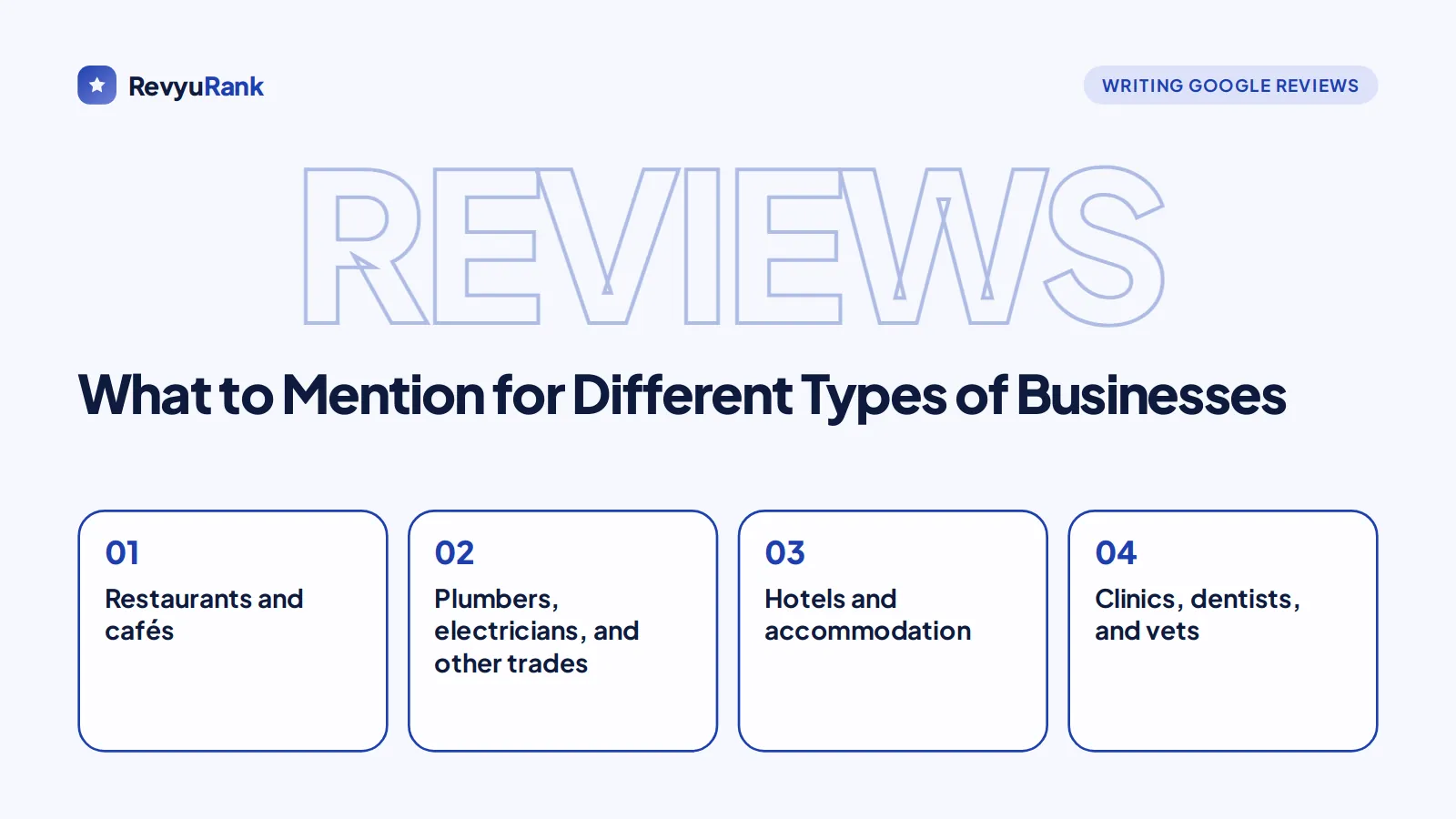
Every type of business has a few details readers care about most. Mentioning them makes your review far more useful:
| Business type | Details worth mentioning |
|---|---|
| Restaurants and cafés | Dishes you ordered, portion size, wait time, noise level, value for money |
| Plumbers, electricians, and other trades | Response time, whether they quoted before starting, quality of work, tidiness |
| Hotels and accommodation | Room type, cleanliness, check-in, noise, location, breakfast |
| Clinics, dentists, and vets | Booking ease, wait time, how clearly things were explained, staff manner (skip private health details) |
| Shops and retail | Stock, staff help, prices, returns or exchanges |
| Schools and childcare | Communication with parents, facilities, activities, how children settled |
| Professional services | Responsiveness, clear pricing, whether deadlines were met |
For healthcare and similar services, keep your own medical or personal details out of the review. Describe the experience, not your diagnosis or treatment.
How to Write a Fair Negative Review
Negative reviews are valuable. They warn other customers and often push businesses to improve. A fair negative review is more convincing than an angry one:
- Stick to facts. Describe what happened, when, and what you were told.
- Stay calm. Insults and swearing can get the review removed under Google’s policies.
- Leave out private details. Don’t post staff members’ personal information or anyone’s phone number or address.
- Mention what was done. If the business tried to fix the problem, say so, even if it didn’t fully work.
- Consider contacting the business first. Many problems get solved with a call, and you can still review afterwards.
If the business replies and resolves your issue, you can update your review later to reflect what happened.
How to Add Photos and Videos to Your Review
Photos make reviews more useful: a picture of the finished renovation, the meal, or the room tells readers more than words. You can add photos when you first write the review or later by editing it. Make sure photos are your own, show the place or what you received, and don’t include other people’s faces without permission. For a step-by-step guide on every device, see how to add a photo to a Google review.
How to Edit or Delete Your Google Review
You can edit or delete your review at any time from Your contributions in Google Maps. You stay in control of your review after posting it. On a computer:
- Open Google Maps and click the menu at the top left.
- Click Your contributions, then Reviews.
- Next to the review, click More (the three dots).
- Choose Edit review or Delete review and follow the steps.
In the Maps app, tap your profile picture, open Your profile or Your contributions, find the review, and use the same menu. When you edit a review, its date changes to the date of the update. For more detail, including how to remove a rating without text, read our guide to adding, editing, or deleting a Google Maps review.
Why Can’t I Leave a Google Review, or Why Isn’t It Showing?
Most often you are not signed in, the listing restricts reviews, or the review is being checked or was filtered. Sometimes the button doesn't appear, or the review seems to vanish after posting. The most common reasons:
| Problem | Likely cause | What to try |
|---|---|---|
| No “Write a review” button | Not signed in, or the business has reviews restricted | Sign in; check you’re on the right listing |
| Review posted but not visible to others | It’s being checked, or it was filtered by spam detection | Wait a few days; check it appears in Your contributions |
| Review disappeared later | Removed for a policy reason or caught by a spam filter | Read the policy; make sure the review is about a real experience |
| Can’t review from a work or school account | Your organization has turned off Maps contributions | Use a personal Google Account |
| Brand-new account | New accounts are more likely to be filtered | Complete your profile; reviews from active accounts are trusted more |
Our guide on why you can’t leave a Google review walks through each of these fixes in detail.
What Happens After You Post a Review
Once your review is live, a few things happen. The business is usually notified and may reply publicly under your review; you’ll get a notification if they do. Your star rating becomes part of the business’s overall average, and your words may appear in review highlights or AI-generated summaries that Google shows to other users. Other people can also mark your review as helpful.
If the business replies with an apology or a fix, consider whether your review still reflects your experience. Updating it to mention how they responded helps future readers judge the business fairly.
Common Mistakes Reviewers Make
- Reviewing the wrong location. Chains often have several listings nearby; check the address before you post.
- Only leaving stars. A rating without text helps a little, but a few sentences help much more.
- Reviewing in the heat of the moment. Waiting an hour after a bad experience usually produces a fairer, more convincing review.
- Copying a template word for word. Readers notice generic text; your own details are what make a review useful.
- Posting from a shared device in the shop. Reviews posted from the business’s own tablet are often filtered; use your own phone.
Rules Every Reviewer Should Know
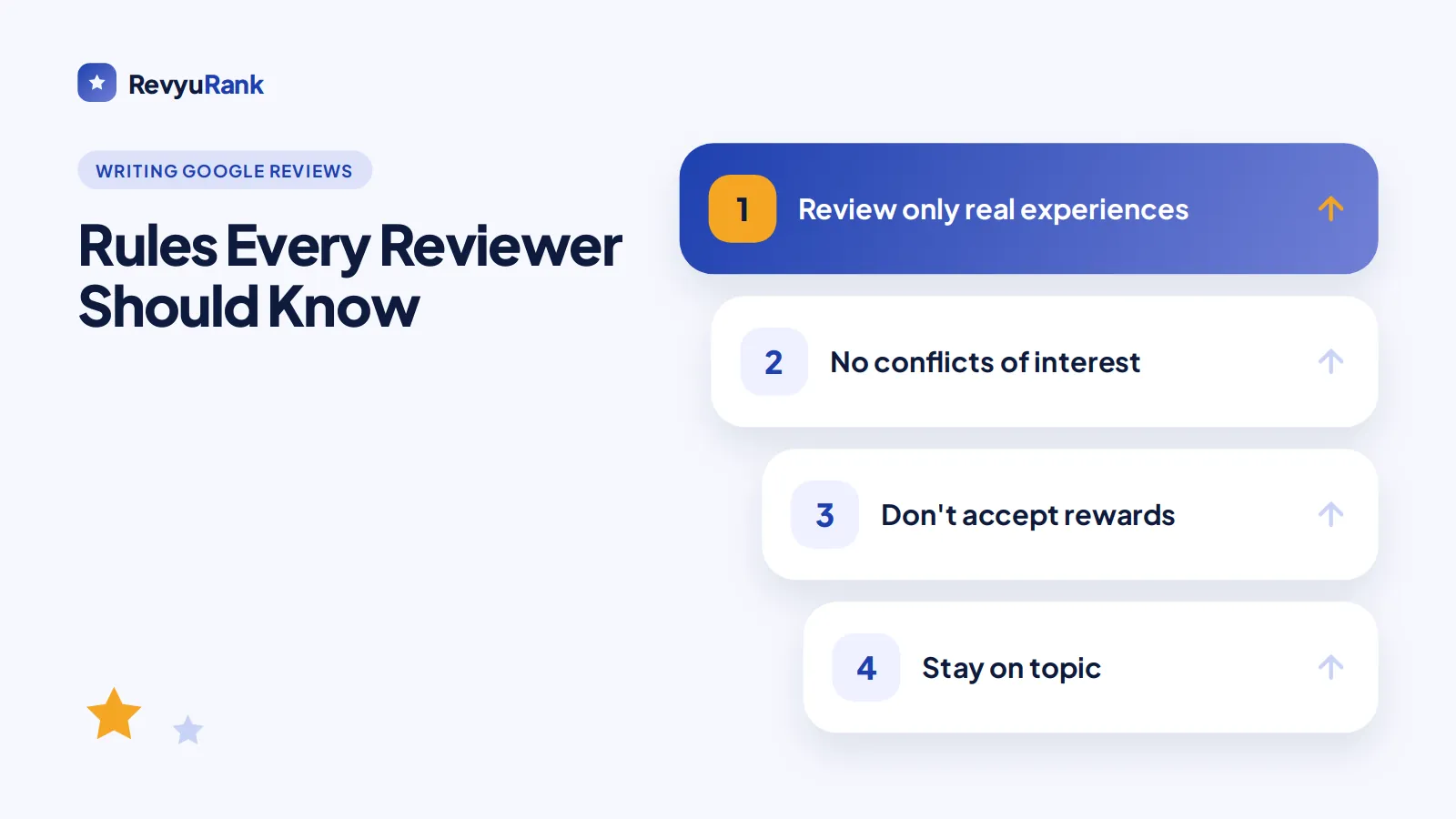
Google’s policies protect readers from misleading reviews. Breaking them can get your review removed, and repeated problems can affect your account’s other contributions.
- Review only real experiences. Don’t review a place you haven’t used, or post on behalf of someone else.
- No conflicts of interest. Don’t review your own business, your employer, a relative’s business, or a competitor.
- Don’t accept rewards. If a business offers a discount, gift, or prize for a review, that breaks Google’s rules. You can still review honestly, but don’t accept the incentive in exchange.
- Stay on topic. Reviews should be about the customer experience, not politics or unrelated complaints.
- No personal information. Don’t post phone numbers, addresses, or private details about staff or other customers.
- No offensive content. Hate speech, harassment, threats, and obscene language are removed.
Google sometimes asks reviewers whether they were offered something for their review. Answer honestly; it helps keep reviews trustworthy for everyone.
How to Find and Share Your Reviews
All your reviews live in one place in Google Maps. On a computer, open the menu, select Your contributions, and choose Reviews. In the app, tap your profile picture and open your contributions. From there you can see every review you’ve written, check whether it has photos, edit or delete it, and use the Share option to send a link to a friend or post it somewhere else.
This is also the best place to check whether a review is live. If it appears in your contributions but you can’t find it on the business’s listing when signed out, it may still be under review or may have been filtered.
Reviewing Places You Visit Often
You can only leave one review per business from each account, but you can update it as often as you like. If you’re a regular at a café, gym, or salon, write your first review after a few visits, then edit it when something changes, such as a new menu, a renovation, or a change in service. An up-to-date review from a long-time customer is especially valuable to newcomers, because it shows how the business performs over time, not just on a single good or bad day.
Writing Reviews in Other Languages
Write in the language you’re most comfortable with. Google can translate reviews for readers in other languages, so a clear review in your own language is more useful than an awkward one in a language you don’t know well. Keep sentences short and avoid slang that may not translate well, especially when reviewing places popular with tourists or international visitors.
Become a Google Local Guide
If you enjoy reviewing, Google’s Local Guides program rewards contributors with points and levels for reviews, photos, answers, and edits to Maps. It’s a way to build a reputation as a trusted reviewer and help your community find good places. Learn how it works in our guide to Google Local Guides.
Tips That Make Your Review More Useful
- Review soon after your visit, while details are fresh.
- Mention the specific service or item, so readers with the same need find it useful.
- Be balanced. Even a great experience can include a small suggestion; even a poor one may have a positive point.
- Keep it readable. Short paragraphs on a phone screen are easier to read than one long block.
- Update when things change. If a business fixes a problem or quality drops, edit your review.
- Use photos thoughtfully. One clear photo beats ten blurry ones.
For Business Owners: Make Reviewing Easy for Your Customers
If you run a business, everything above is what your customers go through when they review you. The easier you make it, the more reviews you get. Give customers a direct review link instead of asking them to search; our free Google review link generator creates one in seconds. Then follow our guide on how to get Google reviews to build a compliant request system, or let our Google review generation service set it up for you.
One tip that removes a common barrier: tell customers they don’t need Gmail to review, just any Google Account. And never offer anything in return for a review. Google lists reviews paid for, directly or in kind, as fake and misleading, and incentivized reviews are removed from Maps.
What Google Allows When You Ask for Reviews
Asking customers for reviews is allowed. The reviews must reflect a genuine experience. Google’s help centre says you can share a review request link or QR code. The ‘Get more reviews’ option sits under Read reviews in your Business Profile. It suggests putting the link or QR code on receipts and in thank-you emails.
- Don’t offer payment, discounts or gifts for reviews. Incentivized reviews are removed from Maps.
- Don’t ask only happy customers for reviews. Selectively asking for positive reviews is not allowed.
- Don’t discourage or prohibit negative reviews.
- Don’t ask staff to collect a set number of reviews.
- Don’t pressure customers to review while they are on your premises, and don’t ask for specific content.
Frequently Asked Questions
Do I need a Gmail account to leave a Google review?
No. You need a Google Account, but it can be created with any email address. Once you’re signed in, you can review any business on Google Maps or Search.
Can I leave a Google review anonymously?
Not completely. Reviews show your Google profile name and picture. You can change the name on your profile, but the review is still linked to your account.
How long does it take for my Google review to appear?
Most reviews appear within minutes, but some are checked before they’re shown to others, which can take longer. If it never appears publicly, it may have been filtered.
Can I edit my Google review after posting it?
Yes. Open Google Maps, go to Your contributions, then Reviews, and choose Edit review. You can change the stars, text, and photos. The review date updates when you edit.
Can the business delete my review?
No. Businesses can reply to reviews and report ones they believe break Google’s policies, but only Google decides whether to remove a review. Only you can delete your own review.
Can I review a business I work for?
No. Reviews from employees, owners, and anyone with a conflict of interest break Google’s policies and may be removed.
Should I accept a discount for leaving a review?
No. Google prohibits reviews posted in exchange for rewards. You’re welcome to review honestly, but don’t accept anything in return.
What to Do Next
- Think of a business you’ve used recently that deserves an honest review.
- Open Google Maps, sign in, and find the business.
- Write three to six sentences covering what you used, what went well, and what could be better.
- Add a photo if you have one, then post.

Robert Miller works as a Reputation Management Consultant. He has been helping U.S. businesses for over ten years. His work involves helping people protect and enhance their online image.Robert has worked with a wide range of companies. He has helped new businesses, local places that give a service, and big companies. He helps turn customer reviews into something that helps people trust their company and drives business growth.