Google reviews can be added to a Webflow website with a Google review link, a manual review section, or a third-party widget. how to add google reviews to a webflow website depends on whether you need a simple link, full review cards, automatic updates, or several business locations.
The main choices are Webflow’s Embed element, the review source you’ll use, and whether the reviews must update automatically. Your plan also matters: custom code and site publishing features can differ between Webflow plans.
Add Google Reviews to Webflow
If you mainly want visitors to leave their own Google review, start with a Google review link. Open your Google Business Profile, go to Read reviews, choose Get more reviews, copy the link, and place it on a Webflow button.
For visible review cards, collect the review text, reviewer name, star rating, and date. Add a Webflow Collection with fields for each item. Then place the Collection List on your page and connect each text element to the correct field.
Use the manual method when you have one location and only a small number of reviews. Use a widget when you need automatic updates, Google review filtering, or several locations. The assumption here is that you manage the business profile and have permission to display the review content.
Before publishing, check the result on desktop and mobile. A finished section should show the correct business name, readable review text, a working Google link, and no empty cards.
What Changes the Setup
Your number of business locations changes the best method most. If you have one location, a review link or Webflow CMS section may be enough; if you manage several locations, use a system that keeps each location’s reviews separate.
The second factor is how often reviews change. A manual section gives you layout control, but you must edit Webflow yourself. An embedded widget can refresh its display, but it adds another service, script, and possible monthly charge.
The source of the reviews also matters. Google doesn’t provide a simple public feed that every website owner can freely copy into any design. Check the widget provider’s connection method and terms before you install it. The most common mistake is copying review text from search results without checking the source, date, and business location.
Your Webflow plan and site settings can also affect the result. If the widget requires JavaScript, test it in the published site, not only in Webflow Designer. Custom code that looks correct in the Designer may not load until the page is published.
Finally, decide whether you need reviews for trust or for action. If the main goal is new reviews, give visitors a clear “Leave a Google review” button. If the goal is social proof, show selected review cards near your service or contact section.
Webflow Google Review Steps
-
Choose the display method. Use a button for a review link, Webflow CMS for manually controlled cards, or a widget for automatic displays. This choice decides the rest of the setup.
-
Prepare your Google link. Open your Google Business Profile, go to Read reviews, and choose Get more reviews. Copy the full review link, then open it in a private browser window to confirm it opens the correct business.
-
Create the page area. In Webflow, add a section with a clear heading such as “What customers say.” Give the section a class name that describes its purpose, such as
google-reviews-section. -
Add a review button. Drag a Button element into the section and use wording such as “Leave us a Google review.” Paste the Google review URL into the button link settings.
-
Build manual review fields if needed. Create a CMS Collection with fields for reviewer name, review text, star rating, review date, and review URL. Keep each review as one CMS item.
-
Connect the CMS list. Add a Collection List, connect it to the review Collection, and bind each text element to its matching field. Use a plain text field for the review, not a copied block of HTML.
-
Add the widget only when needed. If you use a provider’s widget, copy the provider’s installation code. In Webflow, add an Embed element where the reviews should appear, then paste the code without changing its script tags.
-
Publish and test. Publish the site, open the live page, test the review button, and check the widget on a phone. The step worked when the correct business appears and no console or layout error is visible.
-
Check the link again. Follow the displayed Google link from the live page. If it opens a different business, stop and replace the link before sharing the page.
We can check your Embed element and pasted widget code with you, or set it up for you, if the reviews won’t appear.
The key judgment is whether the review display stays accurate after publication. If you can’t update manual cards when a review changes, use a smaller selection or a managed widget instead. Don’t edit third-party script code if you’re not comfortable with JavaScript; ask the widget provider or a Webflow developer.
Review Setup Options Compared
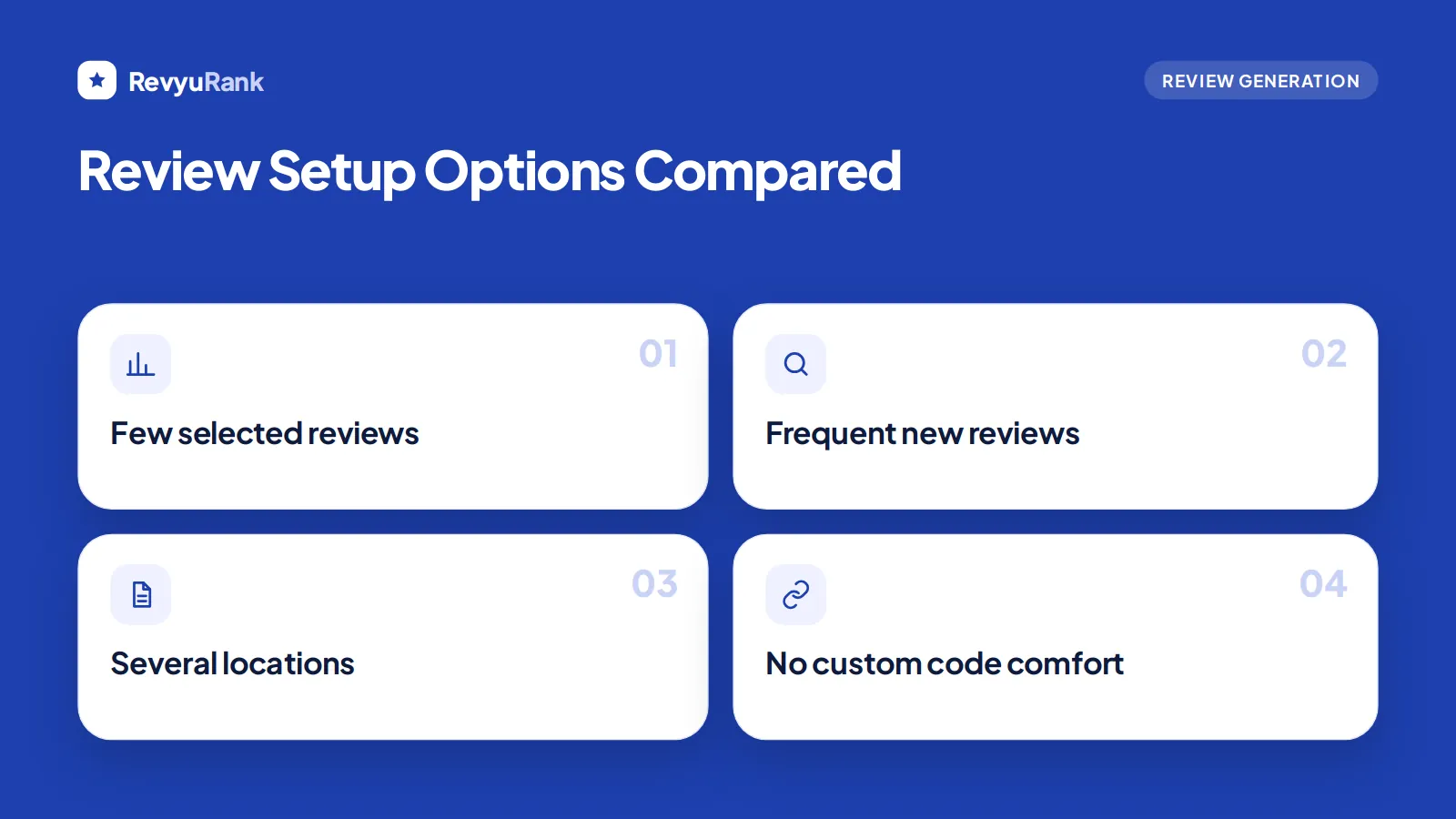
The right option depends on whether control, automation, or simplicity matters most.
| Situation | What to do in it | What it takes | What to watch for |
|---|---|---|---|
| One location, review link | Add a Webflow button | Minutes, low effort | Wrong profile URL |
| Few selected reviews | Use Webflow CMS | Manual updates | Old review text |
| Frequent new reviews | Install a widget | Setup and script testing | Provider limits |
| Several locations | Separate each location | More CMS structure | Mixed business names |
| No custom code comfort | Use a button | Very little effort | Fewer visible reviews |
| Branded review layout | Build CMS cards | Design and editing time | Inconsistent formatting |
Better Review Sections in Webflow
Prepare the content first
A reliable section starts with a small, consistent set of fields. Keep reviewer names, dates, star displays, and text in separate CMS fields so you can change one part without rebuilding the card.
Experienced editors also check the source before adding a review. Compare the review with the live Google listing, confirm the business location, and remove a card if it no longer represents the current listing. Don’t paste a review with hidden formatting from another website.
Use the same text length limit across cards where possible. Very long reviews can make one card much taller than the others, so show a short excerpt and link to the original review when your method supports that link.
Check the live result
Test the section after publishing, not only in Preview. A widget can load after the page appears, shift the layout, or fail when a browser blocks a third-party script.
Check the heading order, text contrast, keyboard focus, and mobile spacing. If a star rating is shown as an image or icon, include text that explains the rating; five stars alone may not be clear to every visitor.
Leave the review layout alone if it already loads quickly and reads well. Extra sliders, animations, and rotating cards add complexity without always adding trust.
Common Webflow Review Problems
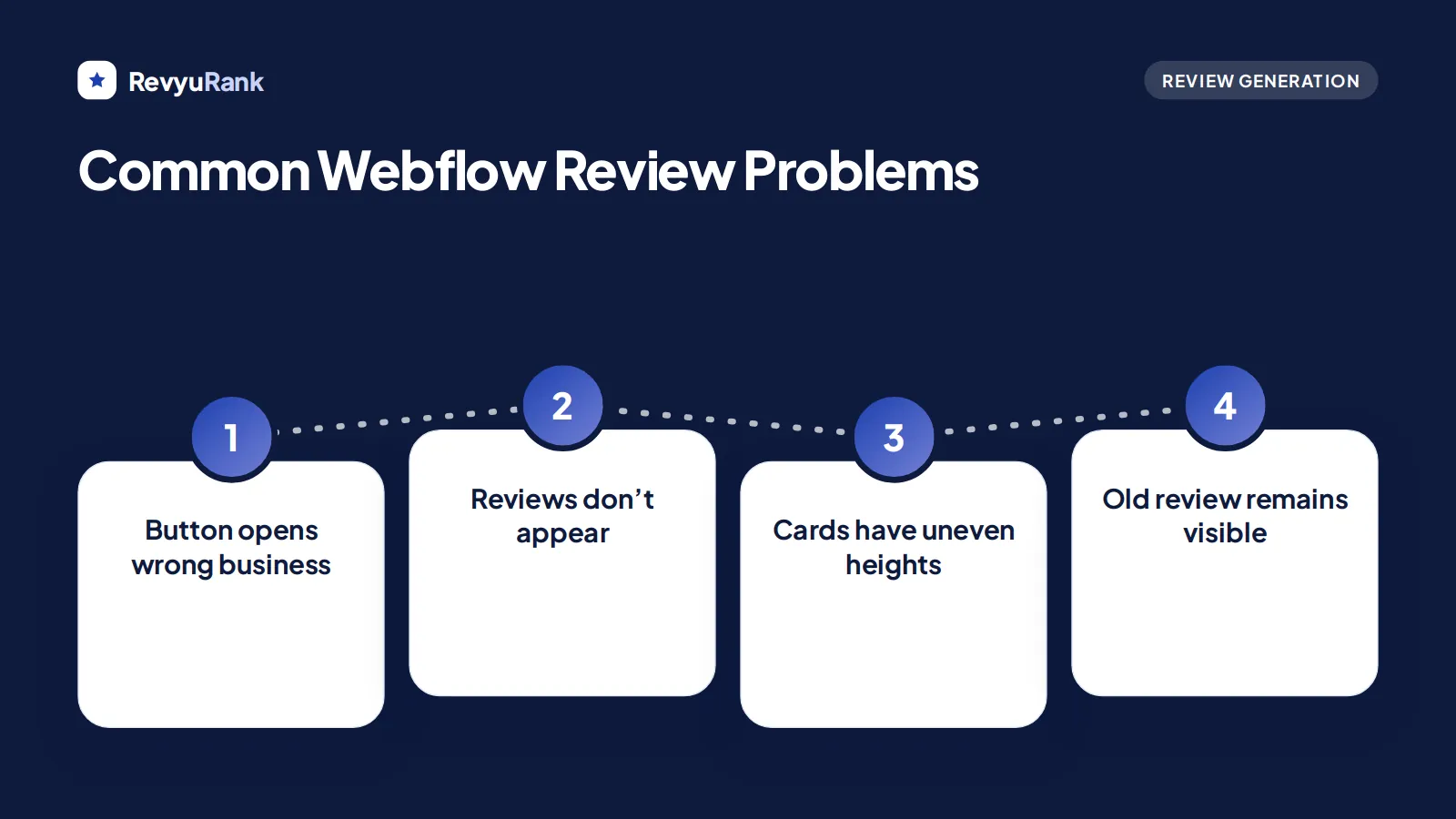
A visible problem doesn’t always show the real cause, so check the source and the live page first.
| What you notice | What it usually means | What to do first | How to stop it happening again |
|---|---|---|---|
| Button opens wrong business | Incorrect review URL | Test and replace link | Label each location clearly |
| Reviews don’t appear | Widget script failed | Test published page | Keep provider code unchanged |
| Cards have uneven heights | Review lengths differ | Limit excerpts | Use consistent CMS fields |
| Old review remains visible | Manual content wasn’t updated | Check the live listing | Keep an update record |
| Mobile section overflows | Fixed-width styling | Inspect mobile breakpoint | Use responsive widths |
| Stars show no meaning | Rating lacks text | Add accessible label | Test with keyboard navigation |
The costly mistake is publishing a copied review with the wrong business location. It can confuse visitors, weaken trust, and force you to rebuild the section. If a widget fails after you’ve checked its code and published page, contact the widget provider instead of repeatedly editing scripts.
Checks Before Publishing
Google Business Profile details can change, so confirm the business name, address, phone number, and review link in the profile you actually manage.
Also check the widget provider’s documentation for supported Webflow installation steps, plan limits, branding, and refresh behavior. Don’t assume that a script made for another website builder will work unchanged in Webflow.
Confirm that each displayed review belongs to the correct business and that your team has permission to use any extra images or customer details. If a review includes private information, remove that detail rather than publishing it.
If a script needs custom JavaScript changes, or if a provider asks you to change DNS, account, or security settings, stop and ask the provider or a qualified Webflow developer. Don’t make changes that could break forms, tracking, or access to your site.
Ask for reviews the way Google allows
A review button works best when your requests follow Google’s rules. You can ask customers for reviews, but each review must reflect a genuine experience. Google says merchants can share a review request link or QR code, and it suggests putting it on receipts and in thank-you emails.
- Don’t pay for reviews or offer rewards for them. Google treats paid reviews, directly or in kind, as fake and misleading.
- Don’t ask only happy customers for reviews, and don’t discourage negative ones.
- Don’t ask staff to collect a set number of reviews.
- Don’t pressure customers to review while they are on your premises, and don’t ask for specific wording.
Time and Effort Needed
A single review button usually takes only the time needed to find, test, and place the correct Google link. The exact time depends on whether the business profile is already verified and whether the page design is ready.
A manual CMS section takes longer because you must create fields, enter each review, style the cards, and check the mobile layout. It also creates an ongoing editing task whenever you replace or remove a review.
A widget can be quicker to display, but setup may take longer if you need an account, a plan, custom styling, or help with script errors. The trade-off is simple: manual cards give you more design control, while widgets reduce manual updates but add an outside service.
Keep Reviews Accurate
Keep a record of the Google listing used for each Webflow review section. This matters when a business has more than one location or when a new page is copied from an older site.
Check the live section whenever you learn that the business name, location, or review link has changed. A broken button, an empty widget, or a review that no longer appears on Google is a sign that the section needs attention.
For manual CMS cards, update the review text and date together. For a widget, check the provider dashboard and documentation before changing the Embed code. Don’t start over unless the source, business location, or display method has changed.
When Webflow Reviews Aren’t Right
A manual Webflow review section isn’t the best choice if your business receives new reviews every day. Use a managed review widget or connect the review system through a developer-supported integration instead.
A widget isn’t ideal if your site must stay free of third-party scripts or outside branding. Use a Webflow CMS section with a small, carefully maintained selection of reviews.
This approach also isn’t right if you manage many locations but have no reliable way to identify each listing. Create separate location records first, or ask a Webflow developer to design the CMS structure. Don’t place reviews from different locations in one unlabelled list.
Related guides
For hands-on help with this, our team offers Google Review Generation.
Frequently asked questions
Why are my Google reviews not showing in Webflow?
The usual causes are a failed widget script, an incorrect business connection, a blocked third-party request, or code that was tested only in Webflow Designer. Publish the page, test it in a private browser window, and check the provider’s installation instructions.
How long does it take to add Google reviews to Webflow?
A single review button can take about 10–20 minutes when your Google Business Profile and Webflow page already exist. A CMS section or widget can take longer because it includes content entry, styling, mobile testing, and troubleshooting.
Is it safe to paste a review widget into Webflow?
It can be safe when the code comes from a provider you trust and you understand what the script loads. Review the provider’s documentation, privacy details, and permissions first. Don’t paste unknown JavaScript, and ask a developer to check code that handles visitor data.
What happens if a Google review is deleted?
A manually copied review stays on your Webflow page until you remove or edit it. A widget may stop showing it after its next update, but the timing depends on the provider. Check the live Google listing before deciding whether to keep each card.
Does it matter where I place Google reviews?
Yes. Reviews usually work best near the service description, contact action, or booking button, where visitors need reassurance. Avoid hiding them below unrelated content, and make the section readable on mobile before publishing the page.
Can I show all Google reviews on my website?
Not always. The available display depends on the method, provider, account connection, and page design. A manual Webflow section is better for selected reviews, while a supported widget may show more reviews but gives you less control over the layout.
Add Google Reviews to Webflow First
Start by testing the correct Google review link, then choose a button, CMS section, or widget based on how often your reviews change. You should see the correct business and readable review content on the live page; if the source or script stays wrong, stop and contact the provider or a Webflow developer.

Robert Miller works as a Reputation Management Consultant. He has been helping U.S. businesses for over ten years. His work involves helping people protect and enhance their online image.Robert has worked with a wide range of companies. He has helped new businesses, local places that give a service, and big companies. He helps turn customer reviews into something that helps people trust their company and drives business growth.