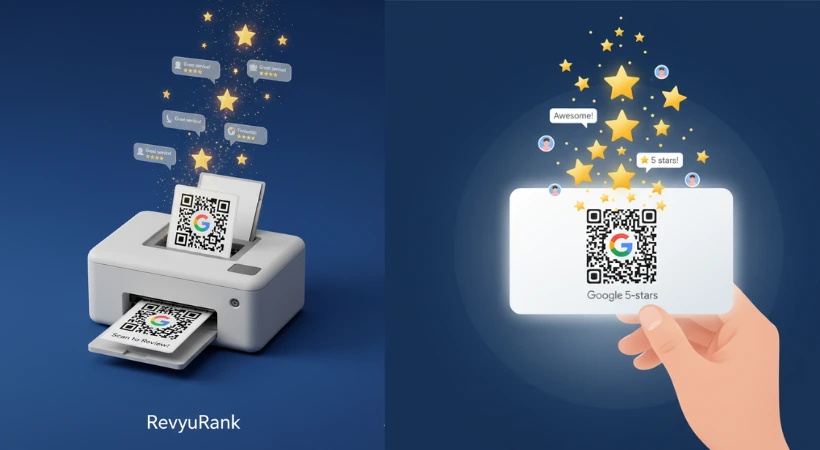
Want a simple way to get more Google reviews? And build your business reputation fast? Creating Google Reviews QR Code cards is a smart move.
These cards make it super easy for customers to leave feedback—just scan and go. Imagine turning every happy customer into a glowing review, without extra effort. Sounds great, right?
Here’s a straightforward guide to help you create your own QR code cards step-by-step. Let’s dive in!
Why Google Reviews Matter
Google reviews are like word-of-mouth in the digital world. They show real opinions from real people. And that builds trust.
Think about it—most people check reviews before buying. Good ratings make a strong first impression. Plus, more reviews help your business pop up higher on Google search and Maps.
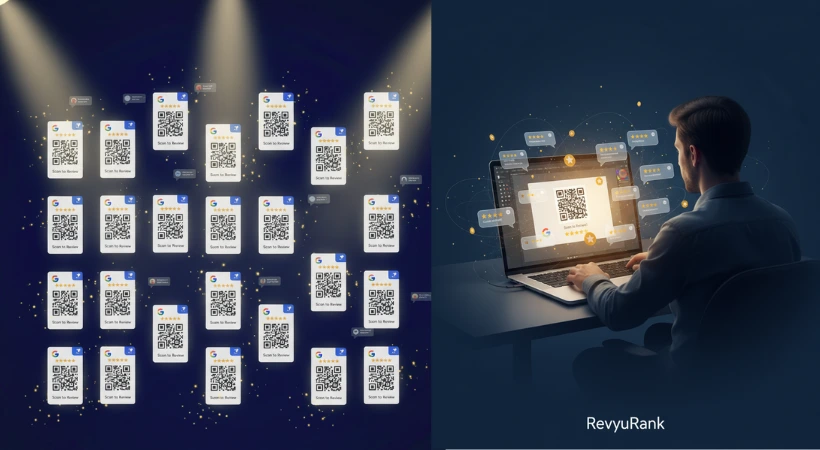
Here’s What Google Reviews Do For You:
- Improve your online visibility: More reviews boost your chances to appear on Google Maps.
- Build customer trust: Honest feedback makes people feel confident about your business.
- Increase engagement: Reviews invite customers to share their stories. Responding shows you care.
- Provide valuable feedback: Learn what customers like or want improved.
- Boost local SEO: Google favors businesses with fresh and frequent reviews.
What’s a Google Reviews QR Code?
It’s a simple black-and-white square you scan with your phone. Instead of typing a long link, the QR code takes customers straight to your Google review page.
No searching. No hassle.
Most phones read QR codes right from the camera—no extra apps needed.
How Does It Work?
Scan the code. Your browser opens the review page. Customers rate your business and leave comments. Easy as that.
Why Use a Google Reviews QR Code?
- Saves time: Quick for customers, simple for you.
- Encourages more reviews: The easier the process, the more people participate.
- Builds trust: More reviews = better reputation.
- Gets real feedback fast: See what your customers really think.
Tools to Generate QR Codes
You don’t need to be tech-savvy. Plenty of free and paid tools make QR code creation a breeze. Just paste your Google review link, and voilà — a QR code ready to download.
Some tools even let you customize your code with colors, logos, and shapes so it fits your brand.
Popular Qr Code Generators:
- QR Code Generator: Clean, easy, downloads in PNG or SVG.
- Beaconstac QR Code Generator: Lets you track scans and add logos.
- QRStuff: Free and simple, no signup needed.
- Unitag QR Code Generator: Fun customization and test before download.
How to Create Your Google Reviews QR Code Card
- Find your Google review link: Search your business on Google Maps, click on reviews, then copy the URL.
- Pick a QR code generator: Use one of the tools above.
- Enter your review link: Paste it carefully to avoid errors.
- Customize the design: Change colors or add your logo if you want.
- Download and test: Scan your QR code with a phone to make sure it works.
- Print your cards: Put the QR code on cards or flyers. Use good quality printing.
Design Tips for Your QR Code Cards
Good design makes a big difference. Here’s what I’ve learned:
- Size matters: Make it at least 1 x 1 inch. Big enough to scan easily, but not too big.
- Keep backgrounds simple: Use light, plain backgrounds so the code stands out.
- Add a call to action: Like “Scan to Review Us.” It tells people what to do.
- Match your brand: Use your colors and logo, but keep the QR code as the star.
- Leave white space: Don’t crowd the code. Space helps phones scan better.
Where to Display Your QR Code Cards
Put your cards where customers will notice them. Here are some of the best spots:
- At the checkout counter — customers wait here anyway.
- Inside product packaging — a surprise invite to review.
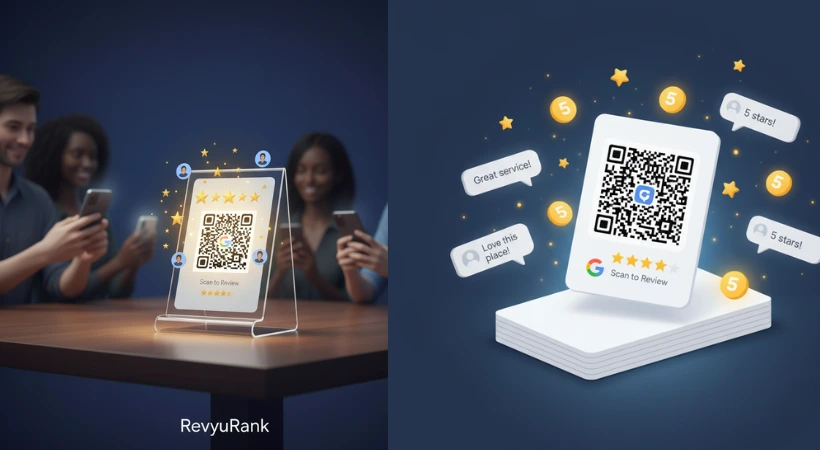
- On tables or seating areas — perfect for restaurants or cafes.
- Near entrances or exits — a last reminder before customers leave.
- At customer service desks — right after helping someone.
How to Encourage Customers to Scan
Getting people to use your QR code is the tricky part. Here’s what works:
- Clear signs: Make the QR code easy to spot.
- Simple instructions: “Scan to Leave a Review” works great.
- Good lighting: Make sure it’s easy to scan anytime.
- Offer small rewards: A discount or freebie goes a long way.
- Train your staff: A friendly reminder from your team helps a lot.
How to Measure the Impact
Once you start using QR code cards, keep an eye on how they’re doing.
- Count your reviews: Are you getting more since using the cards?
- Check review quality: Are people leaving detailed, helpful comments?
- Look at your Google profile: Is your business showing up more in searches?
- Track QR code scans: High scan numbers mean your cards are working.
- Compare sales: Any boost in sales might be linked to better reviews.
Frequently Asked Questions
What is a Google Reviews QR Code Card?
A card that has a QR code linking customers directly to your Google review page.
How do I create one?
Find your Google review link and use an online QR code generator to make the code.
Can I print these cards?
Yes! Print them on paper, cards, or even stickers for easy sharing.
Why should I use them?
They make it super easy for customers to leave reviews quickly.
What should I include on the card?
Your business name, the QR code, and a short message asking for a review.
Are QR codes free to create?
Most QR code generators offer free basic services.
Can I share QR codes digitally?
Absolutely. Send the image via email, social media, or messaging apps.
Will these cards increase my reviews?
They help by making it easier and faster for customers to leave reviews.
Wrapping Up
Google Reviews QR Code cards are a quick and easy way to gather customer feedback. Put them where people can see and scan easily. Keep the design simple and clear. And don’t forget to check your reviews regularly. It’s a small step that builds trust and helps your business grow.
Ready to give it a try? Your next great review could be just a scan away.

Olivia Brown helps businesses grow by looking at data. She works as a Marketing Analyst. Olivia studies how people act, what they say in reviews, and how well SEO is working. She does this to help brands utilize their money in the most effective way.At RevyuRank, Olivia works to measure how Google reviews change a brand’s name, how often people buy, and how loyal customers stay. Her work is full of data, but she also shares clear stories so brands know what the numbers mean. Olivia helps both new and established companies achieve better results for their investment.When she is not working, Olivia enjoys experimenting with AI tools, leading workshops for young analysts, and exploring nature trails.