
Review management software helps you collect reviews, monitor rating changes, reply from one place, and spot customer problems earlier. The right setup depends on your review sites, business locations, team size, and whether you need customer surveys or only review replies.
A small local business may need a simple inbox and response reminders. A multi-location company may need approval controls, location reports, and different user permissions. The advice below assumes you want to manage genuine customer feedback across public platforms without posting, changing, or buying reviews.
Who needs review management tools
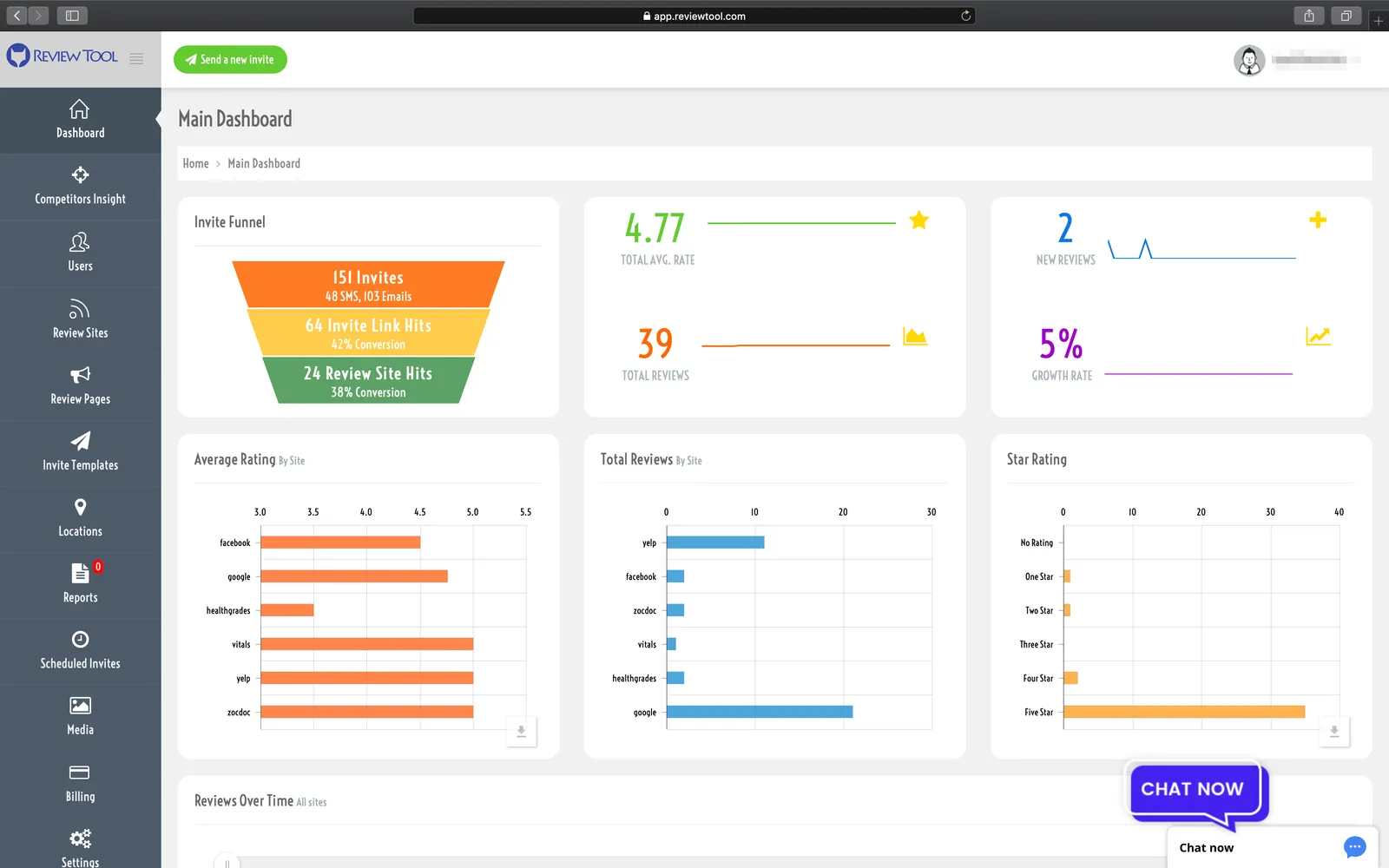
A small business owner with one location usually needs a clear view of new reviews and a quick way to reply. You may already check Google Business Profile, Yelp, Facebook, or an industry site by hand. The useful upgrade is one inbox, not a large marketing system with features you won’t use.
A marketing manager may need more control. You might manage several locations, assign replies to staff, compare ratings, and report recurring complaints to operations. Your main need is usually workflow: who answers, who approves the response, and when an unanswered review needs attention.
A customer experience team has a different problem. It may need to send feedback requests after a purchase, separate private complaints from public praise, and connect comments with support or sales records. That requires careful data handling and stronger integration checks.
This page serves small and mid-sized teams that want honest reviews managed more consistently. It isn’t aimed at a company that only wants to generate promotional testimonials or automatically post identical replies everywhere.
The advice assumes your business already has claimed profiles on the sites that matter. If a profile isn’t claimed, start with that platform’s official owner-verification process. Software can’t reliably manage a listing your business doesn’t control.
The main choice is simple: buy for the workflow you need today, but check the next limit before signing up. A low-cost plan may be enough for one location, while a larger plan may be justified by approvals, reporting, or location-level access.
What changes the right choice
The review sites you need matter most. A tool is useful only if it connects to the platforms where customers actually leave reviews. Write down every important site, then check each product’s current integrations page rather than trusting a sales phrase such as “all major platforms.”
A business that mainly receives Google reviews may need only monitoring, alerts, and replies. A hotel, clinic, contractor, or restaurant may also need an industry platform or booking-system connection. If the tool doesn’t support one high-volume source, you’ll still be checking that site manually.
Your number of locations changes the workflow. One location can often use a shared inbox and one approval path. Several locations need location filters, separate users, and reporting that doesn’t mix one branch’s problems with another’s.
Count the profiles you need to manage, not just the legal business names. A franchise with 20 locations may have dozens of listings across several sites. Ask whether pricing is based on locations, profiles, users, review volume, or a mixture.
Your response process decides whether automation helps. If one owner replies to every review, saved reply templates and alerts may be enough. If replies must pass through a manager, legal team, or regional lead, you need assignment and approval steps.
Automation saves time, but it can make replies sound copied. Use templates for structure, not for pretending to know details that the customer didn’t mention. A human should review complaints, safety issues, privacy concerns, and anything that could create a legal problem.
Feedback collection is separate from review monitoring. Some platforms only watch public reviews. Others send surveys or review invitations after a transaction. Decide whether you need both functions before comparing prices.
The most common misunderstanding is treating a private survey as a replacement for a public review. A survey can help you find unhappy customers, but it doesn’t remove the need to monitor public feedback. Check the product’s exact workflow and the customer’s choice at each step.
Data access and reporting can change the real value. Check whether you can export reviews, response history, survey answers, and performance reports in a usable format. Also check user roles, retention terms, and what happens to your data if you cancel.
If you need customer names, order details, or contact information, ask where that data is stored and who can see it. Your privacy duties depend on your country, industry, and contracts. Don’t send sensitive information into a tool until your privacy or legal contact approves the arrangement.
How to set up review management
Start with a small, controlled setup. Add the platforms and users you can verify, test one response path, and only then turn on broader alerts or feedback requests.
-
List every review profile your business owns. Include the platform name, location, profile URL, and account owner in one spreadsheet. Mark each profile as claimed, unclaimed, duplicated, or unknown. The step worked when another team member could match every active location to one verified listing.
-
Choose the first workflow to manage. Select either public review replies or post-purchase feedback, not both at once. Write the trigger in plain language, such as “a new one-star review arrives” or “an order is marked complete.” The step worked when one person can explain what starts the workflow.
-
Connect one low-risk profile first. Use the platform’s normal authorization screen, not a shared password sent by email. Confirm that the business name, location, and permissions are correct. The step worked when a test alert appeared without exposing another location’s reviews.
-
Create three response paths. Route positive reviews to a reply owner, ordinary complaints to a support owner, and serious claims to a manager. Write the responsible person’s name beside each path. The step works when a new review has a clear owner and deadline.
-
Write response templates with blank spaces. Prepare one template each for praise, a service delay, and a request to continue privately. Leave space for the customer’s actual details and the correct contact method. The step worked when a reviewer could tell the response was written for their situation.
-
Set alert conditions around meaningful events. Turn on alerts for new reviews, rating changes, unanswered items, and words that need human attention. Examples include “injury,” “billing,” “privacy,” or “fraud,” but your list should match your business. The step works when a test notification reaches the right person.
-
Add users with the smallest needed permissions. Give reply access to staff who need it and approval access only to managers who make that decision. Don’t give every user access to every location or customer record. The step worked when each user can see only their assigned work.
-
Test a response without publishing it. Use the software’s preview or draft mode and check the location, customer name, facts, tone, and contact details. The step worked when the draft contains no invented promise and no private customer information.
-
Record the starting position. Save the current rating, unanswered review count, response time report, and number of connected profiles. Use the product’s export function or a dated spreadsheet. The step works when you can compare the same measures later.
-
Review the first live week manually. Check every sent reply, missed alert, duplicate record, and incorrect assignment before expanding the workflow. Stop automation if replies contain wrong facts or expose private information. The step works when the process is reliable without hiding exceptions.
The judgement call is whether a reply should be public, private, or escalated. If the customer needs a simple acknowledgment, reply publicly; if the matter involves personal details, move it to a private support channel; if it involves safety, discrimination, threats, or legal claims, stop and send it to the proper manager or adviser.
Common setups compared
The best setup depends on the work you want the software to remove, not on the longest feature list. These cases cover the main starting points.
| Situation | What to do | What it takes | What to watch for |
|---|---|---|---|
| One local location | Monitor and reply | Low setup effort | Missed industry sites |
| Several company locations | Add location controls | More setup time | Mixed branch reports |
| Franchise network | Use role permissions | Admin coordination | Uneven local replies |
| Low review volume | Use alerts only | Minimal staff effort | Paying for unused tools |
| High complaint volume | Add routing rules | Daily team attention | Automation hiding urgency |
| Surveys after purchases | Connect transaction trigger | Integration work | Consent and data handling |
| Regulated service business | Require review approval | Manager oversight | Privacy and legal risk |
A simple inbox is often enough when one person handles a small review volume. Set alerts for new reviews, then reply from one queue. Don’t add automated routing unless separate people need separate tasks.
Several locations need a consistent naming structure before reporting will be useful. Assign each review to the correct branch, market, or manager. Otherwise, a single corporate view can hide a recurring problem at one location.
Franchises need a clearer boundary between central and local control. Give local staff access to their own replies, while keeping templates, escalation rules, and reporting with the central team. Review permissions before launch so a user can’t answer for the wrong location.
Alerts suit a business that receives reviews occasionally and can respond without a queue. High complaint volume calls for routing by location, topic, or severity. Keep a human check for urgent or sensitive complaints, because an automatic workflow may treat them like routine feedback.
Post-purchase surveys are useful only when the transaction system can pass the right trigger and consent status. Test the handoff with a small group before sending surveys broadly. For regulated services, require approval before publication and limit access to customer information. If privacy obligations or retention rules are unclear, involve the responsible manager before connecting systems.
Details that improve review results

Prepare the information first
Good replies start with accurate business facts. Keep current hours, refund rules, contact channels, location names, and service limits in a shared reference document. A template that contains an old phone number can create more work than it saves.
Separate facts from tone. Facts can be reused only after someone confirms they’re current. Tone can be guided with rules such as “thank the reviewer,” “address the specific issue,” and “don’t argue about personal experience.”
Use the reviewer’s own detail when it’s safe to do so. “We’re sorry the delivery arrived late on Tuesday” is more useful than “We’re sorry you feel that way.” Don’t repeat an order number, medical detail, address, or other private information in a public reply.
Experienced teams also define an escalation list before the first complaint arrives. A billing issue may go to finance, a damaged product to support, and a safety allegation to a senior manager. If nobody owns the next step, the software only makes the unresolved problem easier to see.
Check the reply before publishing
Read the review and the draft together. Confirm that the reply names the correct location, answers the actual complaint, and avoids promises the business can’t keep. If the draft could be pasted under a different company’s review without changing a word, it’s too generic.
Check timing and tone before facts. A fast reply that sounds defensive may increase the damage, while a slower reply with a clear next action can help the customer continue the conversation. Use an approval step for low ratings, sensitive topics, and any response that mentions compensation.
Don’t try to win an argument in public. You can correct a clear factual error without attacking the reviewer, but the public response isn’t the place to disclose private records. The cost of a careless reply can include a second complaint, a screenshot shared elsewhere, or a harder support conversation.
A common setup mistake is turning on automatic replies before testing the templates. That can publish the wrong location, repeat a closed offer, or thank a customer for an experience they never described. Keep drafts human-approved until the team has checked real examples and knows which cases must never be automated.
Why review management breaks down
Most failures appear as a mismatch between what the customer sees and what the team believes the software is doing. Use the visible symptom to choose the first check.
| What you notice | What it usually means | What to do first | How to stop it happening again |
|---|---|---|---|
| Reviews missing from inbox | Profile connection failed | Reauthorize the profile | Check connections weekly |
| Wrong location gets replies | User filter is incorrect | Pause publishing | Require location confirmation |
| Replies sound identical | Template is too broad | Edit the draft | Add customer-specific details |
| Complaints stay unanswered | No owner is assigned | Assign a response owner | Review open items daily |
| Duplicate review records | Multiple feeds overlap | Merge or hide duplicates | Keep one source connection |
| Alerts arrive too late | Notifications are misconfigured | Check alert settings | Test alerts after changes |
| Staff see private records | Permissions are too broad | Remove excess access | Review users by role |
If reviews remain missing after you reconnect the profile, check the platform’s account permissions and status page. Don’t create duplicate listings just to make the software show data; duplicate profiles can confuse customers and reporting.
If a response was published to the wrong location, pause the workflow and correct the public record through the platform. Then review which account, location filter, or approval step allowed it. The visible correction matters, but the permission fix prevents the same error from spreading.
Rules for customer reviews
Review software must support genuine customer feedback, not manufacture it. The Federal Trade Commission’s Consumer Reviews and Testimonials Rule addresses fake reviews, bought reviews, review suppression, and other deceptive review practices. Read the FTC review rule for the published requirements.
The FTC rule is a US federal rule. Businesses in other countries may face different advertising, consumer-protection, privacy, or platform requirements. Check the consumer-protection authority and advertising rules for the country where your customers are located.
Don’t offer a reward only for a positive review. If you offer an incentive, make it available for honest reviews of any rating. A request shouldn’t pressure customers to change a rating, hide negative feedback, or use wording that makes praise a condition of receiving service. Ask for honest feedback and keep the customer’s choice clear.
Don’t copy a customer’s words into marketing without checking the permission and disclosure rules that apply to your use. A public review may be visible, but that doesn’t settle every reuse question. Ads, email, and case studies may require separate permission or disclosure.
Platform rules also vary. Google, Yelp, Facebook, travel sites, health platforms, and industry directories can set their own rules. These rules may cover solicitation, incentives, review gating, and response behavior. Read the current policy for each platform you connect.
If a campaign involves compensation, endorsements, regulated services, or personal health information, stop before launching it. Ask your legal or compliance adviser to review the wording, consent, data flow, and approval process. Keep records of invitations, incentives, permissions, and approvals.
What the software really costs
The price is only one part of the cost. You may also pay for setup time, staff review, integration work, data cleanup, and the attention needed to respond well.
Compare the product’s current pricing page by these measures:
- Number of locations or profiles
- Number of users and permission levels
- Monthly review or message volume
- Survey sends and contact storage
- Integration and API access
- Data export and cancellation terms
- Onboarding or implementation charges
A low-priced plan may suit one location with a small review volume. It can become expensive in staff time if the team must still open several sites manually or copy data into reports. A higher plan may be worthwhile when it removes repeated work, but only if the included integrations match your actual profiles.
Free trials can hide setup effort. Count the time needed to connect accounts, clean duplicate locations, write templates, train staff, and test permissions. If the trial ends before you complete those checks, you may be comparing a demo rather than a working process.
The main trade-off is speed versus control. Automated collection and replies can reduce routine effort, but approval steps and human review take longer. If a mistake could expose private information or damage trust, pay the time cost for control.
Prices and plan limits change, so check the vendor’s current pricing page and contract before making a decision. Ask for the total cost for your number of locations, users, connected profiles, and expected review volume rather than accepting the entry-level figure.
Keeping the system accurate
Review software needs a clear owner after setup. That person should check connected profiles, users, location names, templates, alerts, and exports after any business change. Check after changes to locations, staff, services, or contact details. Then send a test reply and trigger a test alert where the platform allows it. Confirm the message uses the correct location and reaches the intended inbox.
Remove staff access when someone changes roles or leaves. Review permissions by location and job, not by convenience. A shared login makes it difficult to know who sent a reply and can leave former staff connected. Give each person an individual account when possible. If one employee covers several locations, confirm that access matches the locations they actually manage.
Watch for signs that the workflow needs attention. These include missed alerts, replies sent from the wrong location, old contact details, growing unanswered items, duplicate records, or a sudden gap between platform reviews and the software inbox. Check the platform directly when counts don’t match. A delayed connection may explain the gap, but deleted, filtered, or excluded reviews require a different fix.
Keep a dated record of important reports and exports if your business needs performance history. Record what each measure means, because “average rating” may not use the same review sites, time period, or location filters each time. Save the filters and locations used with the report. Otherwise, a later comparison can look like a business change when it only reflects different settings.
If a connection breaks, pause automated publishing and use the platform directly until the account is restored. If a template contains wrong facts, remove it from active use before editing it. You shouldn’t need to rebuild the whole system when one profile or template changes. Reconnect or replace only the affected item, then test it before turning automation back on. Keep a note of the change and its result.
When review software is the wrong choice

Review software isn’t a good fit when your business has very few reviews and one person can check the relevant platforms without missing replies. In that case, use each platform’s own notifications and keep a simple response log. Record the date, platform, reviewer name or identifier, response status, and next action. If a platform has no reliable alert, add a calendar reminder or manual check.
It also isn’t the right first step when your listings are unclaimed, duplicated, or full of wrong business information. Fix the profiles through the platform’s owner tools first, then connect software after the public details are stable. Check the business name, address, phone number, hours, category, website, and location details before turning on monitoring. Otherwise, the software may collect reviews under the wrong listing or spread inconsistent information across your profiles.
Avoid a broad automation system when complaints involve medical information, financial disputes, safety claims, or legal threats and nobody can approve replies. Use a trained support, compliance, or legal contact instead of letting a template publish automatically. Pause automatic responses for those topics, preserve the original review and related case details, and route the matter to the person authorized to respond. A polite template can’t make an unverified statement safe to publish.
This approach is also wrong if the goal is to create only positive public feedback. Use a lawful, neutral feedback request that allows honest responses, and get advice from a compliance professional when incentives or regulated services are involved. Don’t send review requests only to customers who report satisfaction, or ask staff to hide negative experiences. Those practices can create compliance risk and leave the business blind to recurring problems.
The limit is practical: software can organize reviews, but it can’t repair poor service, verify every customer story, or make an unsafe promise acceptable. If the underlying problem is operational, send the pattern to the team that can fix the product or service. Use software after the owner, workflow, and approval process are ready; before that, it can make a weak process faster without making it better.
Frequently asked questions
Can review software remove negative reviews?
No, not by itself. A connected tool can help you flag a review that breaks a platform rule, but the platform decides whether it will remove that content. Use the platform’s reporting process, keep evidence of the specific rule involved, and don’t report a review only because it’s unfavorable.
Why are reviews not showing in the dashboard?
The profile connection, account permission, platform feed, or location mapping may be wrong. Check whether the review appears on the original platform first, then verify the connected account and location filter. If it appears publicly but not in the tool, contact the software provider or platform rather than creating a second listing.
How long does review software take to set up?
A one-location setup can be ready in one working session if the profile is claimed and the account owner is available. Several locations, approval roles, surveys, and integrations take longer because each connection and permission needs testing. The reliable measure is whether a test review reaches the correct owner and produces a safe draft.
Is it safe to automate review replies?
Only for low-risk cases with human-approved templates and clear limits. Automatic replies can publish wrong facts, expose private information, or miss the real complaint. Keep human approval for complaints, sensitive details, threats, safety claims, legal issues, and any message that offers compensation.
What happens if a review platform changes its rules?
Your connection or workflow may stop working, or a feature may become restricted. Check the platform’s current policy and the software provider’s change notices, then pause affected automation until you understand the new requirement. Don’t assume a feature remains allowed because it worked last year.
Does review management affect search rankings?
It can affect the quality and visibility of the customer information people see, but no software can guarantee a ranking result. Search visibility depends on the platform, business information, review content, relevance, and other factors. Use the tool to respond accurately and keep listings consistent, not to promise a ranking increase.
How often should a team check review software?
Check new alerts and assigned complaints on the schedule your service requires, then use the dashboard reports at an agreed review point. There’s no safe universal interval for every business. A restaurant, emergency service, and low-volume consultant may need different response coverage, so set the schedule from customer risk and staffing.
How to start with review management
Begin by listing every active profile, location, platform, and person who can access it. Confirm each profile belongs to the right business and remove duplicates. Choose one narrow workflow first, such as monitoring new public reviews for one location. Decide where alerts arrive and who owns the response. Set a deadline for unresolved items to be handed off.
Test the workflow with a real recent review, not a hypothetical example. Confirm the correct review reaches the correct owner. Check that the draft uses the reviewer’s stated facts, accurate names, dates, services, and location details. Remove private information and anything that could identify another customer. Require human approval before sending.
Keep the first test limited to monitoring rather than automatic replies or broader access. Record the source, owner, approval, and outcome. If the workflow produces duplicate alerts, routes a review incorrectly, or makes unsupported claims, fix that failure before expanding it.
Stop and get help from a manager, compliance adviser, or legal professional if the case involves safety, personal data, discrimination, threats, or a legal claim. Preserve relevant records securely, limit access, and avoid arguing publicly while the issue is assessed.

Robert Miller works as a Reputation Management Consultant. He has been helping U.S. businesses for over ten years. His work involves helping people protect and enhance their online image.Robert has worked with a wide range of companies. He has helped new businesses, local places that give a service, and big companies. He helps turn customer reviews into something that helps people trust their company and drives business growth.