Google sends new-review alerts through your Business Profile notification settings, the Google Maps app, and sometimes email. To get notified of new Google Reviews, turn on review notifications for the correct Google account, then check that your phone and email allow Google alerts.
The whole setup usually takes 10–20 minutes and costs nothing. It’s easy if you can sign in as an owner or manager of the Business Profile; it needs care if several locations or Google accounts are involved. Before starting, you’ll need the exact business name and the Google account that manages it. Google’s menus can change, so use the labels shown in your account.
What you need to get notified of Google reviews
You only need account access and a device that can receive alerts. Don’t buy software before checking Google’s own settings.
| Item | How much | Why it’s needed | A substitute |
|---|---|---|---|
| Google account | 1 account | Manages the profile | None — don’t swap this |
| Business Profile access | Owner or manager role | Opens review settings | None — don’t swap this |
| Google Maps app | Current version | Sends mobile alerts | Desktop browser |
| Email address | 1 monitored inbox | Receives email alerts | Google account inbox |
| Phone or computer | 1 working device | Changes notification settings | Tablet |
| Business name | Exact profile name | Finds the right listing | Profile URL |
Check that you can open the correct Business Profile before changing notification settings. If Google shows a request for access instead, the account isn’t ready to manage alerts. Ask the profile owner to add or confirm your role rather than creating another Google account.
A manager can often handle reviews and notifications, but access can differ by role and by the account’s current permissions. If the business has multiple locations, write down the exact profile name before changing anything. That prevents you from enabling alerts for the wrong listing.
Keep the selected email inbox signed in or easy to check, and allow notifications on the device you plan to use. If alerts don’t appear, check the device’s notification permissions and the inbox’s spam or filtered folders before changing the profile settings again.
Before turning on Google review alerts
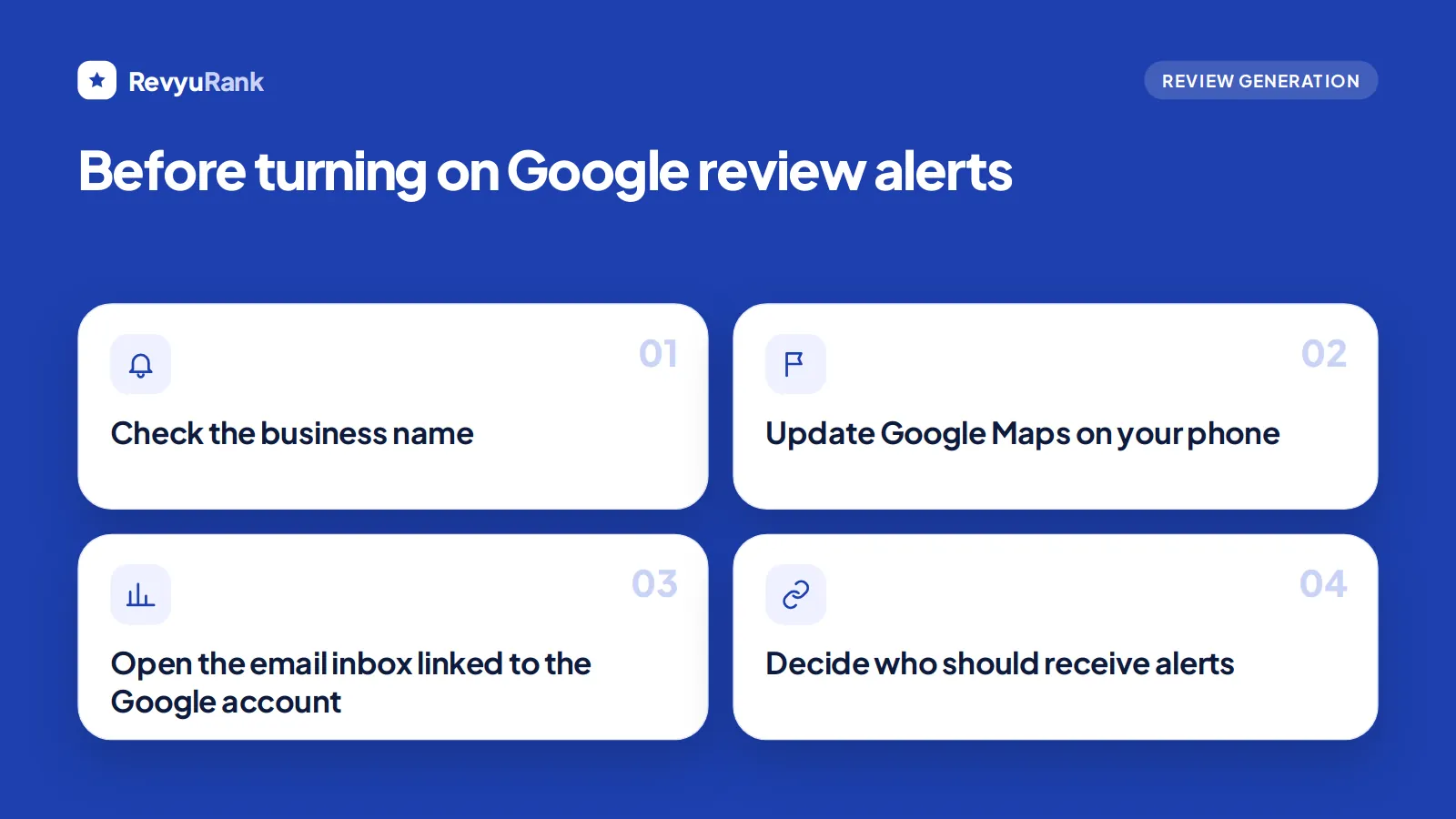
-
Sign in to the Google account that owns or manages the profile. A personal account with no profile access won’t show the needed controls. If several people manage the business, confirm each person uses their own approved account rather than sharing one login.
-
Check the business name, address, and phone number before editing settings. A similar listing can appear when several locations share one brand. Select the exact location whose reviews you want to monitor, especially if the business has nearby branches or service-area profiles.
-
Update Google Maps on your phone, then allow notifications for the app in your phone’s system settings. Also check that notification permission hasn’t been disabled for a focus, silent, or battery-saving mode.
-
Open the email inbox linked to the Google account. Check spam and Promotions if you expect an alert but don’t see one. If the account uses a work address, make sure that mailbox is still active and that its filters don’t move Google messages elsewhere.
-
Decide who should receive alerts. Sending every review notification to several staff members can create duplicate replies and missed ownership. Assign one person to monitor and respond, with a backup who can cover absences.
The preparation people skip is checking access on the correct Google account. The profile should appear in the account’s Business Profile controls before you change notification settings. If it doesn’t, stop there; don’t create a second listing or change ownership without the current owner. For suspended profiles, ownership disputes, or missing businesses, use Google Business Profile Help rather than trying to bypass the account process.
Turn on Google review notifications step by step
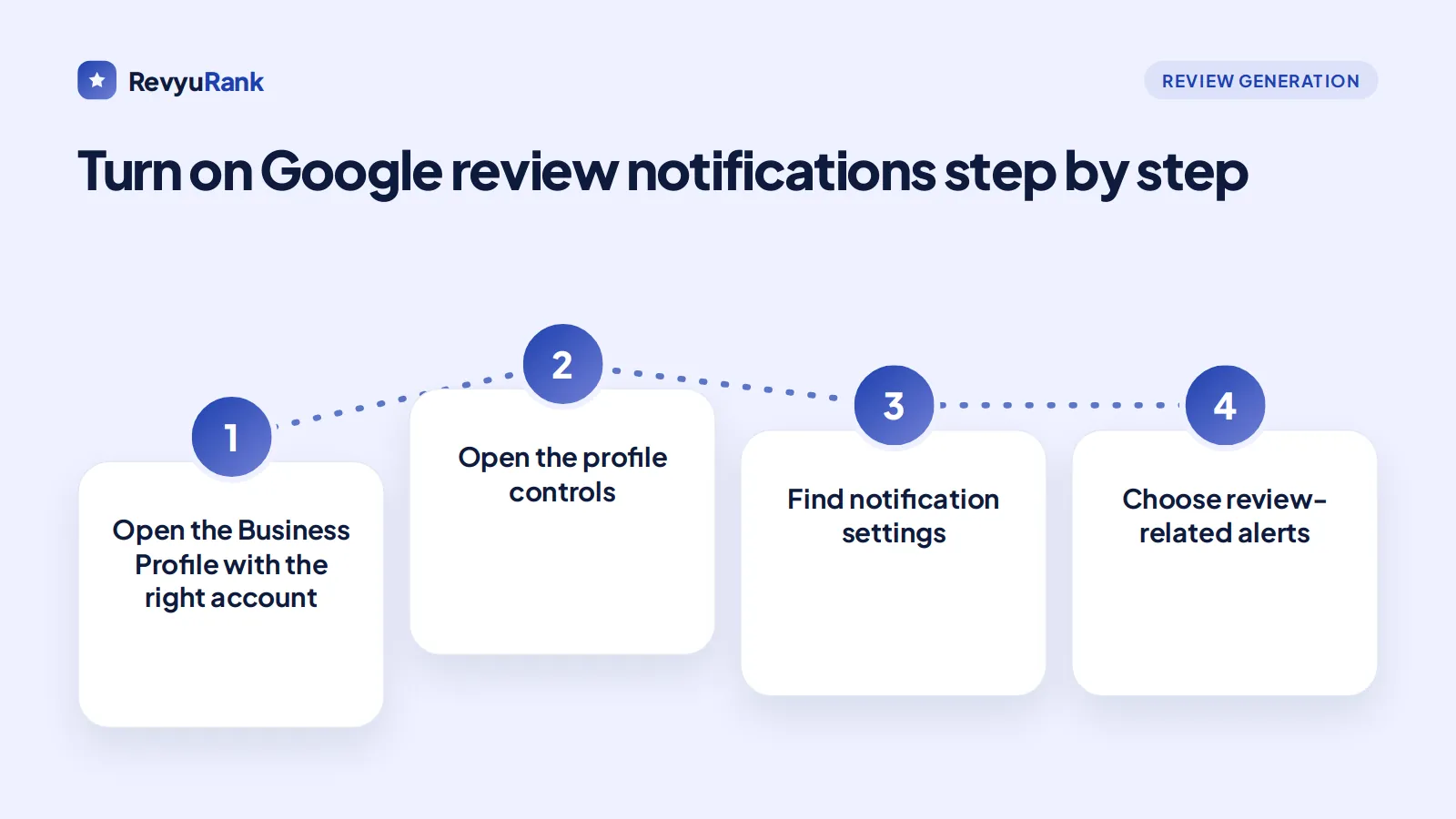
- Open the Business Profile with the right account. Go to Google Search or Google Maps while signed in to the account that manages the business. Search the exact business name, then confirm the displayed address matches the location you want. If the profile isn’t shown as managed, stop and switch accounts before changing any setting.
-
Open the profile controls. On Google Search, use the management panel for the Business Profile. On Google Maps, open the business page and choose the management option available to you. The label may differ by device or account. You’ll know this worked when you can see tools for editing or managing the profile.
-
Find notification settings. Look for a settings icon, the three-dot menu, or a section named notifications. Google may place these controls in Google Search or in the Google Maps app. If you can’t find a notification option, confirm that you’re using the managing account rather than a customer account.
-
Choose review-related alerts. Turn on the option connected with new reviews, customer activity, or Business Profile updates. Don’t enable every alert just to test the system; that can create unnecessary messages. Save the setting if Google shows a Save button, then wait until the page confirms the change.
-
Open Google Maps on your phone. Use the same Google account in the app. Tap your profile picture, open the app’s settings, and select notifications. Choose business-related or Business Profile notifications, then look for review alerts. The exact menu can vary between Android and iPhone versions.
-
Allow phone notifications for Google Maps. Open your phone’s system settings, select Google Maps, and allow notifications. Keep alerts enabled on the lock screen if you need to see them quickly. The step worked when Google Maps appears as an allowed notification app, not merely when the in-app switch is on.
-
Check the account email. Open the Google Account notification or communication settings connected with the managing account. Keep business-related email alerts enabled if that option is available. Google doesn’t promise that every review alert will arrive by email, so email should support—not replace—the Business Profile and Maps settings.
-
Test the delivery path safely. Don't ask customers, friends or staff to post a review just to test alerts. Reviews must reflect a genuine experience, so use a real review when one arrives. Don’t offer money, gifts, or better service for a positive review. A real alert should identify the business and lead to the review; a message for another listing means the account or profile is wrong.
-
Open the review from the alert. Check that the review belongs to the correct location before replying. Use the notification’s review link or open the profile manually in Google Search. The step worked when the reviewer, business name, and location all match the profile you manage.
-
Record who handles replies. Add the alert recipient and backup person to your internal process, without sharing passwords. If a review is urgent, assign one person to respond. Notifications tell you that activity happened; they don’t decide whether the review is genuine, policy-compliant, or safe to answer publicly.
If you get stuck finding the notification settings, ask our team and we can check the account with you or set it up.
Google explains that notification choices can be managed for Business Profiles in its Business Profile notification settings. The available options can change, so the labels in your account are the final guide.
Where to find the review alert setting on Google Search
On a computer or phone, search for your business on Google while signed in to the managing account. Open your Business Profile, choose More, then Notifications. Look for the Customer activity option. Google describes it as alerts when customers leave new reviews or add photos. Google says these notifications may arrive by email, in Search, or in Maps.
Each person who manages the profile sets their own notification choices with their own Google account. Check the setting for every manager who should get alerts. Labels can change, so follow the names shown in your account.
How to know Google review alerts work
A working setup has three visible signs. The correct Google account can open the profile, review-related notifications are switched on, and Google Maps is allowed to send alerts on the phone. Check each sign separately because turning on one setting doesn’t automatically turn on the others.
A review alert should name the correct business or lead to its review page. Check the business name, address, reviewer, and review date before treating it as proof. A notification for another location usually means the wrong profile is open or several business accounts are connected.
If no alert arrives, check the notification history on the phone and the email spam folder. Then review the Business Profile and Google Maps settings again. The real issue is whether the account, setting, and delivery record match.
If the system works on the phone but not by email, keep phone alerts as the main path. If it works by email but not on the phone, check device permissions, battery-saving restrictions, and whether Google Maps is signed into the same account. The exact delay varies by device, app version, and Google’s delivery system, so the notification timestamp is the value to compare.
Google review notification problems and fixes
Most alert problems come from the wrong account, switched-off settings, or blocked device permissions. The most expensive mistake is replying from the wrong location. It can expose the wrong business information, confuse the customer, and make a second location look neglected. Confirm the profile name and address before every public reply.
| What happened | Why | What to do |
|---|---|---|
| No review alert | Notifications are off | Recheck profile and Maps settings |
| Wrong business alert | Wrong account or location | Switch accounts and verify address |
| Email missing | Spam or email alerts off | Check spam and account settings |
| Phone alert missing | Device permission blocked | Allow Google Maps notifications |
| Duplicate alerts | Several recipients enabled | Assign one reply owner |
| Review link fails | Review was removed or restricted | Open the profile manually |
If the profile isn’t visible to you, don’t create a new listing as a workaround. Ask the current owner to add the correct Google account, or use Google’s official support process. Account access problems stop being a simple notification task when ownership, suspension, or verification is involved.
How often to check Google review alerts
Check the alert system once a month and after every phone change, Google Maps update, or change of staff access. The two biggest factors are the number of locations you manage and how quickly a customer needs an answer. A single local shop can use one primary recipient; a multi-location business needs a named recipient for each profile.
Don’t wait for a real customer review to discover a broken alert. During the monthly check, confirm the correct account can open the profile, review notifications remain enabled, Google Maps can send phone alerts, and the email inbox still belongs to the intended staff member.
If you manage several locations, repeat the account and profile check for each one. A setting that works for one location doesn’t prove that every location uses the same owner, manager, or notification path. Keep a simple record of the profile name and assigned recipient, but never store account passwords in that record.
When staff leave, remove their profile access promptly. If you only change the email recipient but leave the former employee as a manager, they may still see business information and customer reviews. Review access at the same time as notification settings.
Short on time? Our Google Review Generation service takes care of the whole process.
Frequently asked questions
Can I get an email every time someone reviews my business?
Usually, you can enable available Business Profile or Google account email notifications, but Google may not send every review alert as a separate email. Keep Google Maps notifications enabled as a second path. Check the inbox connected to the managing account, then search for Google messages and review the spam folder. If alerts appear only in Maps, use the phone notification as your reliable signal.
Why am I not getting notifications for Google reviews?
The usual causes are a different Google account, disabled Business Profile alerts, blocked Google Maps notifications, or email filtering. First confirm that the business profile appears under the signed-in account. Next check the profile settings, Maps settings, phone permissions, and spam folder. If the profile is missing completely, this is an access problem, not a notification problem, so the current owner or Google support must handle it.
How long does it take to get a Google review notification?
There’s no fixed delivery time that Google guarantees for every review alert. The timing can change with the phone, app version, account settings, and Google’s notification system. Treat the review appearing on the profile as the official event, not the alert’s arrival time. If a new review is visible but no alert arrives, check settings and notification history rather than waiting for a specific number of minutes.
Is it safe to let an employee receive Google review alerts?
Yes, it can be safe if the employee has the correct Business Profile role and your business limits access to what they need. Don’t share the owner’s password. Give one trained person responsibility for replies, keep a backup, and remove access when the employee leaves. Review the business name and location before replying because a careless response can affect the wrong profile.
What happens if I manage more than one Google Business Profile?
Each profile can have different owners, managers, and notification behavior. Check every location separately instead of assuming one setting covers the whole account. A multi-location business should assign each profile to a named recipient and backup. If an alert names the wrong location, stop before replying and open the review from the matching profile.
Does it matter if I use Google Search or Google Maps?
Both can help manage a Business Profile, but the menus and notification controls may look different. Google Search is often convenient on a computer, while Google Maps controls phone delivery. Use the same managing account in both places. If one view doesn’t show the option, check the other view before assuming the feature is unavailable.
Can I get alerts without being a Business Profile manager?
No, you generally need access to the Business Profile to manage its review notifications. A customer can see public reviews, but that doesn’t give them business alerts or reply access. Ask the profile owner to add your Google account with the appropriate role. Don’t create a duplicate listing to gain access, because that can create a separate profile instead of fixing the permission problem.
What to do next
Make review alerts part of your regular customer-care routine. When a notification arrives, read the feedback carefully and respond while the conversation is still fresh. A timely, thoughtful reply shows that your business is listening and can help resolve concerns early.

Robert Miller works as a Reputation Management Consultant. He has been helping U.S. businesses for over ten years. His work involves helping people protect and enhance their online image.Robert has worked with a wide range of companies. He has helped new businesses, local places that give a service, and big companies. He helps turn customer reviews into something that helps people trust their company and drives business growth.
Sources and official guidance