Google Business Profile ownership transfers by adding the new person as an owner, waiting for Google’s access period when required, then making that person the primary owner. The exact steps for how to transfer google business profile ownership depend on whether you’re the current primary owner, whether the new owner already has a Google Account, and whether Google has placed a temporary restriction on the profile.
Start with the correct business profile and the new owner’s Google email address. The profile’s current access level, the seven-day restriction on some new users, and whether the business is part of a business group can change what you see.
Transfer Google Business Profile ownership
If you’re handing a profile to a new business owner, begin with the Google Account that currently has primary ownership. Search for the business name on Google while signed in, or open the profile through Google Maps. Confirm the address and business name before changing access.
Open the profile’s menu and choose Business Profile settings, then People and access. Select Add, enter the new owner’s Google email address, choose Owner, and send the invitation. The person must accept it from that account. Don’t use a shared password or give away your personal Google Account.
After the invitation is accepted, return to People and access. Select the new owner, select Edit next to Access, and choose Primary owner or Transfer primary ownership, if that option is available. Confirm the change. Google may prevent a newly added user from becoming the primary owner until the required waiting period has passed.
The finished result is different from simply adding an owner: the new person becomes the profile’s primary owner, while your access may remain as an owner or manager. This article assumes the profile is verified and you can still sign in as its current primary owner.
What decides the transfer
Your current access level matters most. Only the primary owner can normally transfer primary ownership. If you’re an owner but not the primary owner, ask the current primary owner to make the change. Check your role under People and access before sending an invitation.
The new user’s waiting period can block the transfer. Google may restrict certain ownership actions during the first seven days after a person is added. If the transfer option is missing, check the date when the invitation was accepted and wait until the restriction ends. Don’t remove the old owner to try to bypass it.
The email account must be correct. A Google Account can use a Gmail address or another email address linked to Google. If the invitation goes to the wrong account, the person may accept it but still be unable to manage the profile from the account they normally use.
The profile type can change the screen. A single local profile, a service-area business, and a profile managed through a business group may show different controls. Open the profile’s access page rather than assuming that instructions for a location group apply to your profile.
The most common wrong assumption is that “Owner” means “Primary owner.” An owner can manage important profile details, but the primary owner controls the main ownership relationship. Check for the Primary owner label after every change.
Steps to transfer the profile
-
Sign in to the current primary owner account. Use the Google Account listed as Primary owner under People and access. If you can’t access that account, stop and recover it through Google Account recovery or contact Google Business Profile support.
-
Open the correct business profile. Search the exact business name on Google while signed in. Check the business name, address, and profile photo so you don’t edit a different location.
-
Open access settings. Select the profile’s menu, choose Business Profile settings, and then open People and access. The wording can vary slightly between Google Search and Google Maps.
-
Add the new owner’s Google Account. Choose Add, enter the email address, select Owner, and send the invitation. Use the account the new owner will actually manage.
-
Ask the new owner to accept. The invitation must be accepted from the invited Google Account. The new person should then open the profile and confirm that it appears in their business list.
-
Check the waiting restriction. Return to People and access and select the new user. If Google doesn’t show the primary-owner option, check the invitation acceptance date and wait until Google allows the change.
-
Transfer primary ownership. Select the new owner, choose Edit next to Access, select Primary owner or Transfer primary ownership, and confirm the prompt. Read the warning before approving it.
-
Confirm the new role. Refresh the access list and check that the new person shows as Primary owner. If your work is finished, ask the new owner whether they want you removed or kept as an owner.
-
Secure your own account. Don’t share passwords, recovery codes, or two-factor authentication devices. Google’s official guidance explains how Business Profile owners and managers work.
If the primary owner option stays missing during the seven-day waiting period check, ask our team and we can check it with you or do it for you.
The key judgment is whether you need to transfer primary ownership or only add another manager. If the person needs final control of users, access, and future transfers, make them primary owner; if they only need to edit hours or posts, manager access may be enough.
Transfer time by situation
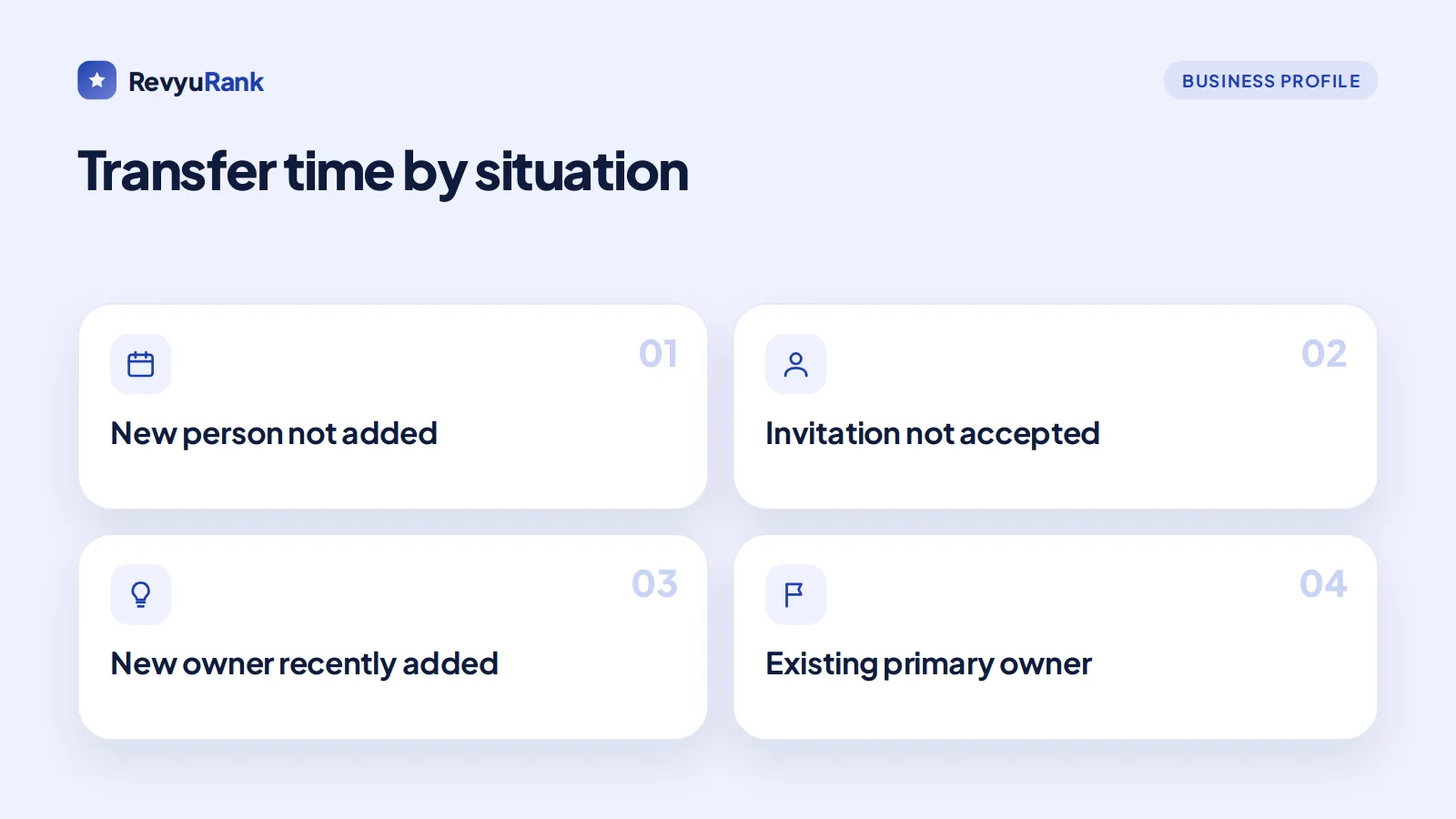
A straightforward transfer takes a few minutes, but a new owner may need to wait up to seven days before becoming primary owner. The timing depends on the new user’s current access and the type of change you’re making. These are practical planning ranges, not a promise that Google will approve every transfer immediately.
| Situation | What to do in it | What it takes | What to watch for |
|---|---|---|---|
| New person not added | Send owner invitation | A few minutes | Correct email account |
| Invitation not accepted | Ask them to accept | Depends on recipient | Check spam folder |
| New owner recently added | Wait before transferring | Up to seven days | Google restriction |
| Existing primary owner | Transfer directly | A few minutes | Confirm final role |
| Owner but not primary | Ask primary owner | Depends on cooperation | Role label matters |
| Lost primary-owner account | Recover account first | Varies by support | Don’t create a duplicate |
| Multiple locations | Check group access | Varies by setup | Location group permissions |
Details that protect the result
Prepare the accounts first
Experienced admins check the recipient’s exact Google email before sending access. They also ask the recipient to sign in once and confirm the profile appears after accepting the invitation. If the profile doesn’t appear, compare the signed-in email with the invited email before changing anything else.
Keep a record of the old and new access roles, but don’t store passwords. If the profile represents a company, record the transfer date in the company’s internal account notes. This helps explain later who approved the change and which account should receive future notifications.
Check before removing access
Transfer primary ownership first, then confirm the new label after refreshing the page. Removing the old owner too early can leave the new person waiting for access or can make it harder to correct an email mistake.
Leave the old owner connected until the new owner confirms they can open the profile and manage it. If the business has several locations, check each location separately. A change on one profile doesn’t automatically prove that every location has changed.
Transfer problems and fixes
Most transfer problems come from the wrong account, a role without primary access, or the waiting restriction. The table below matches common signs with safe first checks. Don’t keep changing roles when the account or profile is wrong; that can make the access history harder to understand.
| What you notice | What it usually means | What to do first | How to stop it happening again |
|---|---|---|---|
| Transfer option is missing | Waiting restriction applies | Check acceptance date | Plan the seven-day wait |
| Invite never arrives | Wrong email or filter | Confirm Google Account | Copy email carefully |
| New owner sees nothing | Wrong account signed in | Compare account addresses | Use one confirmed email |
| You can’t add an owner | You lack primary access | Ask primary owner | Record role ownership |
| Duplicate profile appears | New listing was created | Stop editing duplicate | Use existing profile |
| Old owner still controls it | Transfer wasn’t confirmed | Check role label | Refresh after transfer |
What to check before starting
Google’s access rules can change by account type, profile setup, and the action you’re trying to take. Read the current Google Business Profile help guidance before you start, especially when the profile belongs to a chain, an agency, or a business group.
Check the exact profile name and address in Google Search or Maps. Check the new owner’s complete Google email address. Check your current role under People and access, and confirm whether the profile is linked to a business group or organization account.
If the transfer involves a former employee, a disputed business, or an account you can’t recover, stop before removing anyone. The next step may require Google support or an organization administrator, not more role changes. Don’t try to defeat an access restriction with duplicate profiles.
Time and effort involved
A straightforward transfer usually takes only a few minutes to send and accept the invitation. The total process takes longer when the new user must wait before Google allows primary ownership, or when the correct account is unclear.
The work is mainly account checking, not profile editing. You’ll need the current primary owner’s sign-in, the new owner’s exact Google email, and enough time to confirm the role after the change. A business with many locations takes longer because each location may need its own access check.
Google’s screen can change, so use the labels shown in your account rather than relying on an old screenshot. If the transfer matters for a sale or contract, keep a written record of the date and the final Primary owner label.
Transferring a profile when you sell a business
Add the buyer’s own business Google Account as an owner. Then make it the primary owner once the waiting period has passed. Don’t hand over your personal Google Account. Allow for the seven-day wait and don’t leave the transfer to the last day. Keep a written record of the date the transfer is finished.
After ownership changes
The new primary owner should sign in, open the profile, and check the business name, address, phone number, hours, website, and service area. Ownership transfer doesn’t automatically confirm that every business detail is correct.
Keep the old owner’s access until the new owner confirms control. Then remove that access if the person no longer works with the business. If the former owner still receives notifications, review the access list and any connected business-group permissions.
If the profile later shows an access warning, a missing location, or an unexpected user, don’t create a second profile. Check People and access first, then use Google Business Profile support if the account roles don’t explain the problem.
When this transfer method isn’t right
This method isn’t suitable when you can’t sign in as the current primary owner. Recover that Google Account or contact Google support instead. Creating a new profile can split reviews and business information.
It’s also the wrong approach when you only need a worker to update hours, photos, or posts. Add that person as a manager instead of giving primary ownership.
For a company with many locations, don’t transfer profiles one by one without checking the business group structure. Ask the organization administrator to confirm the correct access path. If ownership is part of a legal dispute, stop making changes and get advice from a qualified lawyer or the relevant business administrator.
Related guides
- How to Get Google Reviews: Boost Your Business Profile
- How To Make Your Google Business Profile Holiday Ready: Ultimate Guide
- How to Remove Fake Google Reviews: Tips for Businesses
If you can’t reach the current primary owner
Don’t create a second profile. Request access to the existing profile through Google’s claim process instead. For a service-area business without a customer-facing storefront, Google directs users to contact Business Profile support and choose “Transfer ownership of listing”.
Short on time? Our Google Business Profile Optimization Service service takes care of the whole process.
Our team handles exactly this through Google Review Generation.
Frequently asked questions
Why can’t I see the primary owner option?
You may not be the current primary owner, or the new owner may still be within Google’s waiting period. Check your role label and the invitation acceptance date. If both are correct, review the profile’s business-group setup or contact Google support.
How long does Google Business Profile ownership transfer take?
The hands-on change can take a few minutes, but a new owner may need to wait up to seven days before Google allows primary ownership. The exact result depends on the profile’s access setup and Google’s current restrictions.
Is it safe to transfer ownership to another Google Account?
Yes, when you add the correct Google Account through People and access and don’t share passwords. Confirm the new person’s email before sending the invitation, and keep the old owner connected until the new primary-owner label appears.
What happens if I remove the old owner first?
You may lose a useful recovery path, especially if the new owner hasn’t accepted the invitation or can’t access the profile. Transfer primary ownership first, confirm the new role, and remove the old user only after control is clear.
Does it matter if the new owner uses Gmail?
No. A Google Account can use a Gmail address or another email address linked to Google. What matters is that the invitation goes to the exact Google Account the person will use to manage the profile.
Can a manager transfer primary ownership?
No, a manager doesn’t have the same ownership control as the primary owner. Ask the current primary owner to add the new person as an owner and complete the primary-ownership transfer.
Start the ownership transfer
Confirm the current primary owner and the new owner’s exact Google email before making any change. In the Business Profile, open People and access, select Add, enter the email, choose Owner, and send the invitation. The new owner must accept it from that Google account.
Google may require a seven-day waiting period before you can change the new owner to primary owner. After the invitation is accepted and the waiting period has passed, return to People and access, select the person, choose Edit next to Access, and select Primary owner. Confirm the transfer only when the correct profile and email are shown. If the role can’t change, the profile disappears, or the invitation went to the wrong account, stop and contact Google support.

Robert Miller works as a Reputation Management Consultant. He has been helping U.S. businesses for over ten years. His work involves helping people protect and enhance their online image.Robert has worked with a wide range of companies. He has helped new businesses, local places that give a service, and big companies. He helps turn customer reviews into something that helps people trust their company and drives business growth.