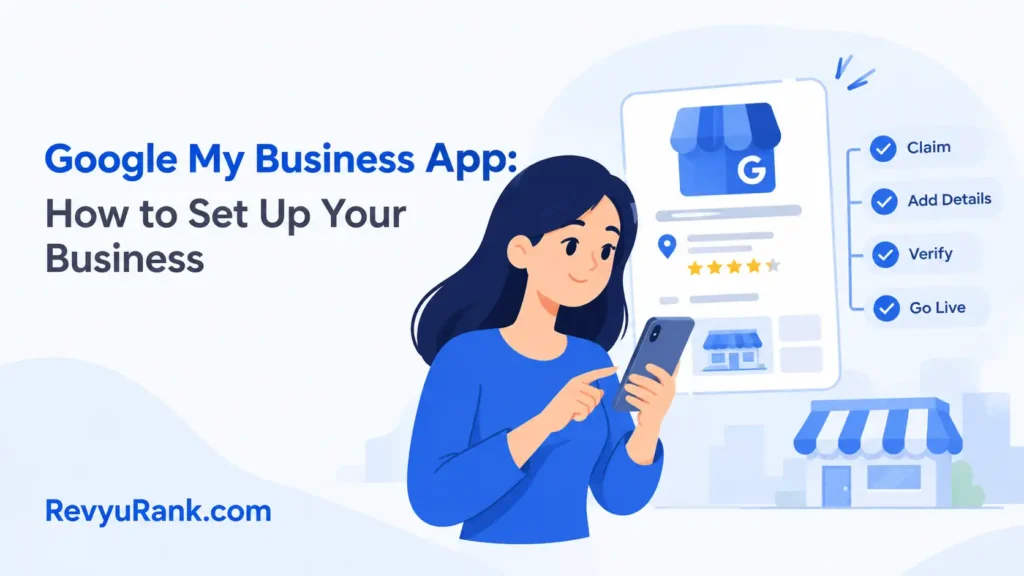
Setting up a business on the Google My Business app takes about 15 to 30 minutes for the basics, and it’s free — there’s no cost to claim or manage a listing. Difficulty is easy, as long as you can receive a verification code. Before you start, you need a Google account and the real name, address, and phone number of your business. The app is now called Google Business Profile, but it works the same way.
What you need to set up your business profile

Getting your listing right the first time saves you a second round of edits later. Everything below should be in front of you before you open the app, because a missing phone number or a blurry logo stops you halfway through.
The verification code is the one item you can’t swap or skip. Google sends it to confirm you really run the business, so have the method ready that Google offers you.
| Item | How much | Why it’s needed | A substitute |
|---|---|---|---|
| Google account | 1 free account | Logs you into the profile | none — don’t swap this |
| Business name | Exact legal/trading name | Must match signage and docs | none — don’t swap this |
| Street address | 1 verified location | Shows you on Maps | Service area if no storefront |
| Phone number | 1 reachable number | Lets customers call you | Mobile if no landline |
| Business category | 1 primary choice | Controls when you show up | Closest match Google lists |
| Logo and photos | 3–10 clear images | Builds trust in results | Phone photos, well-lit |
| Verification method | Code by mail/phone/email | Proves ownership | Whatever Google offers you |
What to prepare before you claim your listing
A few minutes of prep now stops the common problem: people enter a name or address that doesn’t match their website or legal papers, and the listing gets suspended during review. Keep your details identical everywhere.
- Close any duplicate listings. Search your business name on Maps first — if an old profile exists, claim that one instead of making a second.
- Have your exact hours ready, including any lunch closures or seasonal changes, so you don’t guess.
- Pick your real category before you start, not a broad one. A wrong category hides you from the right searches.
- Decide on your address type. If you serve customers at their location and have no storefront, set a service area, not a street address.
- If your business is regulated — say, medical, legal, or financial — check your professional body’s rules on how you can describe services before you publish.
How to set up and verify your Google Business Profile

Install the app from the official store, then follow these steps in order. Don’t skip verification — an unverified profile won’t show your full details to customers.
- Download the Google Maps app (Business Profile management moved into it). Open it, tap your profile picture, and choose “Your Business Profile.” This takes about 2 minutes.
- Search for your business name. If it appears, tap “Claim this business.” If nothing shows, tap “Add your business” to create a new one.
- Enter your exact business name as it appears on signage. You’ll know it’s right when the name matches your website and legal documents letter for letter.
- Choose one primary category from Google’s list. Pick the closest match — this is what triggers you in local searches, so avoid vague options.
- Add your address or set a service area. For a storefront, drop the pin on the exact spot. For visits-only businesses, list the cities or zip codes you cover.
- Enter your phone number and website. Use a number someone actually answers during open hours, so calls from your listing aren’t missed.
- Set your opening hours for each day, including holidays. The profile shows “Open” or “Closed” to customers in real time once saved.
- Request verification. Google offers mail, phone, text, email, or video — pick what it shows you. A postcard code usually arrives in 5 to 14 days.
- Enter the code when it arrives, in the app under “Verify now.” The profile status changes from “Pending” to verified, usually within minutes of entry.
- Add 3 to 10 photos and your logo, then publish. You’ll see a public preview link confirming your listing is live on Maps and Search.
For the exact verification options available to your business type, Google explains them on its Business Profile verification help page.
Signs your listing is live and working
A verified profile shows a clear status in the app. Open your Business Profile and look for the verified label — no “Pending” banner, and no prompt asking you to verify again. That’s the first sign it worked.
Search your own business name on Google and Maps from a different device or while signed out. If your listing appears with the right name, hours, and phone number, it’s live to the public. This can take a few hours to a few days to fully index after verification.
Signs it needs another round: a “Suspended” or “Pending” status that won’t clear, details showing the old or wrong address, or your profile not appearing in search at all after a week. If any of those show, your info likely didn’t match or verification failed — fix the detail and request review again.
When your profile won’t verify or show up
Most problems come down to a mismatch between what you entered and what Google can confirm. Work through the cause before you request another review, or the same rejection repeats.
| What happened | Why | What to do |
|---|---|---|
| Verification code never arrived | Address unclear or mail delay | Wait 14 days, then request again |
| Profile suspended | Name or category breaks rules | Fix details, submit reinstatement |
| Duplicate listing appears | Old profile already exists | Claim the original, merge duplicates |
| Not showing in search | Still indexing after verification | Wait up to a week, check spelling |
| Wrong location on map | Pin placed incorrectly | Drag pin to exact spot, save |
| Edits keep reverting | Review flagged your change | Resubmit with matching documents |
How often to update your Business Profile
Check and update your profile at least once a month, and immediately whenever a real detail changes. Hours, phone number, and address are the ones that hurt most if they’re wrong — a customer who drives to a closed shop leaves a bad review.
Two things move how often you should log in. First, how fast your business changes: seasonal hours, new services, or a move means weekly checks for a stretch. Second, how many customer reviews and questions you get — a busy profile needs a reply within a day or two to keep your ranking and trust up.
Post fresh photos every few weeks if you can. Profiles with recent activity tend to hold attention better in local results.
Frequently asked questions
Is the Google My Business app free to use?
Yes, it’s completely free. There’s no charge to claim, verify, or manage your listing. Google makes money from ads, but your basic profile — name, hours, photos, reviews, and posts — costs nothing. Be careful of third parties who ask for payment to “register” you.
How long does verification take?
A postcard code usually takes 5 to 14 days to arrive by mail. Phone, text, or email verification can be instant if Google offers it for your business. Video verification varies but is often reviewed within a few days. The method depends on your business type and location.
Can I use the app without a physical store?
Yes. If you visit customers or work from home, set a service area instead of a street address. You list the cities or zip codes you cover, and your business shows up for searches there without displaying your home location publicly.
Why is my business not showing up on Google?
Most often it’s still being verified or indexed, which can take up to a week after you enter your code. Other causes are a suspended profile, a duplicate listing, or a name that doesn’t match your other records. Check your status in the app first.
What happens if I enter the wrong address?
Your listing may point customers to the wrong spot or get rejected during review. Fix it in the app under your business info, drag the map pin to the exact location, and save. A new review may follow, which can take a few days to clear.
Does the category I choose really matter?
Yes, a lot. Your primary category decides which searches you appear in, so a wrong one hides you from the right customers. Pick the closest match to what you actually do, then add secondary categories for other services you offer.
Is it safe to share my phone number on the profile?
Yes — it’s meant to be public so customers can call you. Use a business line or a dedicated mobile rather than a private one if you’d prefer not to mix calls. You can change or remove the number anytime in the app.
Conclusion
Setting up takes well under an hour, but the value comes from keeping it accurate. Match every detail to your real documents, verify promptly, and check back monthly — that’s what keeps your business easy to find and trusted when someone searches for you.

Robert Miller works as a Reputation Management Consultant. He has been helping U.S. businesses for over ten years. His work involves helping people protect and enhance their online image.Robert has worked with a wide range of companies. He has helped new businesses, local places that give a service, and big companies. He helps turn customer reviews into something that helps people trust their company and drives business growth.