
You manage Google Business photos through your Google Business Profile, either in the Google Maps app or the search dashboard — upload clear shots at least 720 x 720 pixels, remove outdated ones in a few taps, and report customer photos that break the rules. The job suits any owner who keeps their own listing. Expect about 15 minutes for a first cleanup.
What you need to manage Google photos
Before you touch a single photo, get these ready so you’re not stopping halfway through.
- A verified Google Business Profile — you can’t manage photos on an unverified listing. Verify first through Google.
- Owner or manager access to that profile. A “site manager” role can post but can’t always remove everything.
- The Google Maps app or Google Search, signed in to the account that owns the profile. Both work; the app is faster on a phone.
- Photos sized at least 720 x 720 pixels, in JPG or PNG. Blurry or tiny files get rejected or look bad.
- A list of what each photo shows — your logo, storefront, interior, products, team.
A phone camera photo works fine as a substitute for a professional shoot. A screenshot or a stock image with a watermark does not — Google removes those.
Steps to add, edit, and remove your photos
Work through these in order the first time. After that, you’ll only repeat the step you need.
-
Open your profile. Search your business name on Google while signed in as owner, or open the Google Maps app and tap your profile picture, then “Your Business Profile.” The photo tools sit under “Photos” or the camera icon.
-
Pick the photo type. Tap “Add photo” and choose the category — Logo, Cover, Interior, Exterior, Product, or Team. Putting a photo in the wrong category hides it from where customers look.
Tip: Set your Logo and Cover first. These show up largest in search and on Maps.
- Upload 3 to 5 photos per category to start. Choose your clearest shots. Google can take a few minutes to a few hours to publish each one.
Careful: Don’t upload 50 photos in one sitting. A sudden flood can trip Google’s review and slow everything down.
-
Check each photo after it posts. Wait a few hours, then look at the live listing. If one didn’t appear, it likely failed the size or content check — re-upload a larger, cleaner version.
-
Remove an outdated photo. Tap the photo, then the trash or “Delete” icon. You can only delete photos you uploaded, not ones customers added.
-
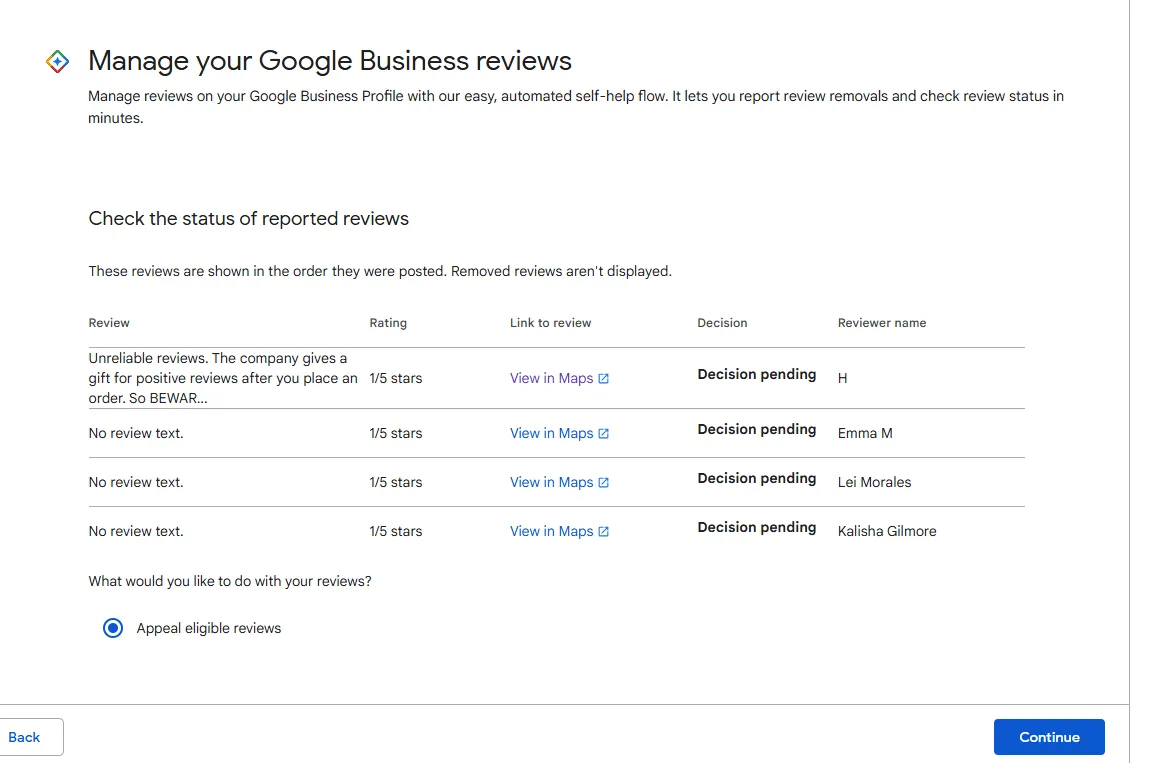
Report a bad customer photo. For a photo someone else posted that’s wrong, offensive, or not your business, tap it and choose “Report photo.” Google reviews it; you can’t delete it yourself.
Careful: Reporting isn’t instant removal. If the photo is harmful or fake and Google won’t act, contact Google Business support directly.
- Add fresh photos on a schedule. Set a reminder to add a few new shots each month so the listing stays current.
If you manage many locations at once, bulk photo tools sit inside the Google Business Profile Manager — a different setup than a single listing, and worth reading Google’s help pages for before you dive in.
How the work changes by business type
The time and effort shift a lot depending on how many locations you run and how many customer photos land on your listing.
| Your situation | Time it takes | What’s different | What to watch |
|---|---|---|---|
| Single small shop | 15–30 min to set up | You control almost every photo | Keep cover and logo current |
| Busy restaurant | 1–2 hrs/month | Lots of customer food photos | Report wrong or low-quality ones fast |
| Multi-location brand | Several hrs/month | Bulk upload tools needed | Keep branding consistent across sites |
| New or unverified listing | Blocked until verified | No photo access yet | Finish verification first |
Start with your logo, cover, and a handful of strong photos rather than dumping your whole library in one go. A small, clean set is easier to review and far easier to fix if something gets rejected.
What a good photo set looks like
A strong set loads a clear logo, a sharp cover image, and a handful of real interior, exterior, and product shots that match what customers actually see when they arrive. A poor set is blurry, dark, duplicated, or stuffed with text and promo banners.
The most common problem is photos that get rejected or quietly never appear. This usually happens because the file is too small, too blurry, or holds a watermark, phone number, or heavy overlay text — Google filters those out.
Three things prevent it:
- Upload files at least 720 x 720 pixels, well lit and in focus.
- Keep text and logos out of regular photos; save the logo for the Logo slot.
- Check each photo on the live listing a few hours after posting.
If a photo doesn’t show after a day, treat it as rejected and replace it.
Policy rules and keeping photos fresh
Every photo has to follow Google’s content rules — no fake, stolen, offensive, or misleading images, and nothing unrelated to the business. These standards sit in Google’s own prohibited and restricted content policies, which Google updates, so check there before you report or appeal.
After a cleanup, delete duplicates, remove anything seasonal that’s now out of date, and keep a copy of your best originals saved somewhere off the platform in case you need to re-upload.
Photos don’t expire, but a listing looks stale fast. Refresh it every month or two — swap the cover image, add recent shots, and remove anything that no longer matches your space. If a reported photo involves defamation or a legal threat, that’s past a DIY fix; speak to a lawyer and escalate through Google support.
Other ways to handle your listing photos
Hire a local marketing agency
An agency takes over uploads, reporting, and monthly refreshes for you. It costs a monthly fee but frees your time and keeps things consistent. Good for owners juggling several locations or no spare hours.
Use Google Business Profile Manager
For many sites, the web-based Manager lets you handle photos across all locations in one place. Setup takes longer, but after that, bulk edits save hours compared with opening each listing one by one.
Book a Google-approved photographer
A pro 360° or virtual-tour photographer shoots high-quality interior images that Google links to your profile. There’s a one-time cost, but the photos look sharper, and the virtual tour can lift how your listing feels to visitors.
Frequently asked questions
How long does it take for Google to show my uploaded photos?
Usually a few minutes to a few hours, sometimes up to a day. Google reviews each photo against its content rules before publishing. If a photo still isn’t showing after 24 hours, it likely failed the size or content check — replace it with a larger, cleaner file.
Can I delete photos that customers posted about my business?
No. You can only delete photos you uploaded yourself. For a customer photo that’s wrong, fake, or offensive, tap it and choose “Report photo.” Google reviews the report and decides. If it’s harmful and Google won’t remove it, contact Google Business support directly.
Why do my photos keep getting rejected?
Most often because the file is too small, blurry, or holds a watermark, phone number, or heavy overlay text. Google filters those out automatically. Upload sharp, well-lit images at least 720 x 720 pixels, and keep promotional text out of regular photos.
Is it safe to let customers add photos to my listing?
Yes, and you can’t turn it off — customer photos are part of how Google Business Profiles work. They build trust and show real experiences. Just check them regularly and report any that break Google’s rules or misrepresent your business.
How often should I update my business photos?
Every one to two months is a good rhythm for most businesses. Swap the cover image, add a few recent shots, and remove anything seasonal or out of date. A listing with fresh photos looks active; one that never changes starts to feel abandoned.
What happens if I upload a photo that breaks the rules?
Google won’t publish it, and it may flag your profile if it happens often. Fake, stolen, offensive, or unrelated images get filtered out. Repeated violations can hurt how your listing performs, so stick to real photos of your own business.
Conclusion
Managing your listing photos isn’t a one-time task — it’s a quick monthly habit. Start with a clean logo and cover, add a few strong shots, report what doesn’t belong, and refresh every couple of months. That steady upkeep keeps your business looking real and trustworthy to the people searching for it.

Robert Miller works as a Reputation Management Consultant. He has been helping U.S. businesses for over ten years. His work involves helping people protect and enhance their online image.Robert has worked with a wide range of companies. He has helped new businesses, local places that give a service, and big companies. He helps turn customer reviews into something that helps people trust their company and drives business growth.