Google seller ratings appear automatically when Google finds enough reliable store-review data and your business meets its eligibility rules. You can improve your chances by collecting genuine customer reviews, linking the right domain, fixing business details, and delivering a consistent buying experience. Google decides when the rating shows; you can’t manually switch it on. This guide explains the review sources, eligibility checks, setup choices, key numbers, problems, and limits.
What Google seller ratings show
Google seller ratings are an automated score that can appear with eligible Shopping ads, text ads, and some unpaid product results. They usually show a star rating, a review count, and sometimes an attribute such as delivery information. The rating represents customer feedback about the store, not only one product.
Google combines data from different sources. These can include Google Customer Reviews and approved review partners. Google also needs to match the reviews to your business. The business name, website domain, and store identity need to line up well enough for Google to connect the data.
The main use is trust. A shopper can see that other people have bought from your store before clicking the ad. That may help qualified shoppers feel more comfortable, but a seller rating doesn’t guarantee more sales. Your price, product, delivery promise, landing page, and checkout still matter.
A common misunderstanding is that you can add a star image to an ad and call it a Google seller rating. You can’t. Google creates the rating and controls when it appears. Adding fake stars to your own page can also create misleading advertising.
Google doesn’t promise a fixed display position or a permanent badge. The result can vary by country, campaign type, search, device, and available data. Check Google Ads and Merchant Center for your account’s current status.
Seller ratings, store ratings and Business Profile reviews
Google now also calls these store ratings, so you may see either name in your account. They are separate from the reviews on your Google Business Profile. Business Profile reviews are local reviews and don’t count toward your seller rating.
How Google seller ratings work
Google seller ratings follow a matching and eligibility process. Use these decisions in order:
-
Confirm the store identity. Your website domain, legal or trading name, Google Ads account, and Merchant Center information should describe the same business. If shoppers see different names at checkout, Google may not connect the records correctly.
-
Choose a review source. Google Customer Reviews can ask buyers for feedback after an order. You can also use a Google-approved review partner or another source Google accepts. If a partner sends data, check that it sends reviews for the same store domain.
-
Collect real transaction reviews. Ask customers after completed purchases. Don’t offer rewards in exchange for reviews, ask staff to post reviews, or copy reviews from another business. Genuine negative feedback is part of a trustworthy review profile.
-
Check the review volume and age. Google’s published eligibility information has used a minimum of 100 unique reviews from the same country in the past 12 months and an average rating of at least 3.5 stars for seller-rating displays. Google can also use other data conditions, so treat these as an eligibility guide, not a guaranteed switch.
-
Make the data match. Review records should include enough information for Google to connect the review to the merchant. The store name, website, country, and order details shouldn’t conflict across systems.
-
Review the status. In Merchant Center, open the programs or performance areas related to customer reviews and seller ratings. In Google Ads, review the ad preview and asset or policy information. A preview isn’t proof that every shopper will see the stars.
-
Fix the cause, not the appearance. If Google says there isn’t enough data, collect more eligible reviews. If the store isn’t matched, correct the domain and business details. If the rating is low, improve delivery, product accuracy, support, and returns rather than trying to hide the score.
If you get stuck making your review records match your store name and domain, we can go through the setup with you or fix it for you.
The key judgment is whether the review describes the store experience, not just the product. If customers praise the product but complain about late shipping or difficult returns, your seller rating may still suffer.
Google Ads settings and review programs can require account access and technical changes. If you’re unsure how to install a survey module or send review data, use your ecommerce platform’s documentation or a qualified Google Ads or Merchant Center specialist.
Google seller rating numbers
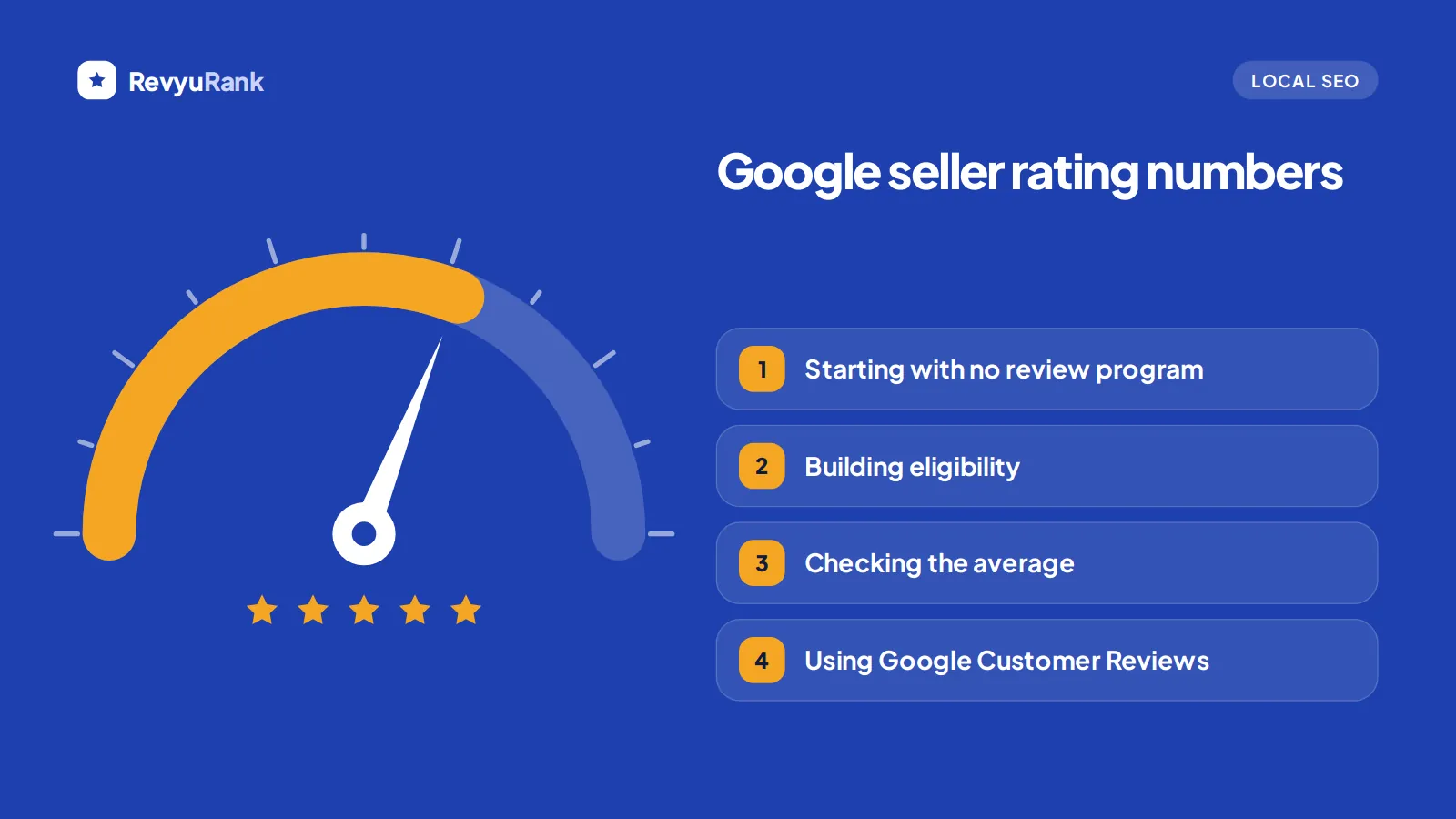
Two figures matter most: the number of recent reviews and the average star score. These figures are useful checks, but Google can change requirements or apply different conditions by format and country. Verify your account’s current status in Google’s seller ratings eligibility guidance.
| Store situation | What to use or do | Figure that matters | What to watch for |
|---|---|---|---|
| Starting with no review program | Add an eligible collection method | 0 eligible reviews to begin | Reviews need to match the store |
| Building eligibility | Collect genuine store reviews | Google has commonly used 100 reviews in 12 months, per country | Older reviews may carry less weight |
| Checking the average | Review the store score | Google has commonly used 3.5 stars | A high count doesn’t repair a low score |
| Using Google Customer Reviews | Invite buyers after orders | Survey timing is controlled by the program | Don’t pressure buyers to give five stars |
| Using a review partner | Confirm the partner is accepted | Partner rules vary | Product reviews may not equal seller reviews |
| Changing your domain | Update every connected account | One current store domain | Redirects and old domains can split data |
| Seeing no stars in an ad | Check eligibility and matching | No guaranteed display figure | Search, country, device, and format can vary |
The 100-review and 3.5-star figures aren’t a promise that the rating will show. Google may need enough recent, reliable data and a clear match between the reviews and your store.
Review counts are per country
Google counts reviews country by country. Reviews from one country don’t add up to another. A store that sells in several markets may qualify in one and not in another. Collect reviews from customers in each country where you advertise.
Better Google seller ratings results
Start with the buying journey, not the review request. Keep the product title, price, stock message, shipping promise, and checkout details consistent. A customer who receives what the ad promised has a better reason to leave a useful review.
Ask at a sensible point after delivery or order completion. The request should identify the store clearly and explain that honest feedback is welcome. If your system sends the request before the order arrives, customers may judge delivery before they can judge the full experience.
Check the review flow yourself with a test order where your platform permits it. Confirm that the survey names the correct business, links to the correct domain, and doesn’t send shoppers to a broken page. Leave the review wording and score in the customer’s control.
Review complaints by theme each month: late delivery, damaged goods, wrong items, unclear returns, poor support, or billing problems. Fix the issue that appears repeatedly. A request for more five-star reviews won’t solve a delivery failure, and it may waste the review opportunity.
Leave old reviews visible unless the platform or law gives a valid reason to remove them. Don’t merge two different stores, move reviews from a closed domain without checking the rules, or rewrite customer comments. Those shortcuts can break matching and reduce trust.
Google seller ratings problems
A missing rating can have several causes. Check the simple account and data issues before changing your ads.
| What you notice | What it usually means | What to do first |
|---|---|---|
| No stars after collecting reviews | Google hasn’t matched enough eligible data | Check the domain, business name, country, and review source |
| Reviews show on your site but not in ads | Website reviews may not be an accepted source | Check whether the source is supported for seller ratings |
| Rating looks lower than expected | Google is using store-experience data | Read recent complaints about delivery, support, and returns |
| Review count differs between systems | Data refreshes or matching rules differ | Compare the same domain, country, and date range |
| Stars show for one campaign only | Eligibility can vary by format or context | Check the ad type, country, device, and preview |
| Reviews disappeared after a rebrand | Old and new identities may not match | Ask your platform or review provider about migration |
Don’t create a second review profile just because the first one is slow to update. That can split your customer history and make matching harder. If account changes, feed errors, or policy warnings remain, contact Google support or the review partner that sends your data.
Seller rating checks
No single general law gives every store the same Google seller-rating result. Before you start, confirm the rules that fit your business and the market where you sell. Eligibility can also depend on how your store collects and submits customer feedback.
- Check Google Merchant Center for the current seller-rating status and eligibility message. If the status identifies a missing requirement, resolve that issue before changing your ads or review-request process.
- Ask your review provider whether it sends store reviews, not only product reviews. Product feedback describes an item; it doesn’t necessarily contribute to the store-level rating you’re trying to earn.
- Confirm the review request follows your country’s privacy and marketing rules. Check whether consent is required before sending an email and whether customers can decline future requests.
- Check whether the business name, domain, address, and customer-support details match across Google systems. Fix inconsistencies before assuming the rating is delayed or missing.
- Review Google Ads policies before adding any rating claim to ad text or landing pages. Don’t copy a rating into an ad unless Google makes that rating eligible for the placement.
Google’s own program terms and policies control how its review features work. Your local privacy regulator may control consent, email requests, and customer-data use. If you sell across countries, check each market rather than applying one consent process everywhere. A marketing or privacy professional should handle the setup if you’re collecting personal data across countries.
Keeping seller ratings healthy
Keep the store details stable after the rating starts showing. If you change domains, trading names, checkout systems, or review providers, record the change and check how the old review data will be handled.
Watch the review source for failed requests, duplicate invitations, and surveys sent to canceled orders. Remove technical errors quickly, but don’t delete honest criticism just because it lowers the average.
There’s no universal period when a seller rating must be renewed. Its usefulness can change as new reviews arrive and older reviews become less relevant. Recheck the score when delivery times, products, suppliers, support staff, or return terms change.
If the score drops, read the newest feedback first. Improve the repeated problem, then keep collecting unbiased reviews. Don’t ask only happy customers, because that can make the profile less representative and may violate review-program rules.
When Google seller ratings aren’t right
Google seller ratings aren’t a good shortcut for a new store with very few completed orders. If you don’t have enough real customer feedback, focus on accurate product pages, clear shipping terms, and reliable support while you build history.
They’re also a poor fit if your business changes names, domains, or product lines often. In that case, keep each store identity clear and ask your platform or review provider how to preserve valid data before moving it.
If customers mainly buy in person, a local business review program may fit better than an online seller-rating setup. If your problem is a low score, don’t buy reviews or hide complaints; fix the store experience and use honest feedback.
Google seller ratings also won’t repair an unclear offer. If shoppers leave because the price, delivery date, or return policy is confusing, improve that page first.
Related guides
- How To Get Google Reviews For Ice Cream Shops: Proven Tips to Boost Ratings
- Google Reviews Not Showing: A Step-by-Step Guide
- Create QR Code for Google Reviews: A Simple Guide
Want an expert to set this up with you? Take a look at Google Business Profile Optimization Service.
Prefer a done-for-you option? Read about Google Review Generation.
Frequently asked questions
Can I add Google seller ratings manually?
No. You can’t manually switch on an official Google seller rating or choose the score shown in an ad. Google matches eligible review data to your business and decides when the rating can appear. You can improve the data by using an accepted review source, keeping business details consistent, and collecting genuine feedback after real transactions.
Why are my Google seller ratings not showing?
The usual reasons are insufficient eligible data, a store-domain mismatch, an unsupported review source, or a campaign and country where the display isn’t available. Check Merchant Center and Google Ads for the exact status message. Also compare your business name, website, country, and review-provider details across every connected account.
How long do Google seller ratings take to appear?
There’s no guaranteed publication time. Google needs to receive, process, and match eligible review data, and the display can vary by ad format and search. A new store should watch for the account status to change rather than expect stars immediately after the first review. Ask your review provider about its data-delivery schedule.
Is it safe to ask customers for Google seller ratings?
Yes, asking for honest feedback after a real purchase is generally appropriate when you follow the program and local marketing rules. Don’t ask only for positive reviews, write reviews for customers, offer rewards for reviews, or hide negative feedback. Check your privacy and email-consent requirements before sending invitations.
What happens if my seller rating falls below 3.5 stars?
It may become harder to qualify for displays that use a 3.5-star threshold, but the result depends on Google’s current rules and available data. Read recent complaints, fix the repeated store problem, and continue requesting unbiased feedback. Don’t create a new profile to escape a low score; that can split your history.
How many reviews do I need for Google seller ratings?
Google has commonly used 100 unique reviews from the same country in the past 12 months for seller-rating eligibility checks, together with an average of at least 3.5 stars. That isn’t a universal guarantee. Google may apply other data and matching conditions, so check the current eligibility message in your Merchant Center account.
What to do next
Treat your review program as an ongoing part of customer care, not a one-time setup. Keep listening to buyers, watch how your store appears in Google results, and investigate changes in visibility or feedback. Over time, steady service and honest reviews can give potential customers more confidence to choose you.

Robert Miller works as a Reputation Management Consultant. He has been helping U.S. businesses for over ten years. His work involves helping people protect and enhance their online image.Robert has worked with a wide range of companies. He has helped new businesses, local places that give a service, and big companies. He helps turn customer reviews into something that helps people trust their company and drives business growth.